Troubleshooting for Cluster Access
다운로드
포커스 모드
폰트 크기
After the cluster is accessed, the system will create a namespace named
tcss in the cluster. In the tcss namespace, the system will install a Job-type workload named init-tcss-agent and a Deployment-type workload named tcss-asset. In the kube-system namespace, the system will install a DaemonSet-type workload named yunjing-agent. Ensure that all three workloads are running properly.Troubleshooting Using the Console
Job Workload
Check whether the Pod named
init-tcss-agent in the Job workload is running properly.1. Log in to the TKE console. In the left sidebar, click Clusters.
2. On the clusters page, click Target Cluster Name, select Workload > Job, and search for
init-tcss-agent.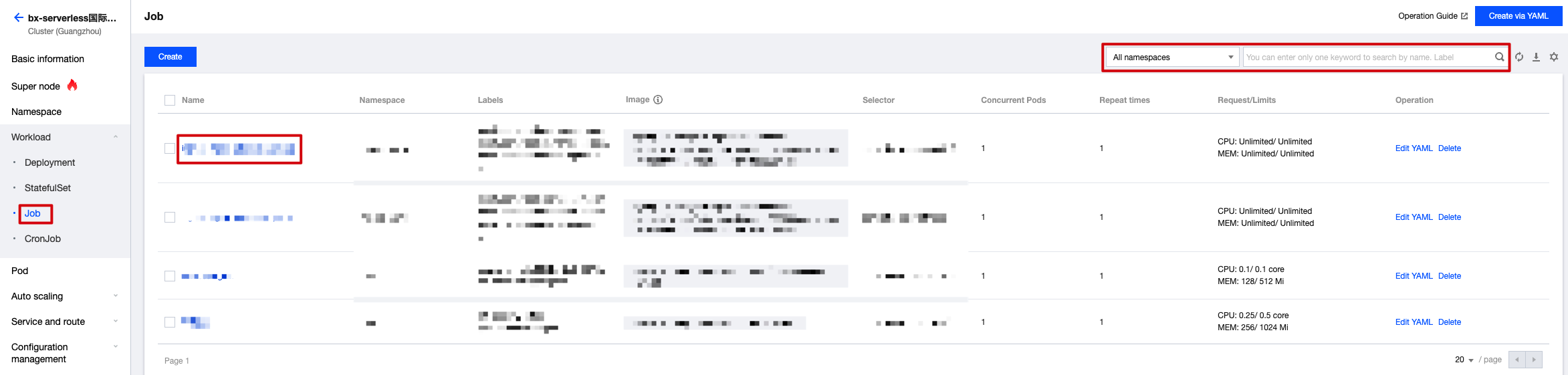
3. Click Target Namespace to enter the details page. If the status shows
Succeeded, it indicates that the Pod named init-tcss-agent is running properly.
DaemonSet Workload
Check whether the Pod named
yunjing-agent in the DaemonSet workload is running properly.1. Log in to the TKE console. In the left sidebar, click Clusters.
2. On the clusters page, click Target Cluster Name, select Workload > DaemonSet, and search for
yunjing-agent.
3. Click Target Namespace to enter the details page. If the status shows
Running, it indicates that the Pod named yunjing-agent is running properly.
Deployment Workload
Check whether the Pod named
tcss-asset in the Deployment workload is running properly.1. Log in to the TKE console. In the left sidebar, click Clusters.
2. On the cluster page, click Target Cluster Name, select Workload > Deployment, and search for
tcss-asset.
3. Click Target Namespace to enter the details page. If the status shows
Running, it indicates that the Pod named tcss-asset is running properly.
Troubleshooting Using the Command Line
Job Workload
1. Check if the Job is successfully created by running the command:
kubectl get jobs -n tcss.
2. Check if the Job is successfully deployed by running the command:
kubectl get pods -n tcss | grep init-tcss-agent.
DaemonSet Workload
1. Check if the DaemonSet is successfully created by running the command:
kubectl get daemonset -A -l k8s-app=yunjing-agent.
2. Check if the DaemonSet is successfully deployed by running the command:
kubectl get pods -A -l k8s-app=yunjing-agent.
Deployment Workload
1. Check if the Deployment is successfully created by running the command:
kubectl get deployment -n tcss.
2. Check if the Deployment is successfully deployed by running the command:
kubectl get pods -n tcss | grep tcss-asset.
피드백