tencent cloud

Tencent Container Security Service

Release Notes
Product Introduction
Overview
Strengths
Use Cases
Features and Versions
Purchase Guide
Applying for Trial
Purchasing Pro Edition
Purchasing Image Scan
Purchasing Log Analysis
Getting Started
Operation Guide
Security Overview
Asset Management
Vulnerability Detection
Image Risk Management
Cluster Risk Management
Baseline Management
Runtime Security
Advanced Defense
Policy Management
Protection Switch
Alarm Settings
Log Analysis
Hybrid Cloud Installation Guide
Compromised Container Isolation
Log Field Data Parsing
Practical Tutorial
Mirror Vulnerability Scanning and Vulnerability Management
Troubleshooting
Offline Linux Client
Troubleshooting for Cluster Access
API Documentation
History
Introduction
API Category
Making API Requests
Network Security APIs
Cluster Security APIs
Security Compliance APIs
Runtime security - High-risk syscalls
Runtime Security - Reverse Shell APIs
Runtime Security APIs
Alert Settings APIs
Advanced prevention - K8s API abnormal requests
Asset Management APIs
Security Operations - Log Analysis APIs
Runtime Security - Trojan Call APIs
Runtime Security - Container Escape APIs
Image Security APIs
Billing APIs
Data Types
Error Codes
FAQs
TCSS Policy
Privacy Policy
Data Processing And Security Agreement
Contact Us
Glossary

Protection Switch

PDF
Focus Mode
Font Size
Last updated: 2024-08-13 17:13:56
After enabling TCSS, you can adjust TCSS activation for clusters and CVMs with statically launched containers on the Protection Switch page.

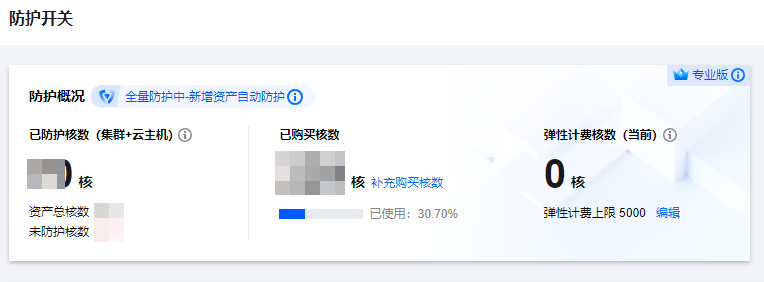
Protection Overview

Displays details of TCSS activation, including both full protection and custom asset protection. You can switch based on your protection needs:
Full protection: All clusters and CVMs with statically launched containers in your current business environment will have TCSS enabled. If new clusters or CVMs with statically launched containers are added to your business in the future, TCSS will automatically be enabled for your new assets. During activation, your unused cores will be consumed by default. If there are insufficient remaining cores, additional fees will be charged through post-paid elastic billing.
Custom asset protection: Select specific clusters or CVMs with statically launched containers to enable TCSS, rather than full activation.

Field Name
Description
Protected Cores
The number of cluster and CVM node resource cores with the protection switch enabled and under effective protection. Some assets may not count as effectively protected due to reasons such as the agent being offline for an extended period or Docker not being installed. These cores will not be included in the protected cores.
Total Asset Cores
The total number of cores for all clusters and CVMs running containers under this account.
Unprotected Cores
The number of cores for clusters and CVMs running containers without TCSS enabled.
Purchased Cores
The number of cores purchased for billing. When more assets need TCSS enabled and the purchased cores are insufficient, you can click Supplementary purchase of core count to make an additional purchase.
Flexible Billing Cores
Flexible billing will be calculated based on the daily average of unprotected cores (calculated hourly). This section only displays the total flexible billing cores for the day up to the current time. You can click Edit to adjust the flexible billing cores, with a default value of 5,000.

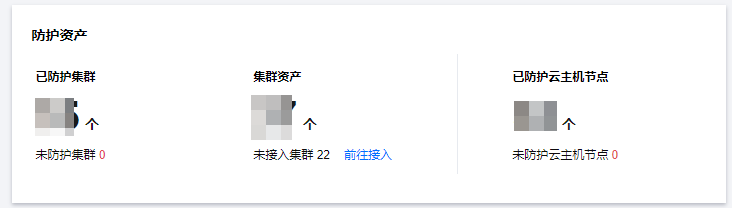
Protected Assets

Display the number of clusters with TCSS enabled, clusters without TCSS enabled, full cluster assets (including clusters not connected to the console), and the number of CVMs with statically launched containers with TCSS enabled, as well as the number of CVMs with statically launched containers without TCSS enabled.
Note:
CVMs with Statically Launched Containers: CVMs running containers that are not associated with any cluster resources.


Protection List

You can view the details of enabling TCSS for clusters and CVMs with statically launched containers in the list, or adjust the enable/disable services for clusters and CVMs. It is recommended to update the assets before you enable the service by clicking Synchronize Assets at the top right of the page to obtain the latest asset details.

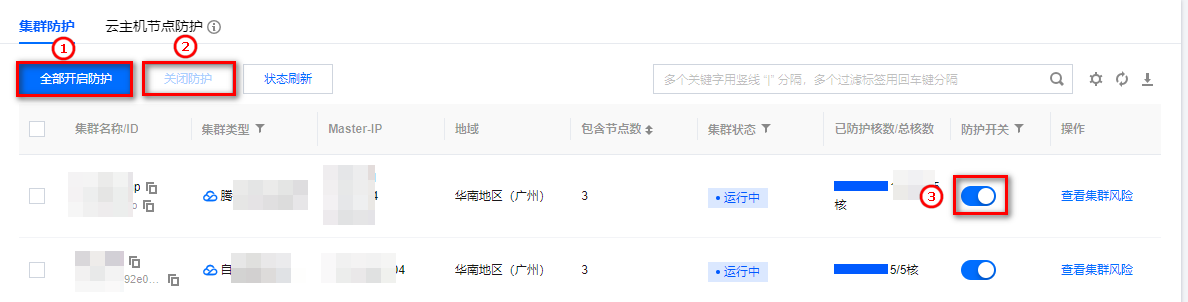
Cluster Protection

① Click All enable protections to batch enable TCSS for all clusters.
② You can also check multiple clusters and click Disable protections to batch disable them.
Note:
If the number of clusters enabled exceeds the purchased cores, it is recommended to purchase additional cores. If not purchased in time, the excess cores will be charged through elastic billing.
If the exceeded cores exceed both the purchased cores and the elastic billing core limit, the cluster protection switch cannot be enabled. It is recommended to purchase additional cores or increase elastic billing cores before you proceed.
③ To enable or disable a single cluster, you can adjust it in the protection switch column by clicking Protection switch.

Field Name
Description
Cluster Name/ID
Name/ID of the cluster integrated with TCSS. For clusters not connected, complete the connection on the cluster inspection page before enabling the service.
Cluster Type
Includes Tencent Cloud managed cluster, Tencent Cloud independent cluster, Tencent Cloud Serverless cluster, self-built cluster (Tencent Cloud), and self-built cluster (Non-Tencent Cloud).
Master-IP
Cluster control node, used to identify the cluster. You can use this information for cluster retrieval.
Region
The belonging region.
Including Node Count
Number of nodes included in the cluster.
Cluster Status
Cluster running status, including running, creating, and exceptional.
Protected Cores/Total Cores
The number of protected cores in clusters with TCSS enabled, and the total number of cores in the cluster. When the purchased cores or elastic cores are sufficient, the cluster is fully protected. If the purchased or elastic cores are insufficient, this column will show partial protection or no protection, indicating that you need to purchase more cores or increase the elastic billing cores.
Protection Switch
You can enable or disable TCSS for individual clusters.
Operation
Click View cluster to navigate to the cluster inspection page to view the configuration risk and vulnerability risk of the cluster.

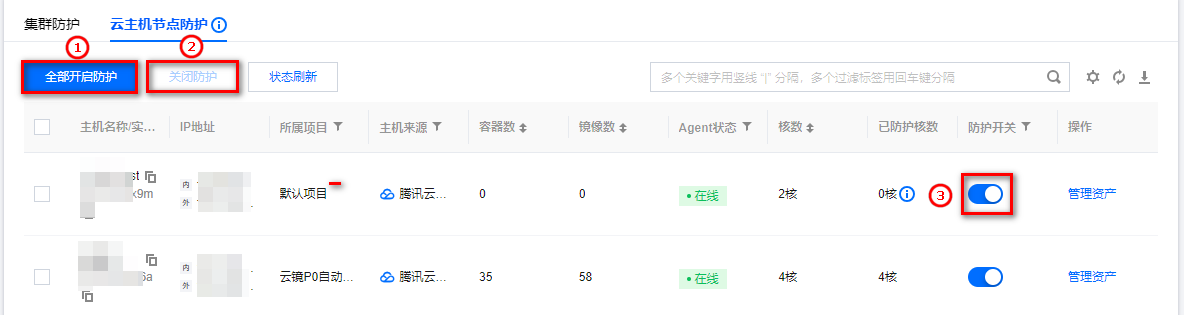
CVM Node Protection

① Click All enable protections to batch enable TCSS for all CVMs with statically launched containers.
② You can also check multiple nodes and click Disable protections to batch disable them.
Note:
If the number of CVMs enabled exceeds the purchased cores, it is recommended to purchase additional cores. If not purchased in time, the excess cores will be charged through elastic billing.
If the exceeded cores exceed both the purchased cores and the elastic billing core limit, the CVM protection switch cannot be enabled. It is recommended to purchase additional cores or increase elastic billing cores before you proceed.
③ To enable or disable a single CVM, you can adjust it in the protection switch column by clicking Protection switch.

Field Name
Description
Host Name/Instance lD
Name/Instance ID of the CVM with statically launched containers.
IP Address
Private and public IP address of the CVM with statically launched containers.
Project
Project information configured at the time of purchasing the CVM for easy filtering.
Server Source
Including Tencent CVMs and Non-Tencent CVMs.
Containers
Number of containers running on the CVM with statically launched containers.
Images
Number of local images on the CVM with statically launched containers.
Agent Status
Includes online, offline, and not installed.
Core Count
Cores of the CVM with statically launched containers.
Protected Cores
When the purchased cores or elastic cores are sufficient, the CVM is under full protection, and the number of protected cores are the same as the CVM cores. When the purchased cores and elastic billing cores are insufficient and TCSS is enabled on the CVM, the protected cores will be fewer than the CVM cores. It is recommended to purchase additional cores or increase elastic billing cores before you proceed.
Alternatively, it may be due to the Agent being offline for an extended period on your host node, causing an exceptional condition. The current host node protection cores will be displayed as 0 and will not be billed.
Protection Switch
You can enable or disable TCSS on a single CVM.
Operation
Click Manage assets to go to the host node list.


Help and Support

Was this page helpful?

Help us improve! Rate your documentation experience in 5 mins.

Feedback