tencent cloud

Tencent Cloud Firewall

Release Notes and Announcements
Release Notes
Engine Release Notes
Product Announcement
Getting Started
Product Introduction
Overview
Advantages
Scenarios
Key Concepts
Supported Region
CFW High Availability Specification
Purchase Guide
Billing Overview
Purchase Instructions
Billing Modes
Renewal Instructions
Resource deletion upon expiration
Refund Instructions
Operation Guide
Firewall Toggle
Asset Center
Alert Management
Traffic Monitoring
Access Control
Intrusion Defense
Network Detection and Response
Honeypot
Log Audit
Log Analysis
Log Shipping
Log Fields
Notifications and Settings
Common Tools
Practical Tutorial
Use Cloud Firewall with Other Products
DNS Firewall Practical Tutorial
Practical Tutorial for Protecting Against Mining Attacks
Inter-VPC Firewall Practice Tutorial
Troubleshooting
Solution for False Alarms and False Positives
API Documentation
History
Introduction
API Category
Making API Requests
Intrusion Defense APIs
Access Control APIs
Other APIs
Enterprise Security Group APIs
Firewall Status APIs
Data Types
Error Codes
FAQs
Basic Introduction
Bandwidth
Firewall
Feature
Log
Account
Billing
Others
Service Level Agreement
CFW Policy
Privacy Policy
Data Processing And Security Agreement

Rule Backup

PDF
Focus Mode
Font Size
Last updated: 2026-03-11 11:06:10
When access control rules are modified, the system supports backing up existing rules and rolling back the backed-up rules to the corresponding rule list.

Rule Backup

1. Log in to CFW console, in the left sidebar, click Access Control.
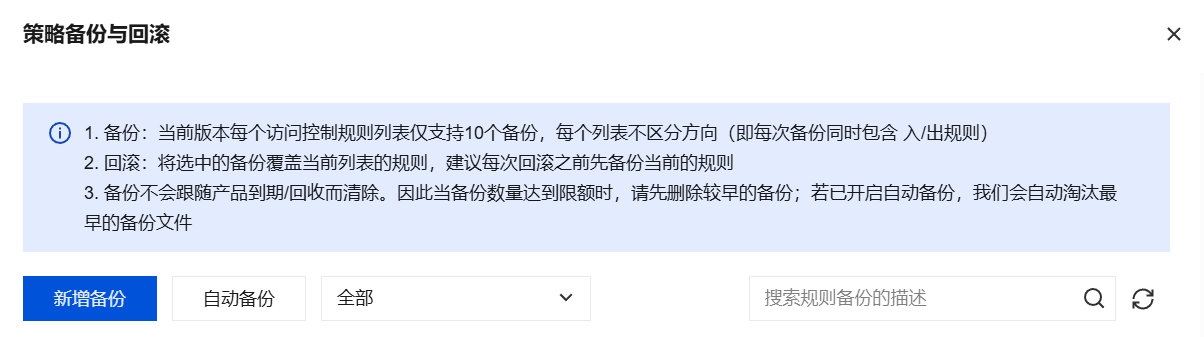
2. On the Access Control page, click Rule Backup in the upper-right corner.

3. In the Back up and roll back rules dialog, you can create backup manually or set up auto-backup.


Create backup

1. In the Back up and roll back rules dialog, click Create backup
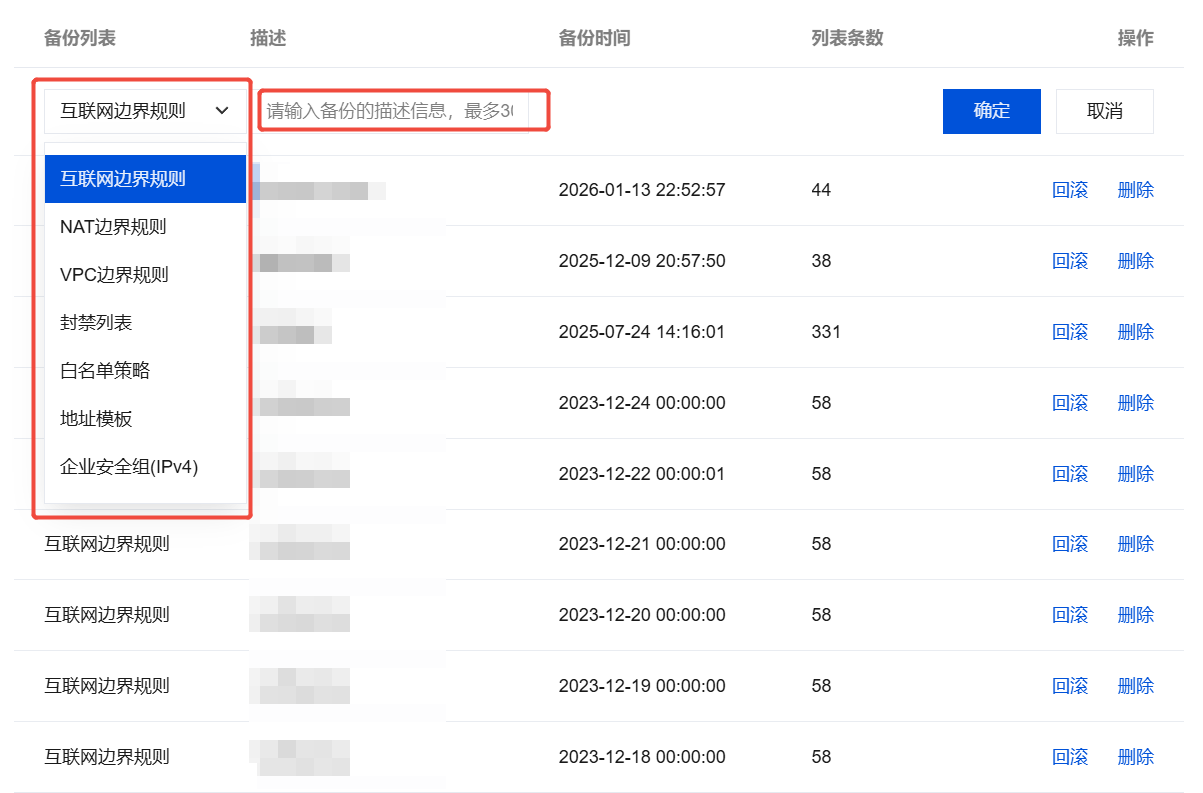
2. Select the rule list to be backed up and fill in the description.

3. Click OK to complete adding the new rule backup.

Auto-backup

1. In the Back up and roll back rules dialog, click Auto-backup.
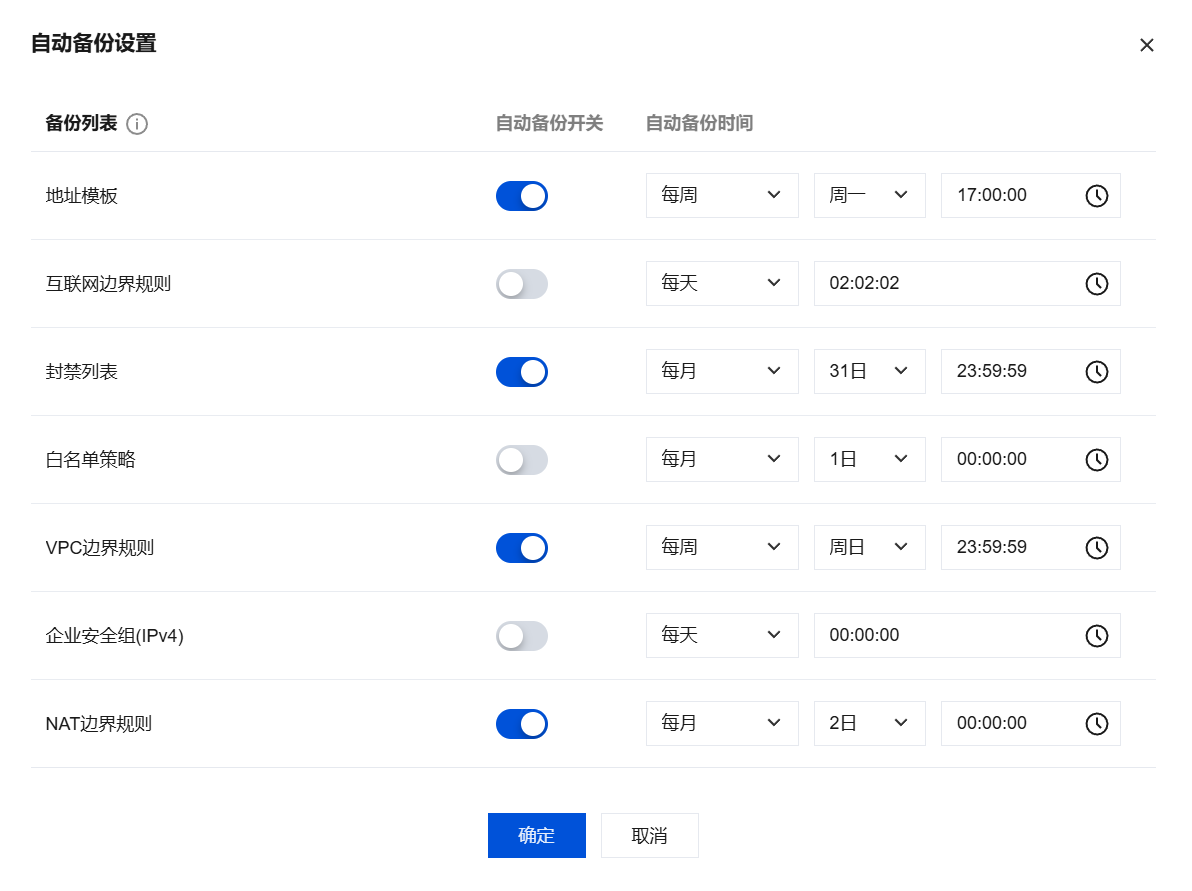
2. In the Auto-backup settings dialog, configure the following parameters:

Parameter
Description
Backups
It displays all rule lists that can be set for automatic backups.
Auto-backup
When it is enabled, automatic backups will be performed at the scheduled time. When it is disabled, automatic backups will no longer be performed.
Creation time
Set the execution cycle and specific time for automatic backups. The following three cycle types are supported:
Every day: Select the specific time to perform daily backups.
Every week: Select a specific day from Monday to Sunday and set the backup execution time.
Every month: Select a specific day from the 1st to the 31st and set the backup execution time.
Note:
When monthly backup is selected, if the chosen date exceeds the actual number of days in that month (for example, selecting the 31st when there are only 30 days), the backup will be performed on the last day of that month.
3. Click OK to complete the automatic backup setup. The configuration takes effect immediately.

Backup Management

1. Log in to CFW console, in the left sidebar, click Access Control.
2. On the Access Control page, click Rule Backup in the upper-right corner.

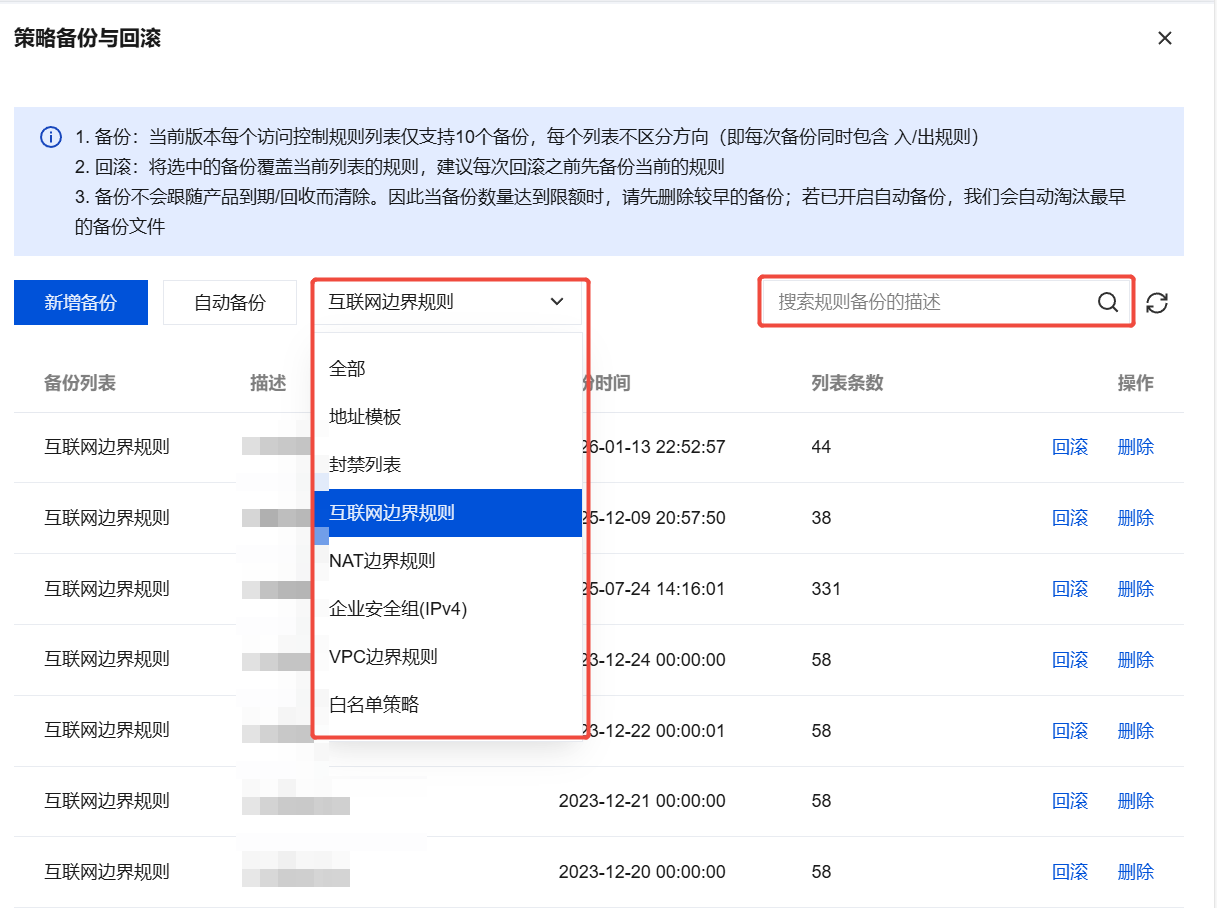
3. In the policy backup and rollback dialog, select the rule list to be managed, or enter a description in the search box on the right to search.

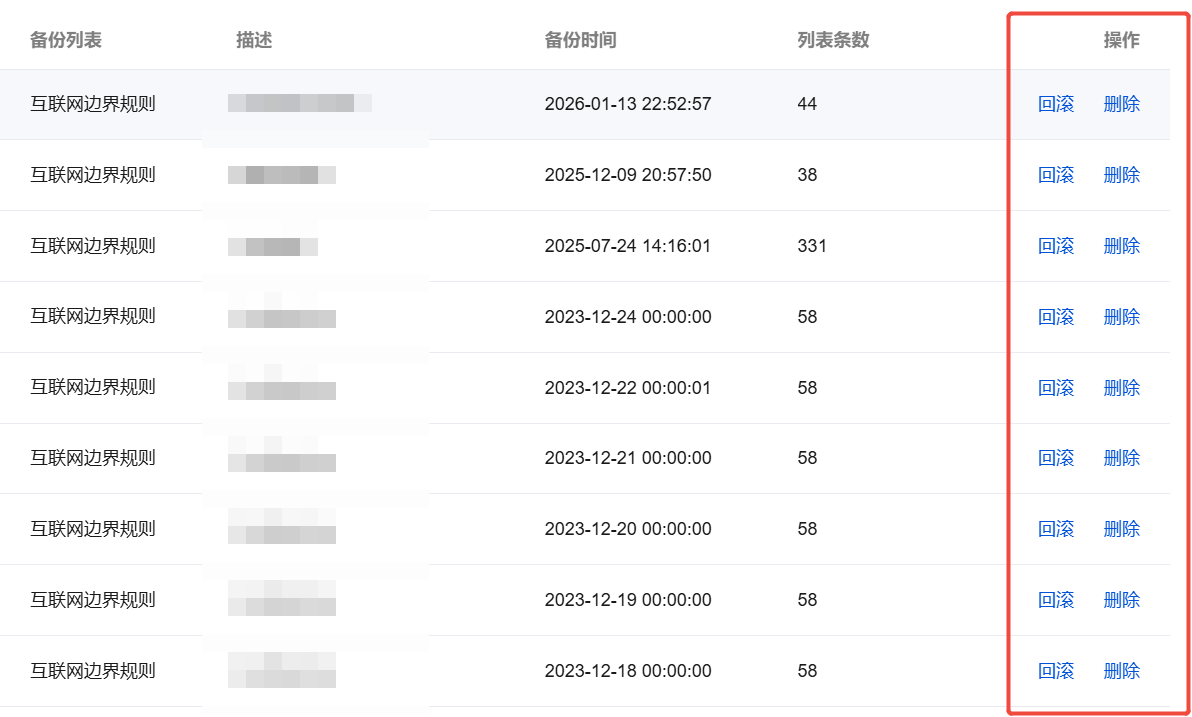
4. Select the backed-up rules and perform the following operations as needed:

Roll back: Click Roll back in the Operation column of the target backup rule. In the "Confirm to roll back with the backup" pop-up window, click OK to roll back the backed-up rules and overwrite the current rule list.
Note:
Rule rollback will overwrite the corresponding rule list, and existing policies will be deleted. To ensure data security, it is recommended to back up the current rule list first.
Delete: Click Delete in the operation column of the target backup rule, in the "Are you sure you want to delete this rule backup" pop-up window, click OK, to delete the backed-up rules.
Note:
Once rule backups are deleted, they cannot be retrieved or restored. Please proceed with caution.

Related Information

If you encounter Access Control related issues, see the Access Control documentation.


Help and Support

Was this page helpful?

Help us improve! Rate your documentation experience in 5 mins.

Feedback