Solution for False Alarms and False Positives
Download
Focus Mode
Font Size
This topic describes how to deal with a large number of firewall false positives and an abnormal drop in traffic due to improper strategy changes.
Problem
A large number of legitimate requests from certain IPs are blocked due to false positives of intrusion defense, or an abnormal drop in traffic is caused by improper strategy changes.
Solution
If these requests are blocked by Cloud Firewall, you can disable the blocking feature, allow requests from the blocked IPs, or request support from the product security team.
Steps
Step 1: disable the blocking feature
Step 1: disable the blocking feature
1. Log in to the Cloud Firewall console, and then click Intrusion Protection System in the left navigation pane.
2. Select Observe for the protection mode on the intrusion defense page.

3. Disable "Enable blocklist" above the blocklist.

Step 2: manual troubleshooting
1. Log in to the Cloud Firewall console, and then click Alert Management in the left navigation pane to enter the Alert Management page.
2. On the Alert Management page, select Blocked statistics -> Inbound.
3. On the Inbound tab, select Sort by blocking statistics to find the IP address that is falsely blocked.
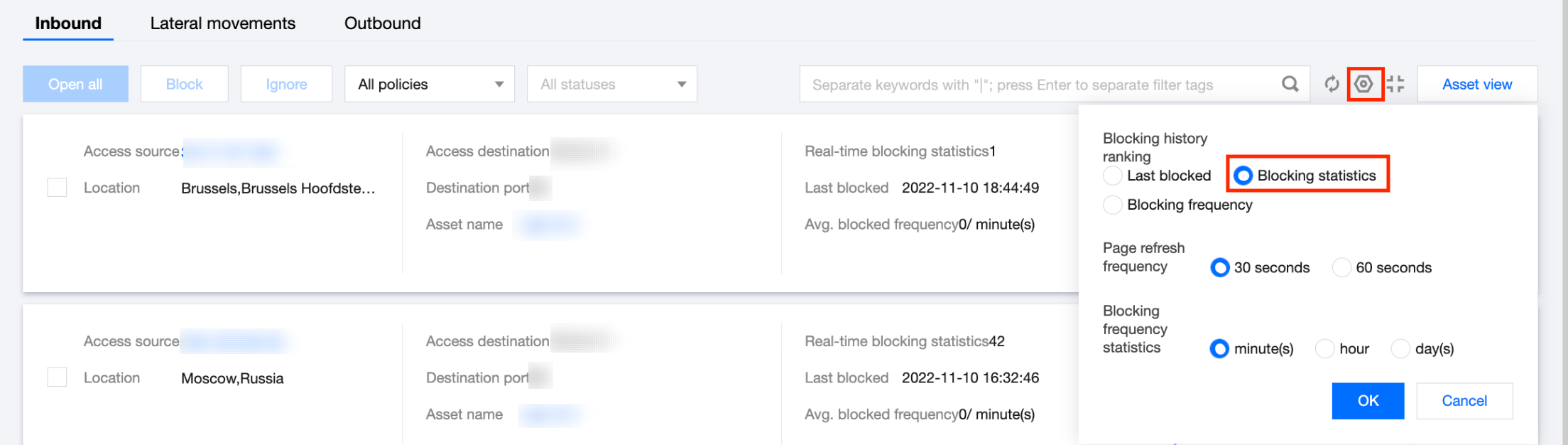
4. Add the IP address to the allowlist.
Method 1: Click Allow on the right side of the falsely blocked IP address to add it to the allowlist (ignore list) and allow access from the IP address.
Method 2: On the Intrusion Defense page, select Ignore list -> Add addresses to add the falsely blocked IP addresses in batches.

5. After the above procedures, restore the configuration in Step 1 and observe if the traffic volume returns to normal.
Step 3: submit a ticket to report false positives
1. If the traffic volume is still abnormal after manual troubleshooting, enter the Submit ticket page and provide your AppID and the falsely blocked IP addresses to the security team.
2. After the feedback is received, the security team will respond within the specified time period and adjust the detection rules.
Help and Support
Was this page helpful?
You can also Contact sales or Submit a Ticket for help.
Help us improve! Rate your documentation experience in 5 mins.
Feedback