Username and Password Authentication
ダウンロード
フォーカスモード
フォントサイズ
Scenarios
IDSEC supports the use of a username-password authentication source, which verifies user identities using usernames and passwords.
Operation Steps
1. Log in to the IDSEC console, choose Authentication Management > General Authentication Sources in the left sidebar, and go to the General Authentication Sources page.
2. On the General Authentication Sources page, click Create authentication source to go to the New Authentication Source page.
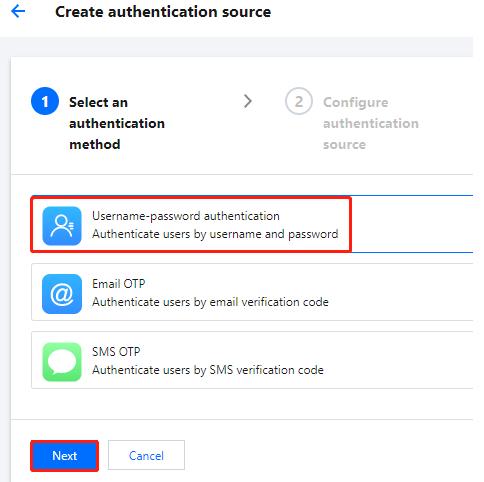
3. On the New Authentication Source page, select Username-password authentication and click Next.
4. On the New Authentication Source page, configure the authentication source icon, name, attributes, and description, and then click Next.
Note:
Authentication source icon: It is displayed in lists and portals. Users can click Re-upload to replace the default icon.
Authentication source name: A user-identifying authentication source.
Authentication source attributes: User attributes that can be used to verify identity when users authenticate with a username and password.
Authentication source description: A brief description of the authentication source.
5. On the New Authentication Source page, configure the relevant
parameters
and click OK to create the authentication source.Parameter Name | Description | |
Configure password policy. | Select password policy. | The minimum password length ranges from 6 to 128 characters. It is recommended to set it to at least 8 characters, including uppercase letters, lowercase letters, digits, and special characters. Used to limit the strength of passwords set by users. Supports 5 password policies, with a strong default password strength. |
| Number of previous passwords remembered | Avoid reusing the same password within a period of time, ranging from 1 to 128 times. |
Password lockout policy | Password lockout | If a policy set that protects the password lockout policy is selected during application, the password lockout policy in the policy set will be used preferentially. After it is enabled, the number of failed login attempts for a user will be limited. |
| Lockout threshold | When password lockout is enabled, you must set this value. If the number of incorrect login attempts exceeds the specified range, the account will be locked and cannot log in again until it is unlocked. The valid range is 1 to 999 attempts. |
| Password attempt time window | When password lockout is enabled, you must set this value. If the number of incorrect login attempts exceeds the password lockout threshold within the set time window, the user will be locked. The valid range is 1 to 99,999 hours. |
| Unlock duration | When password lockout is enabled, you must set this value. It is the duration for which the account remains locked before it is automatically unlocked. The valid range is 1 to 999,999 minutes. |
Verification code | Enable graphical Captcha protection. | After it is enabled, Captcha verification will be automatically activated when a user's number of failed login attempts exceeds the specified limit. If a policy set that protects the password lockout policy is selected during application, the Captcha policy in the policy set will be used preferentially. |
| Number of incorrect password attempts | When Captcha is enabled, you must set this value. If the number of incorrect attempts exceeds the specified range, Captcha login verification is enabled. The valid range is 1 to 999 attempts. Attention: If password lockout is also enabled, set this value to be less than the lockout threshold. Otherwise, users may be locked out before the Captcha appears. |
Try password policy | | After configuring the password policy, you can enter a test password to verify whether it meets the password policy. |
フィードバック