Configuring Application
Download
포커스 모드
폰트 크기
Scenarios
In IDSEC, administrators can configure created applications according to business requirements. Configurations include basic information (such as icons and names), parameters (such as redirect URLs and logout URLs), and flows (such as registration, login, password recovery, and agreement management).
Operation Steps
1. Log in to the IDSEC console, select Application Management in the left sidebar.
2. On the Application Management page, click Configuration in the Operations column to go to the Basic Information page for application configuration.

Basic Info
On the Basic Information page, you can modify the Application icon, Template Name, Application type, Description, and Industry. After making changes, click OK to save.
Parameter Configuration
1. On the Application Configuration page, click Parameter Configuration to switch to the Parameter Configuration page.
2. On the Parameter Configuration page, fill in the required information and then click OK to save.
Parameter description:
Parameter | Description | Example Value |
Redirect URI | Enter a complete URL starting with http or https to receive the authorization code from the OAuth protocol. After the user grants authorization, the service will redirect to this address with the code. | |
Logout Redirect URI | Enter a complete URL starting with http or https. This URL is the redirect address after user logout. | https://www.qq.com/logout |
Access_token validity | access_token validity period, default 600 seconds | 600 |
refresh_token | refresh token enabled or not | - |
Claims | refresh_token validity period. Specify this value when a token needs to be refreshed. The default value is 86400 seconds. | 86400 |
Process Configuration
Flow configuration primarily includes configuring the registration flow, login flow, MFA flow, forgotten username flow, and forgotten password flow. By configuring different parameters, you can customize the application's specific requirements for flows such as registration and login.
For applications of the Web, Single-Page, and Mobile App types, you can configure the registration flow, login flow, MFA flow, forgotten username flow, and forgotten password flow.
Configuring Web, Single-Page, and Mobile App Applications
1. On the Application Configuration page, click Flow Configuration to switch to the Flow Configuration page.
2. On the Flow Configuration page, you can find five major modules: the registration flow, login flow, MFA flow, forgotten username flow, and forgotten password flow.
Registration: Click Edit in the upper-right corner of the module, configure the relevant parameters, and then click OK to save the configuration.
Parameter description:
On/Off: Enabled by default. If it is disabled, users cannot register.
Authentication attribute: It is required to be filled in by users during registration and can be used as a unique user identifier.
SMS OTP authentication source: This is the policy for sending SMS OTPs during registration. You must select this policy when you choose the phone number as the authentication attribute.
Email OTP authentication source: This is the policy for sending email OTPs during registration. You must select this policy when you choose the email address as the authentication attribute.
General attribute: It is required to be filled in by users during registration and cannot be used as a unique user identifier.
User group: The group to which a user belongs after successful registration.
Auto login: When auto-login is enabled, users are automatically logged into the application upon successful registration. Otherwise, the system redirects to the login page for users to log in manually.
Consent statement: You can enable the consent statement feature and configure the consent statement on the registration page. The configuration instructions are as follows.
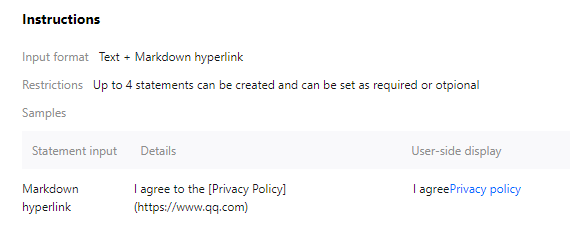
Login: Click Edit in the upper-right corner of the module, configure the relevant parameters, and then click OK to save the configuration.
Parameter description:
On/Off: Enabled by default. If it is disabled, users cannot log in.
Preferred authentication source: The preferred authentication method displayed on the login page.
Associate authentication source: The alternative authentication method displayed on the login page.
claims: The user attribute fields returned by the APIs for obtaining tokens and user information.
Remember password: Controls whether the browser remembers passwords.
Consent statement: You can enable the consent statement feature and configure the consent statement on the login page.
MFA process: Click Edit in the upper-right corner of the module, configure the relevant parameters, and then click OK to save the configuration.
Parameter description:
Whether to enable: Disabled by default. If the option is enabled, two-factor authentication will be activated.
Associated authentication sources: This includes two authentication methods: SMS OTP authentication source and email OTP authentication source.
Process of retrieving username: Click Edit in the upper-right corner of the module, configure the relevant parameters, and then click OK to save the configuration.
Parameter description:
On/Off: Enabled by default. If the option is disabled, users cannot retrieve their usernames.
Retrieving method: The method for receiving the username, such as email.
Process of resetting password: Click Edit in the upper-right corner of the module, configure the relevant parameters, and then click OK to save the configuration.
Parameter description:
On/Off: Enabled by default. If it is disabled, users cannot reset their passwords.
Retrieving method: The method for receiving verification codes, used for password reset, such as email.
CORS for Security Domains
To call the IDSEC API using JavaScript, you must configure trusted CORS security domains. A maximum of 10 domains can be configured.
1. On the Application Configuration page, click Security Domain CORS to switch to the Security Configuration page.
2. On the Security Configuration page, click Edit.
3. After filling in the required information, click OK to save the configuration.
Notes
The application's Redirect URI has been added to the CORS security domain by default. No additional configuration is required here.
A security domain must start with https:// or http://. The format is <protocol> "://" <domain name or IP address> [ ":" <port number> ], for example,
https://sample.portal.tencentciam.com or http://127.0.0.1:8080. Request paths are not supported.The domain name part can only contain lowercase letters, digits, half-width periods (.), half-width asterisks (*), and half-width hyphens (-). Within each segment of the domain name, a hyphen cannot be used at the beginning or end, and consecutive hyphens are not allowed. The first segment of the domain name can be an asterisk (*), which represents matching any subdomain, for example,
https://*.example.com. Other segments of the domain name cannot be an asterisk (*).
피드백