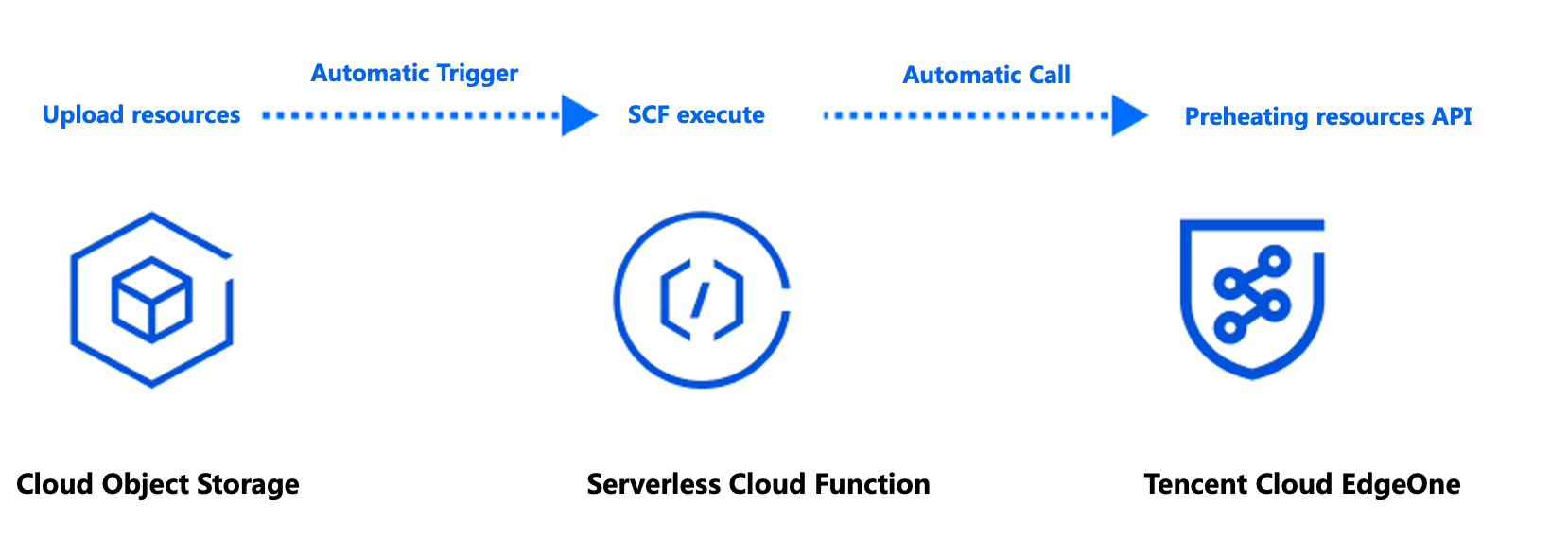
If your origin server is Tencent Cloud Object Storage (COS), when new hot resources are uploaded to the origin server (such as APK installation packages, popular videos, course files, etc.), it is usually necessary to pre-cache the resources to EdgeOne edge nodes through cache pre-warming. This is to avoid situations where, upon the client's initial request, the resources are not cached at the node, leading to a request being sent back to the origin server. However, manual submission of URLs that need pre-warming in the EdgeOne console after uploading files to Tencent Cloud COS is required. In cases with many URLs for pre-warming, this process can be prone to omissions and delays due to manual operations.
Automatic pre-warming can assist you in detecting and invoking EdgeOne's cache pre-warming API through Tencent Cloud Serverless Cloud Function (SCF) after uploading files to Tencent Cloud Object Storage (COS). This process ensures that your files are pre-warmed to EdgeOne nodes immediately after upload, enhancing cache hit rates and reducing the number of origin-pull requests.
Note:
Tencent Cloud Object Storage (COS) is a paid feature, and charges incurred during usage are collected by Tencent Cloud COS. For specific charging details, see COS Billing Overview.
Serverless Cloud Function (SCF) is a paid feature, and charges incurred during usage are collected by Serverless Cloud Function (SCF). For specific charging details, see SCF Billing Overview.
There are daily limits on the number of pre-warms, with different limits for different billing plans. See Comparison of EdgeOne Plans for details.
Applicable Scenarios
Scenario 1: Releasing New Content
After uploading a new version of an installation package or upgrade package to Tencent Cloud COS, resources are automatically pre-warmed to EdgeOne acceleration nodes. Once the file is officially released, download requests from a massive number of users will be directly responded to by the acceleration nodes, improving download speeds and significantly reducing the load on the origin server.
Scenario 2: Large-scale Marketing Campaigns
Before the marketing campaign is launched, static resources related to the campaign page are uploaded to Tencent Cloud COS in advance. Resources are automatically pre-warmed to EdgeOne acceleration nodes. Once the campaign starts, users' access to static resources is responded to by acceleration nodes, reducing delays and congestion caused by high traffic.
Directions
Example Scenario
Assuming you are a game developer who has connected the site domain www.example.com to EdgeOne acceleration, and the source is Tencent Cloud COS with the address: prefetch-cos-1251558888.cos.ap-guangzhou.myqcloud.com. Because there are multiple game APKs that need frequent updates, you want the resources to be automatically pre-warmed to EdgeOne edge nodes immediately after uploading the APK.
Preparation
1. Ensure that COS and SCF services are activated, and record the bucket name and region information.
2. Follow the Quick Start to add your site, purchase the EdgeOne package, and obtain the site ID. The site ID can be found and copied from the site list after site access, for example, zone-2p42mkcpwz0y.
3. The acceleration domain namewww.example.com has been added in the EdgeOne console, with the source configuration set to Tencent Cloud COS.
Step 1: Create and Deploy the Cloud Function for EdgeOne Automatic Pre-warming
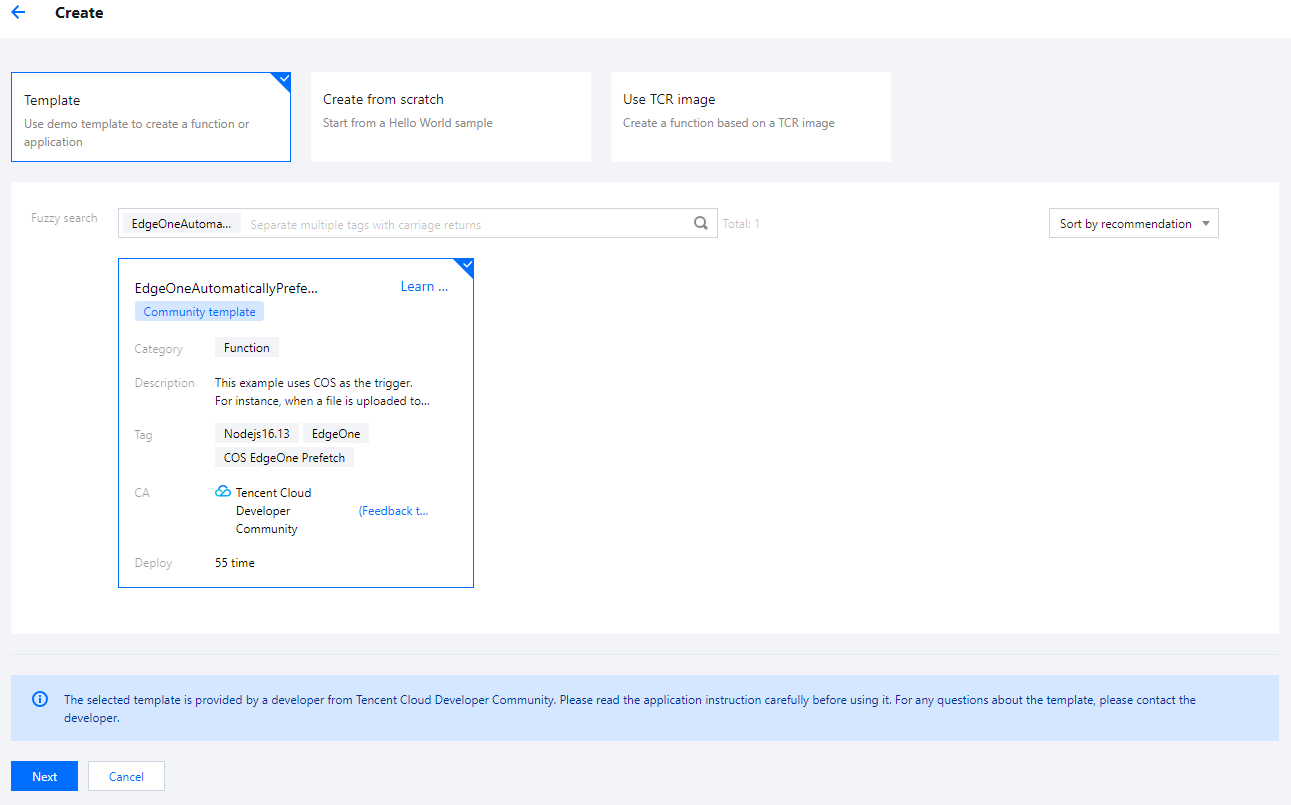
2. On the Function Service page, click on Create, select Template, enter EdgeOneAutomaticallyPrefetch in the fuzzy search bar, select it, and click on Next.
3. On the "Function Configuration" page, the configurations below are required, and it is recommended to keep the other settings as default.
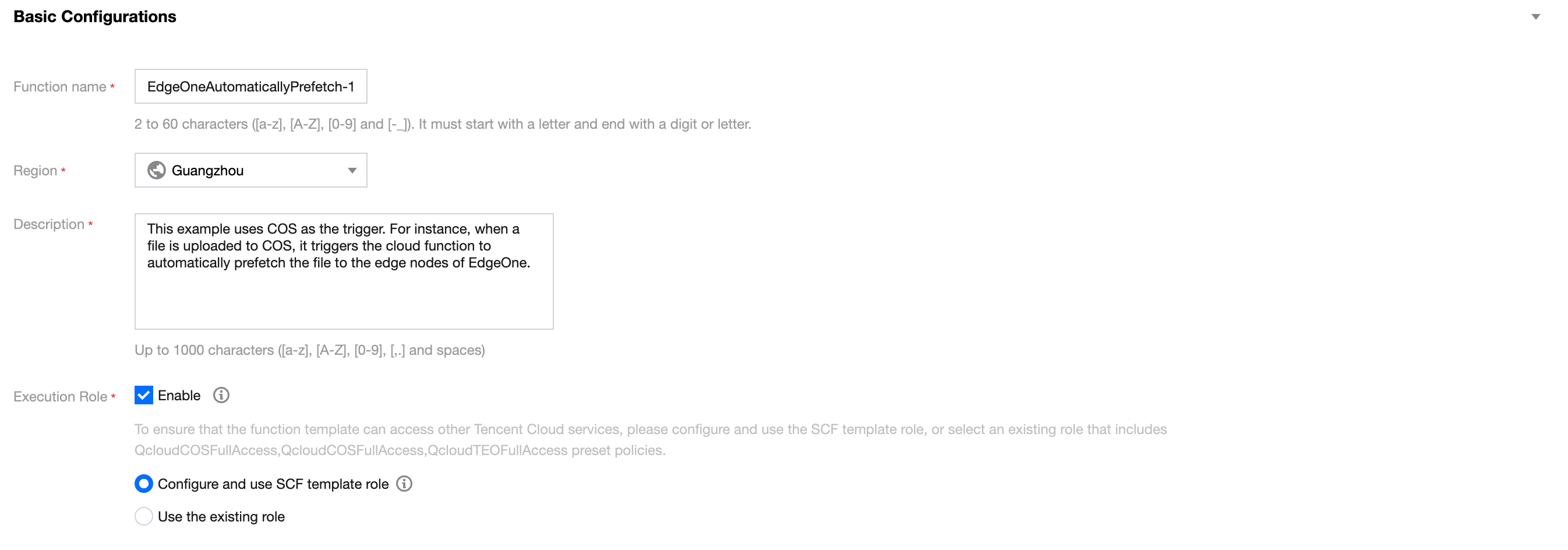
Basic Configuration
Function name: A function name will be automatically generated during function creation. You can choose to customize it for easy recognition.
Region: Select the region where the COS bucket is located, for example, Guangzhou.
Description: Explain the purpose of this function, such as using COS as a trigger. For example, when a file is uploaded to COS, it triggers the cloud function to complete the EdgeOne automatic pre-warming of files to the edge nodes.
Execution Role: Default selection is enabled. Configure and use the SCF template execution role. If using an existing role, ensure that the role includes the preset policies QcloudCOSFullAccess and QcloudTEOFullAccess.
Function Codes: The template already includes default function code implementing the EdgeOne automatic pre-warming capability. No modifications are necessary.
Environment Configuration
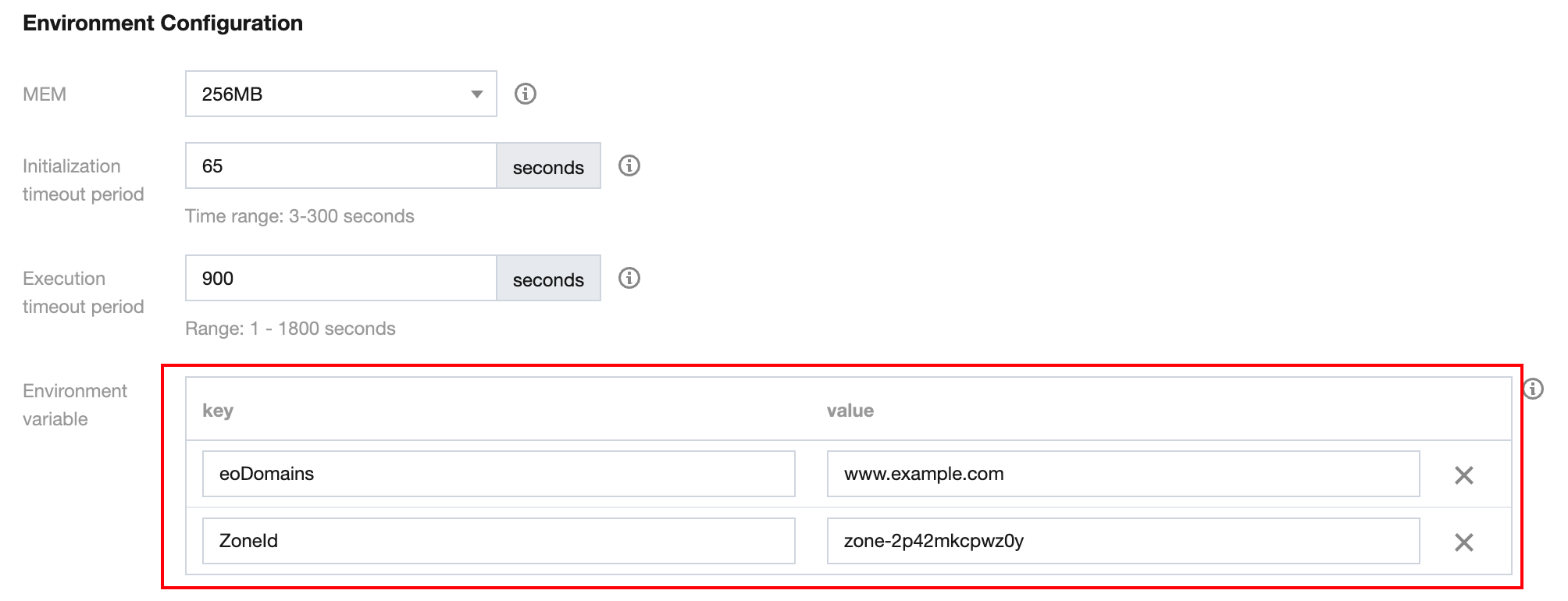
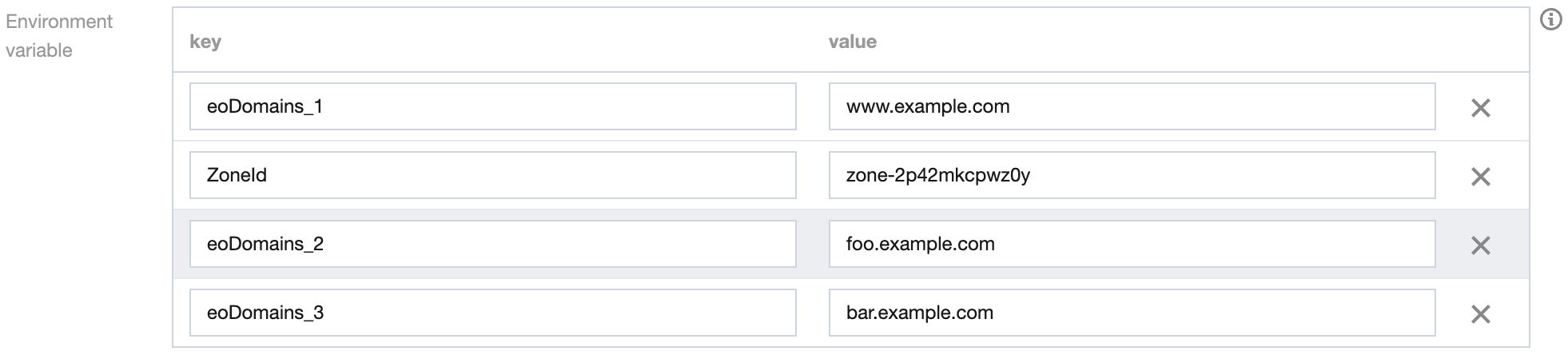
Click on Advanced Configuration, select Environment Configuration, and add the following key-value pairs to the environment variables. Keep the other configurations as default:
ZoneId: Fill in the ZoneId of the domain site example.com that needs automatic pre-warming. See the Preparation for obtaining the Site ID.
eoDomains: Fill in the accelerated domain names already added under ZoneId, such as www.example.com.
Note:
If you have multiple domain names in the current site using the same COS bucket as the origin server and you want multiple domain names to trigger automatic pre-warming, you can add multiple environment variables starting with eoDomains, for example, eoDomains1, eoDomains2, as shown below.
Trigger Configuration
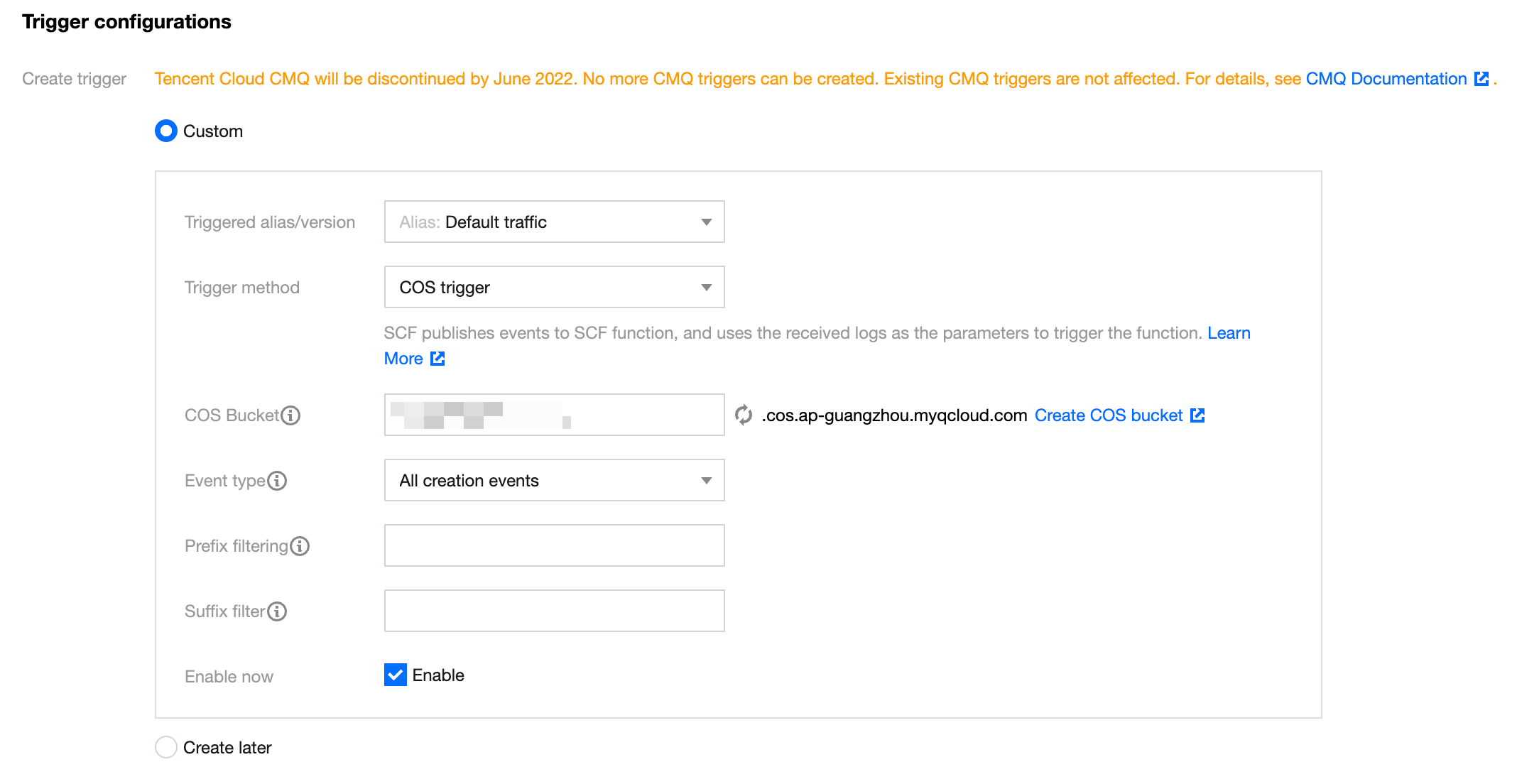
In the trigger configuration, select a COS Bucket that is in the same region as that of this SCF function. You can enter the bucket name for a fuzzy query, for example, prefetch-cos-1251558888.cos.ap-guangzhou.myqcloud.com. Keep the other configuration items as default.
4. Click Complete to complete the creation of the EdgeOne automatic pre-warming function.
Step 2: Verification
1. Log in to the COS Console. In the left menu, click on Bucket List.
2. On the bucket list page, click on the Bucket Name used to store the APK parent package.
3. In the file list page, enter the root directory prefetch-cos-1251558888.cos.ap-guangzhou.myqcloud.com.
4. Click Upload Files and upload a file for the first time, for example, v2_src.apk, and then click Upload.
5. After successful file upload, in the SCF Console, click on the Function Name created in Step 1.
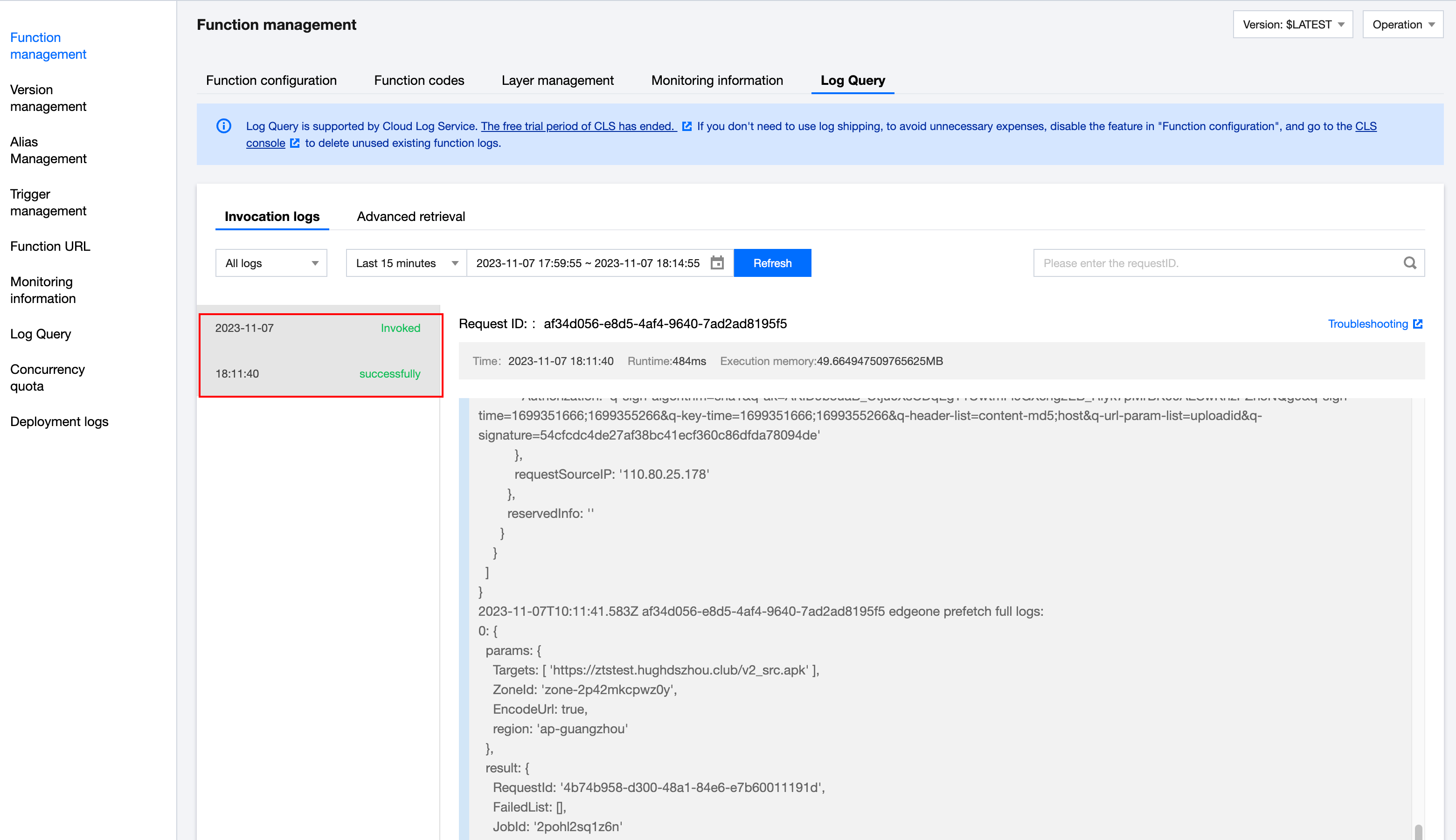
6. On the function management page, select Trigger Management > Log Query > Invocation Logs. Check the logs for successful invocation and ensure that the key information in the logs matches the uploaded file name, indicating successful triggering of the EdgeOne cache pre-warming API by SCF.
7. Go to the EdgeOne Console, In the primary navigation bar, click Toolset and then click Cache Prefetching.
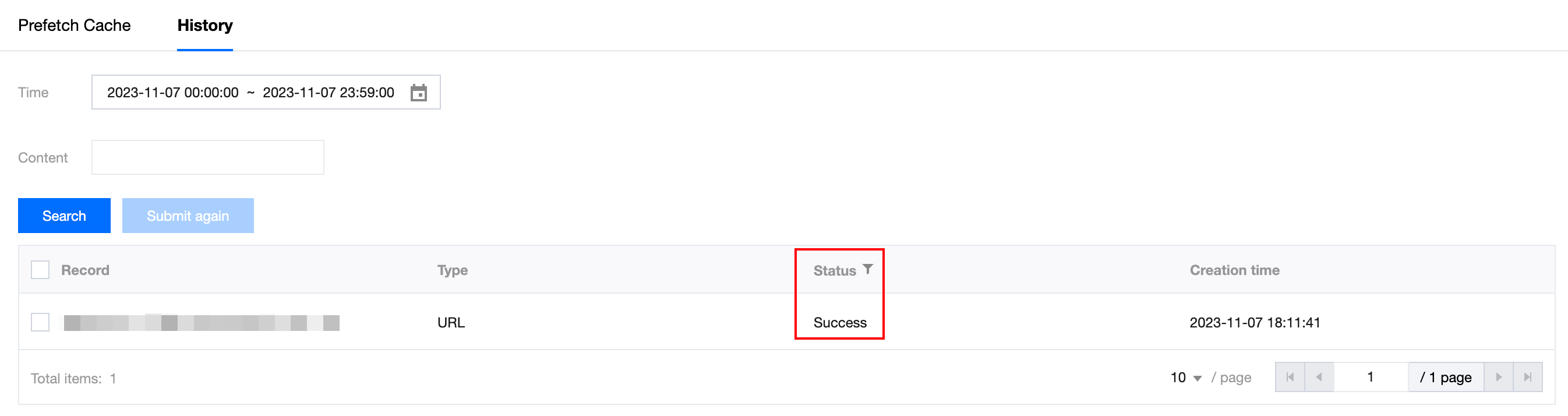
8. On the cache pre-warming page, click on History to check if the pre-warming was successful. If it shows 'Success', it indicates that the pre-warming has been completed.
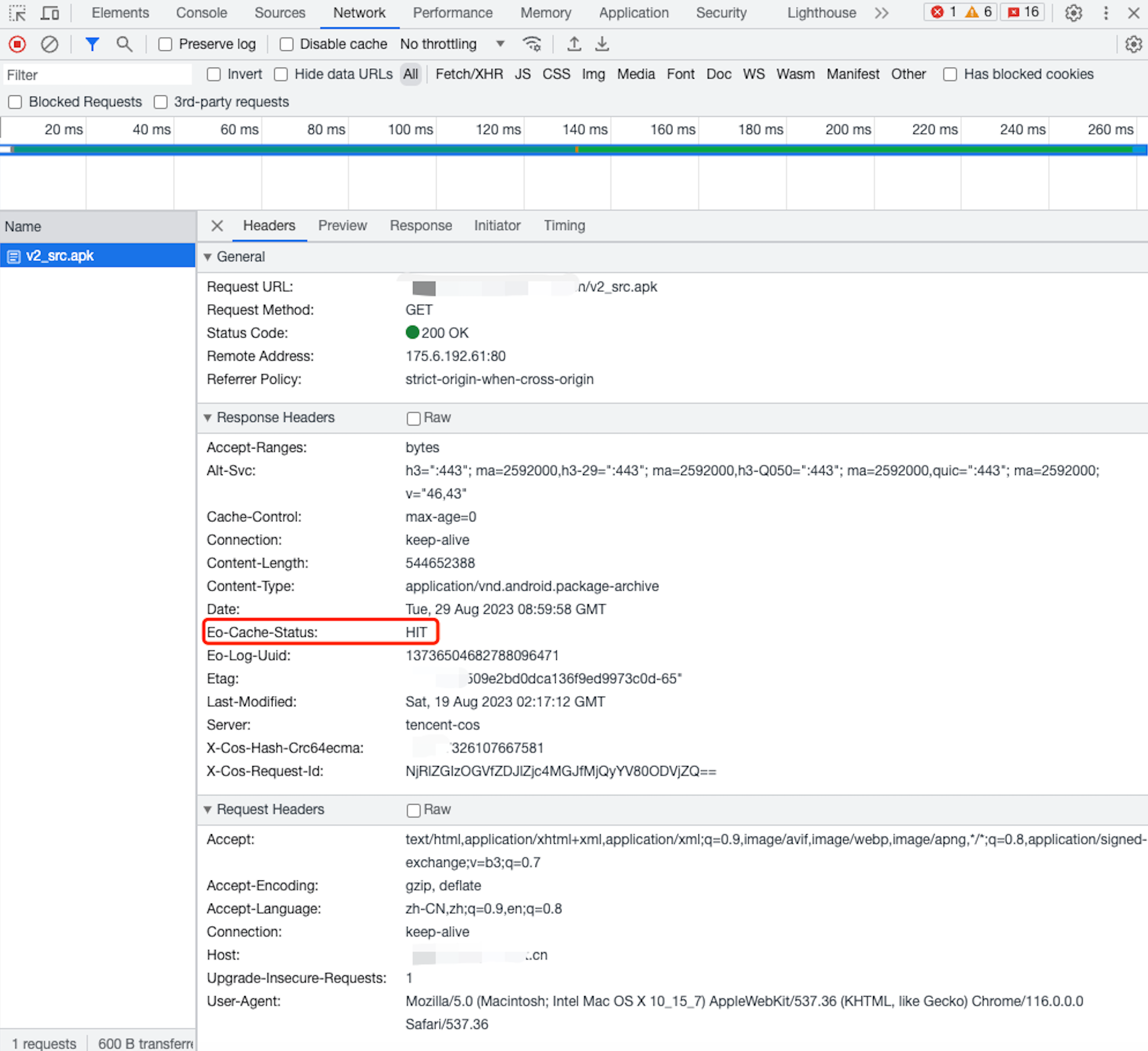
9. Open developer tools in the browser and enter the file's access path, for example, www.example.com/v2_src.apk. Check the EO-Cache-Status value in the response header. If resources were not pre-warmed, the first access will show MISS. If it shows HIT, it means the resource has been automatically pre-warmed to the edge node, achieving cache hits even on the first access.
Monitoring Alarm (Recommendation)
EdgeOne sets quota limits for URL Pre-Warming tasks. For specific quotas, refer to Comparison of EdgeOne Plans.
For URL Pre-Warming tasks that exceed the quota limit, an error will be triggered when calling the URL Pre-Warming API, and the final execution status of the SCF will be "calling failure". To promptly address this issue, it is recommended to configure SCF monitoring alarms through Cloud Monitor. For configuration methods, refer to: Configuring SCF Alarms, SCF Metric Descriptions.