Through traffic orchestration to multiple service providers
ダウンロード
フォーカスモード
フォントサイズ
最終更新日: 2026-07-01 16:45:26
AI翻訳
This article introduces how to use the traffic scheduling feature of EdgeOne Service to help you flexibly allocate the traffic of a domain name to multiple service providers for joint service, disperse risks and achieve high availability for business disaster recovery.
Document Target
This document is expected to take 10 minutes to learn. By studying this document, you can understand:
1. What is traffic scheduling management?
2. How to use traffic scheduling to distribute traffic to multiple service providers for joint service.
3. How to ensure high availability of services through traffic scheduling.
Background Introduction
Websites purchase security acceleration services to improve user access experience and business security, but do not want to schedule all traffic to one service provider. In case of failure, the impact is significant, and traffic needs to be flexibly allocated to multiple service providers for joint service to reduce risks and achieve high availability. The traditional solution is for users to use their own DNS service providers to perform complex configuration pointing for domain names, such as setting different service providers according to regions, operators, etc. The operation and management are relatively complex. EdgeOne provides traffic scheduling management tools, allowing users to allocate traffic according to countries, provinces, regions, operators, etc., and quickly change and switch services to ensure high availability of business disaster recovery.
Prerequisites
1. Add a site according to the Site Access Guide, purchase the EdgeOne Enterprise plan, and connect the site through CNAME.
2. Add the domain name that needs traffic scheduling switching in the EdgeOne console, and configure it according to the CNAME Access Mode Add Domain Name Guide.
Preset Scenarios
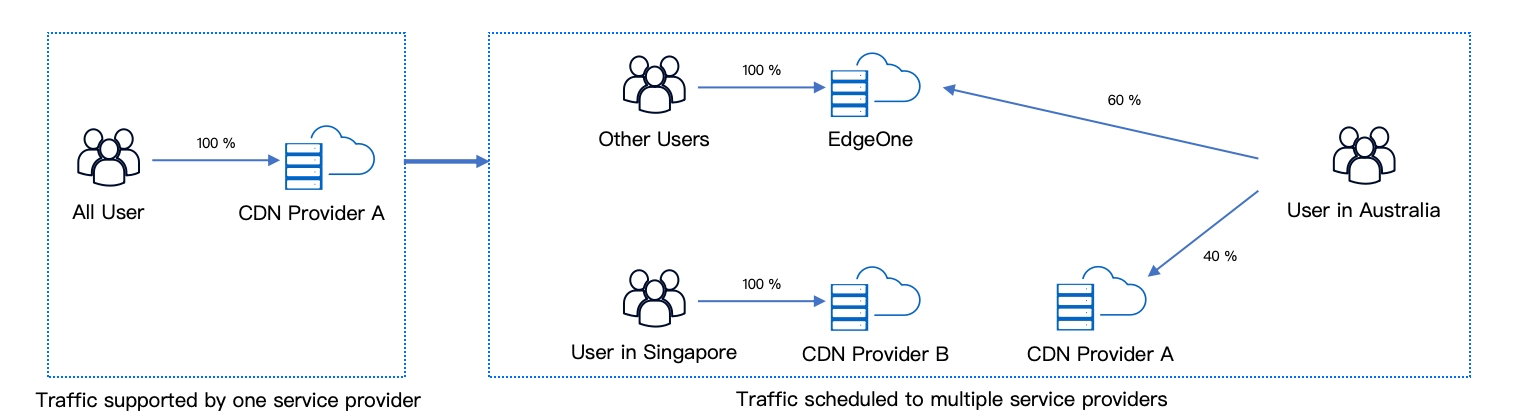
Assume that the domain name a.exampe.com currently uses CDN provider B for all traffic, and consider introducing other providers for joint scheduling. At the same time, when a certain provider encounters problems, traffic scheduling can be switched.
Overall scheduling strategy:
Switch Singapore users to use CDN provider B service.
Australian users use EdgeOne and CDN provider A for joint service, with EdgeOne accounting for 60% and CDN provider A accounting for 40%.
Other regions use the default scheduling and uniformly use EdgeOne service.
Operation Steps
Step 1: Select the domain name
1. Log in to the Tencent Cloud EdgeOne console, enter Service Overview in the left menu bar, and click the site to be configured under Website Security Acceleration.
2. After entering the site, click Domain Name Service > Traffic Scheduling Management in the menu bar to enter the Traffic Scheduling Management page, and click Add Scheduling Policy.
3. On the Traffic Scheduling Management page, click Add Scheduling Policy, select a.example.com, and click Create.
Step 2: Set the policy
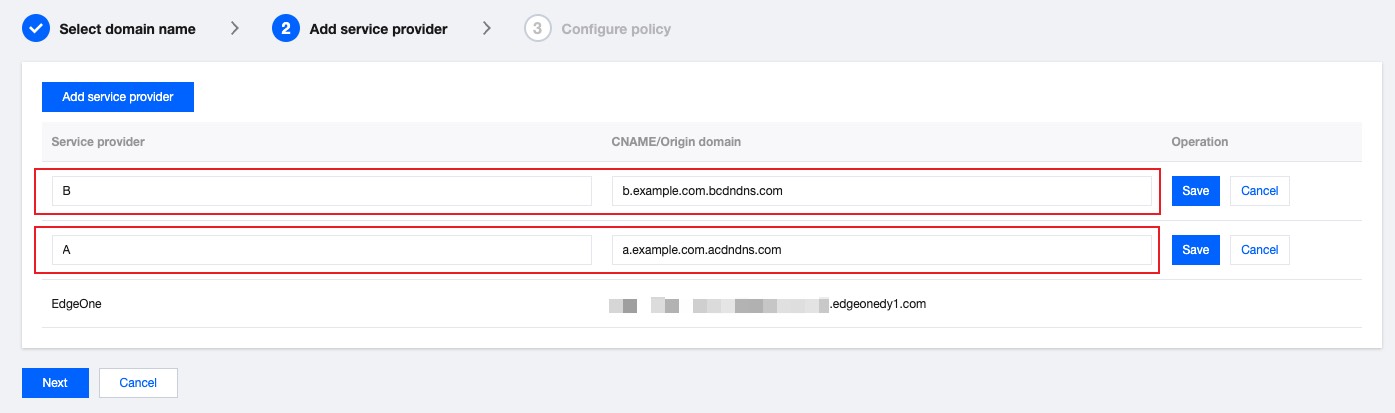
1. Add service providers. In this scenario, because it is a multi-provider joint service, the default EdgeOne scheduling CNAME is available, and the CNAME domain names of CDN provider A and CDN provider B can be added separately.
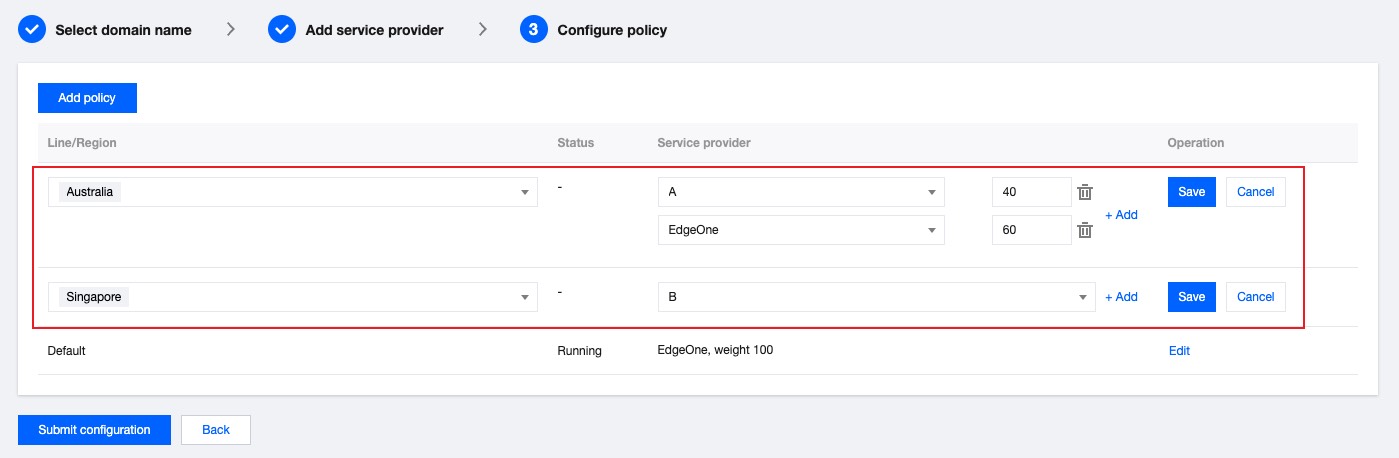
2. Add policy submission configuration, add two policies, and add Chinese mainland and Singapore regions in Line/Region respectively:
Singapore: Select CDN provider B as the service provider.
Australia: Click Add a Service in the service provider section, and select EdgeOne and CDN provider A respectively, with EdgeOne setting a weight of 60 and CDN provider A setting a weight of 40.
Default: By default, others use EdgeOne service.
Step 3: Switch resolution
1. After submitting the policy configuration, return to the Traffic Scheduling Management list page. EdgeOne will assign a traffic scheduling CNAME to the domain name, which is consistent with the default CNAME of the domain name.
2. If the domain name resolution has been switched to EdgeOne, no change is required, and the current network policy takes effect immediately. If the domain name resolution has not been switched, you need to go to your DNS service provider to complete the CNAME configuration before the traffic scheduling policy can take effect.
Step 4: Verify Effectiveness
1. DNS resolution effectiveness check
You can use the nslookup or dig command to check the current domain name resolution effectiveness status.
Windows
Mac or Linux
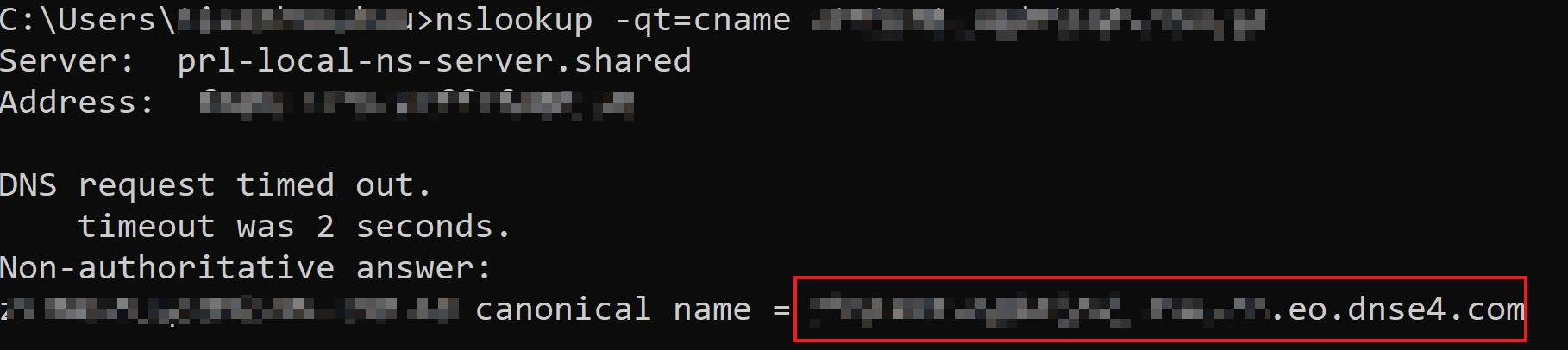
In the Windows system, open the cmd running program, take the domain name a.example.com as an example, and judge the effectiveness of the Chinese mainland region. You can run in cmd: nslookup -qt=cname a.example.com, and check the CNAME information of the domain name according to the running resolution result. If the CNAME assigned by EdgeOne appears, the traffic switch is successful.
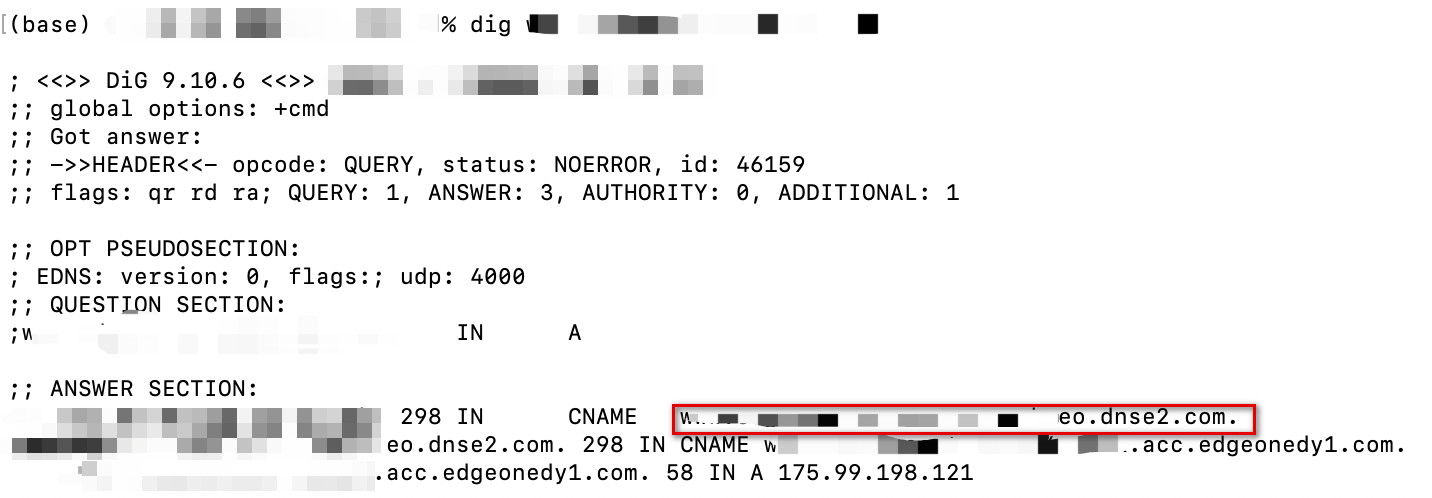
You can use the dig command to verify, take the domain name a.example.com as an example, you can run the command in the terminal: dig a.example.com, and check the CNAME information of the domain name according to the running resolution result. If the CNAME assigned by EdgeOne appears, the traffic switch is successful.
2. Traffic statistics change
Take Singapore as an example, enter the traffic analysis page of site a.example.com's data analysis, add a filter condition host equals a.example.com, and check the traffic trend curve change.
For example: The current Singapore bandwidth is 100Mbps. When Singapore switches to EdgeOne, the bandwidth curve of the EdgeOne console will increase to 100Mbps bandwidth.