tencent cloud

Tencent Cloud TCHouse-C

Release Notes
Product Introduction
Overview
Basic Concepts
Cluster Architecture
Strengths
Use Cases
Purchase Guide
Billing Overview
Expiration and Payment Overdue
Refund
Configuration Adjustment Billing
Getting Started
Operation Guide
Cluster Management
Parameter Configuration
Monitoring and Alarming
Hot/Cold Data Tiering
Account and Authorization
Query Management
Log Search
Data Dictionary
Backup and Restore
Multi-ZooKeeper Cluster
External Data Import
Configuring DDL on Cluster Feature
Data Redistribution
Scale-in and Migration
Development Guide
Database Engine
Table Engines
ClickHouse SQL Syntax Reference
ClickHouse Client Overview
Self-Built ClickHouse Migration Solution
Service Level Agreement
CDWCH Policy
Privacy Policy
Data Privacy and Security Agreement
FAQs
Contact Us
Glossary

Creation and Termination

PDF
Focus Mode
Font Size
Last updated: 2025-03-31 14:55:25

Creating Cluster

Click Buy Now on the Tencent Cloud TCHouse-C overview page. Alternatively, log in to the Tencent Cloud TCHouse-C console, click New Cluster to enter the purchase page, and configure and purchase a cluster as prompted. For more information, see Getting Started.

Viewing Cluster Information

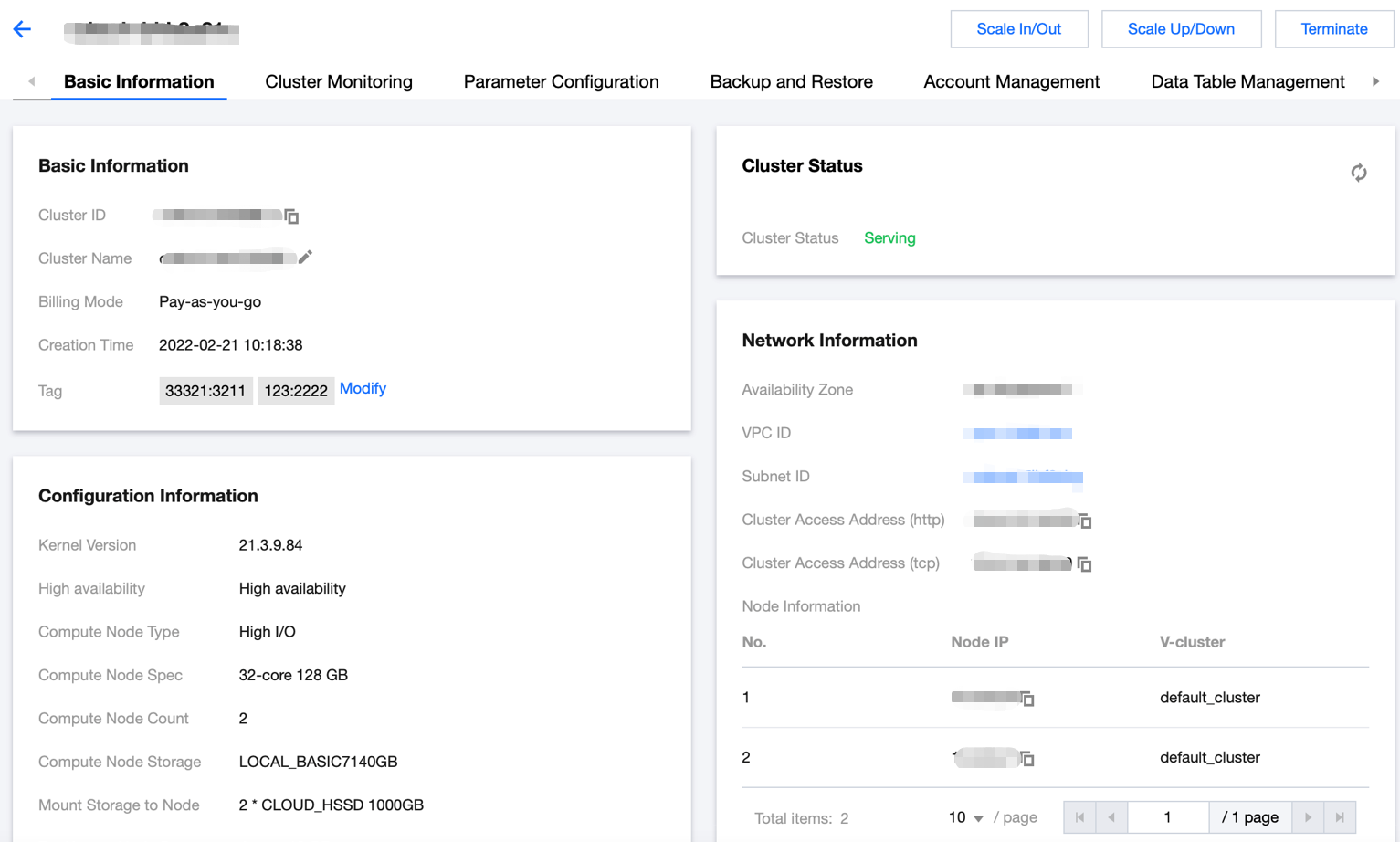
After the cluster is created, go to the Tencent Cloud TCHouse-C console and click the Cluster ID/Name on the cluster list page to enter the cluster details page.
On the cluster details page, view basic cluster information, monitoring information, and operation log, and configure parameters.
You can click the icon next to the cluster name to edit it.


Viewing Monitoring Information

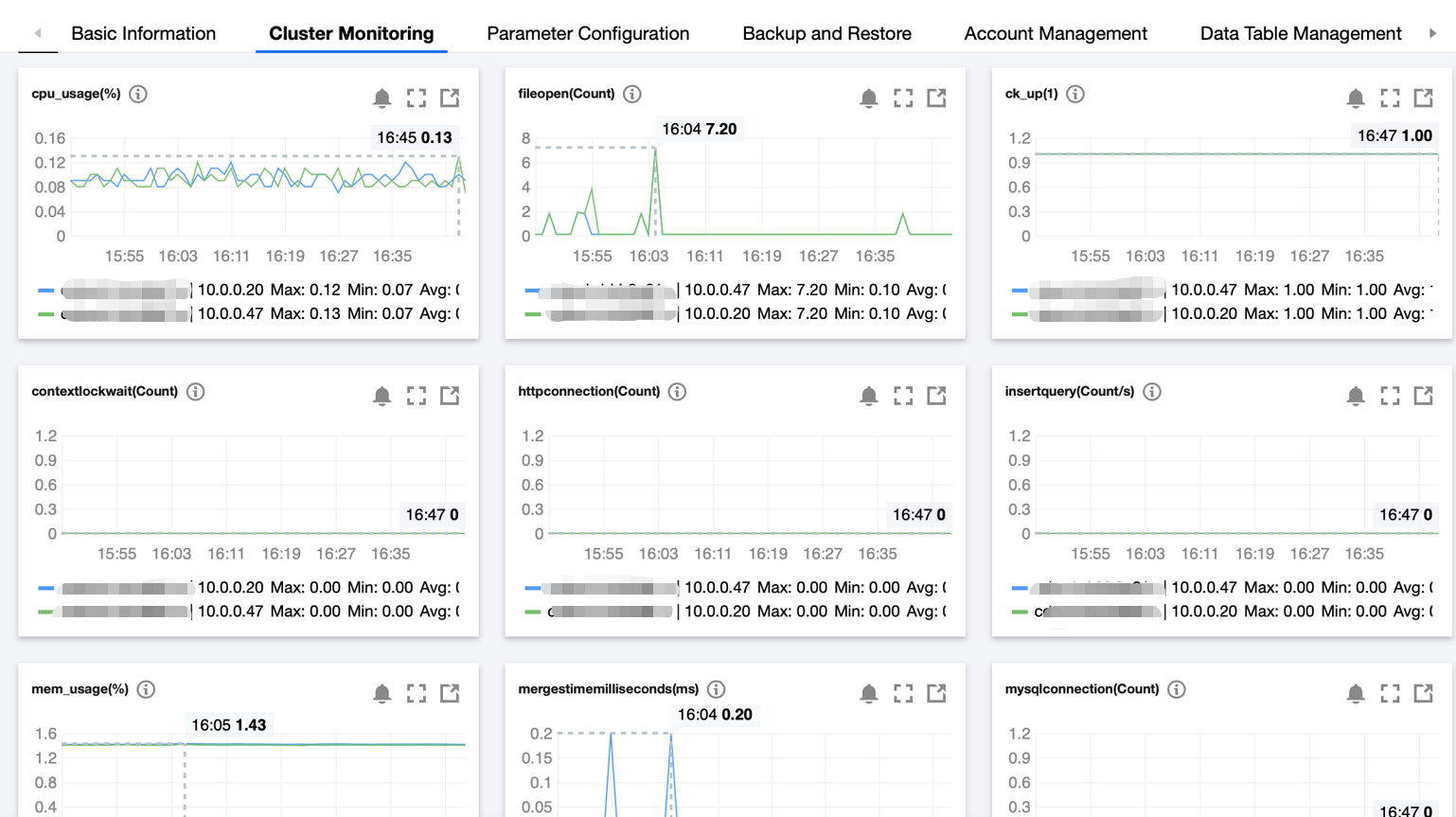
On the cluster details page, select the Cluster Monitoring tab to view monitoring metrics.


Terminating Cluster

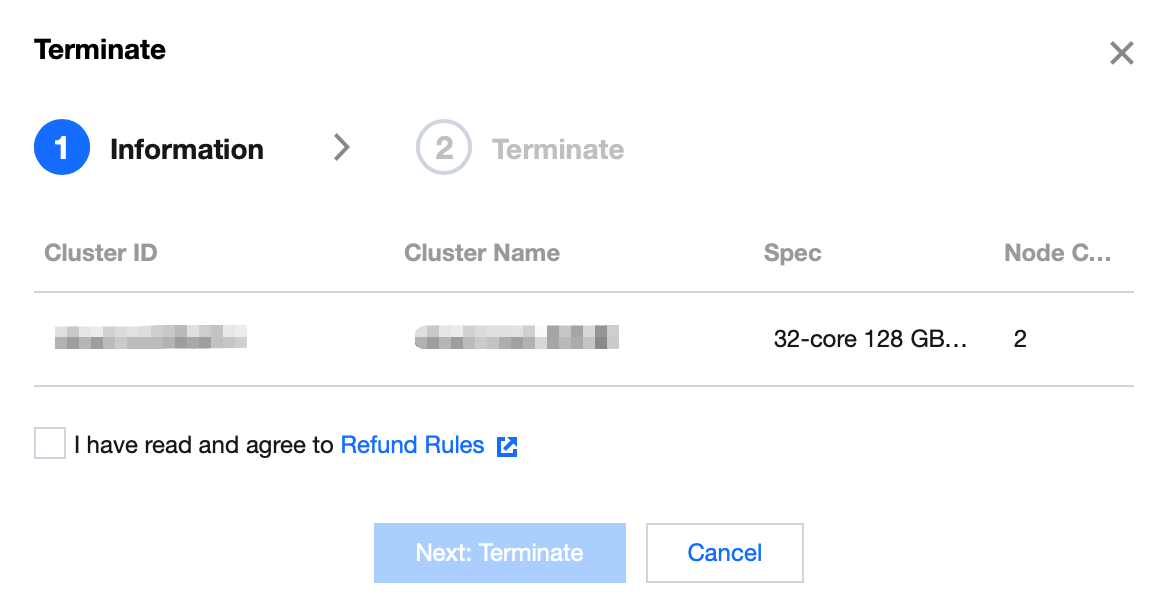
Select Operation > Terminate in the cluster list to terminate a cluster as prompted.
Pay-as-you-go clusters: resources will be released and data will be cleared in 24 hours upon cluster termination.


Configuring Parameter

On the cluster details page, select the Parameter Configuration tab to view parameters in the config.xml file. After a parameter is modified, click Apply to Cluster for the modification to take effect.

Viewing Operation Log

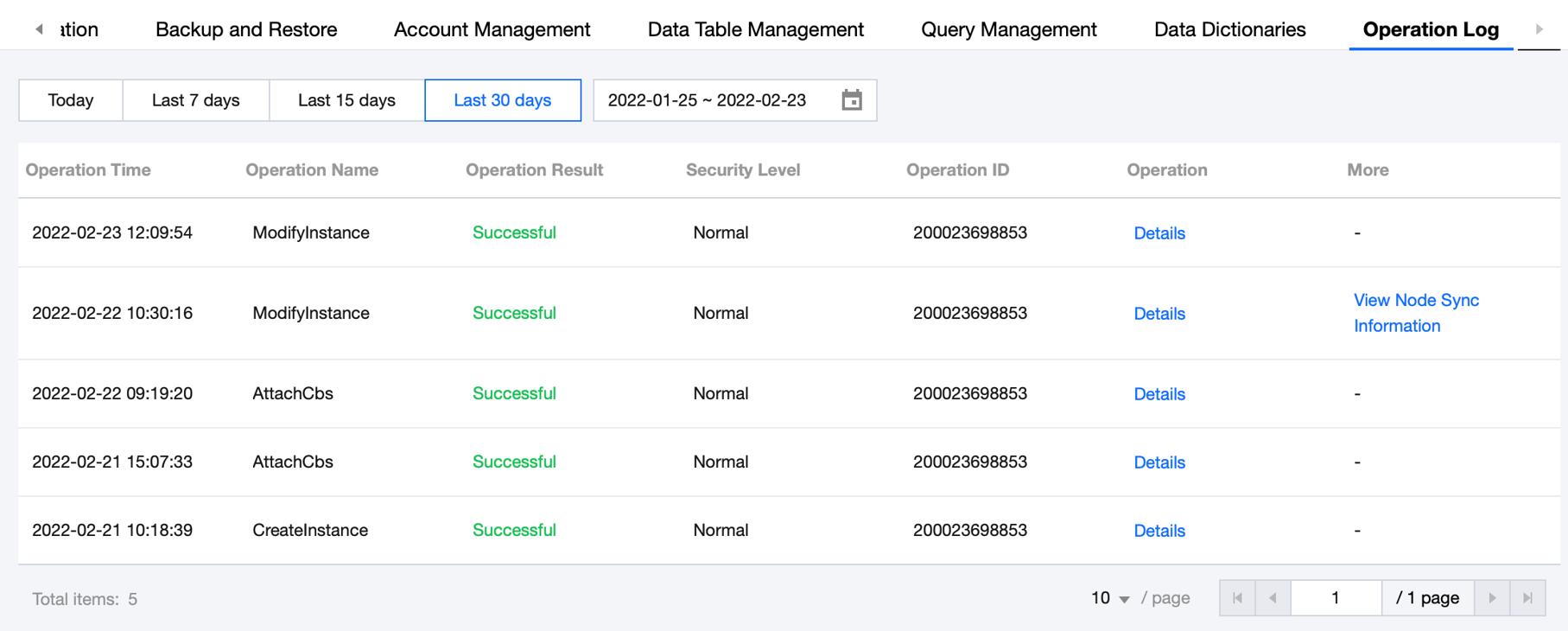
On the cluster details page, select the Operation Log tab to view all operations over a specified period of time.


Help and Support

Was this page helpful?

Help us improve! Rate your documentation experience in 5 mins.

Feedback