Horizontal Scaling and Vertical Configuration Adjustment
Baixar
Modo Foco
Tamanho da Fonte
Última atualização: 2025-03-31 14:55:25
Feature Overview
ClickHouse cluster management provides the features of horizontal scaling and vertical configuration adjustment if the current cluster size and configuration do not meet your needs.
Note:
The manipulated cluster needs to be in a stable running status.
There are no overdue payments or orders pending payment under the root account.
Horizontal Scaling
Note:
A horizontal scaling operation takes 5–15 minutes, during which the system is readable but unwritable. We recommend you perform it during off-peak hours.
Horizontal scaling is preferred when both data storage and query volume are increasing.
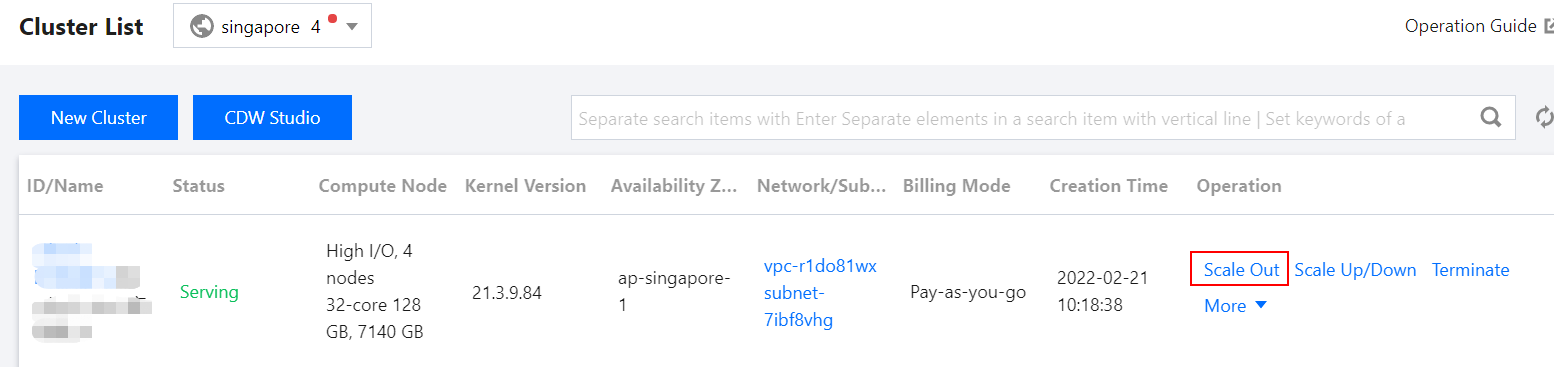
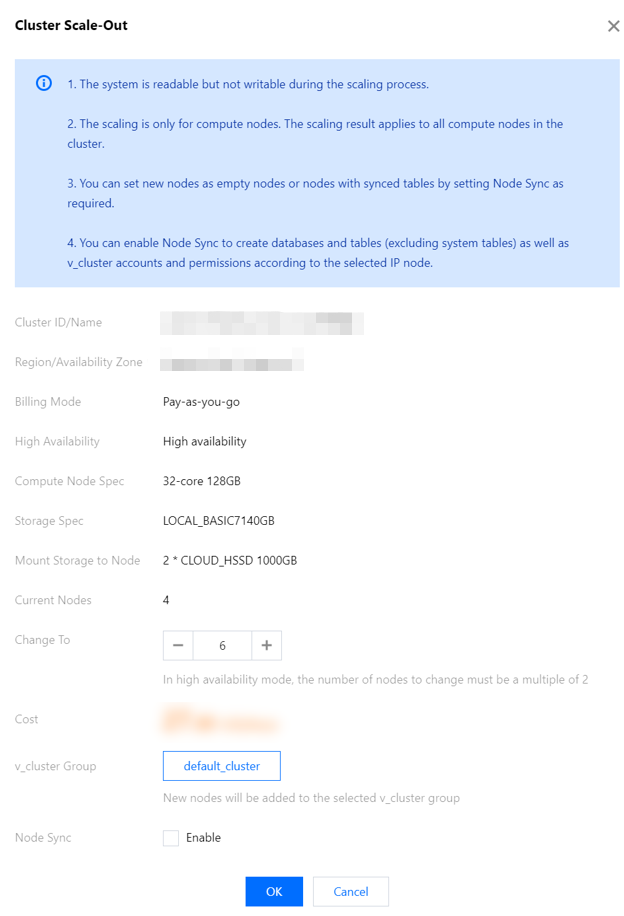
2. On the horizontal scaling page, increase the node quantity to the desired value. New nodes are added to the default_cluster group by default or a custom group you select. You can also choose to enable sync table creation to synchronously create database tables for the new nodes. Note that you need to select a reference node in this case. If you do not enable sync table creation, the new nodes will be empty.
Note:
Currently, common database and table engines are supported for sync table creation, including MergeTree types, non-MergeTree types (such as foreign and log tables), and materialized views.
During horizontal scaling, sync table creation may fail due to various factors (for example, a table cannot be created on multiple nodes). Therefore, after the scaling is completed, you need to sync the failed tables as applicable.
3. Click OK and make the payment on the confirmation page. Then, the cluster will be in the "changing" status for 5–15 minutes.
4. After the scaling is completed, enter the cluster details page, switch to the Operation Log tab, and click View Node Sync Information. On the displayed page, confirm the execution result of sync table creation and create the failed tables on your own according to the corresponding SQL statement.
Vertical Configuration Adjustment
A ClickHouse cluster supports vertical configuration adjustment, including specification upgrade/downgrade and storage capacity expansion for compute nodes as well as for ZooKeeper nodes in HA clusters.
Note:
A vertical configuration adjustment takes 5–15 minutes, during which the system is unreadable and unwritable. We recommend you perform it during off-peak hours.
Vertical configuration adjustment is preferred when the node performance metrics (including ZooKeeper metrics) of a cluster cannot meet the requirements of a business scenario.
Vertical configuration adjustment is available only for standard clusters. Either compute or ZooKeeper nodes can be adjusted each time.
Note that the storage capacity of compute and ZooKeeper nodes can only be expanded but not reduced.
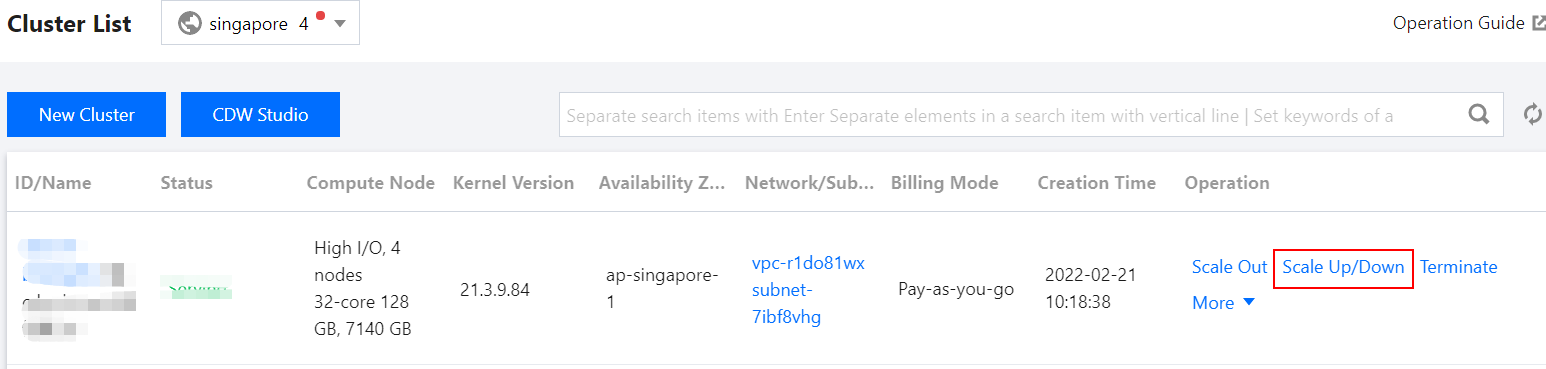
1. Log in to the Tencent Cloud TCHouse-C console and select Operation > Scale Up/Down for the target cluster.
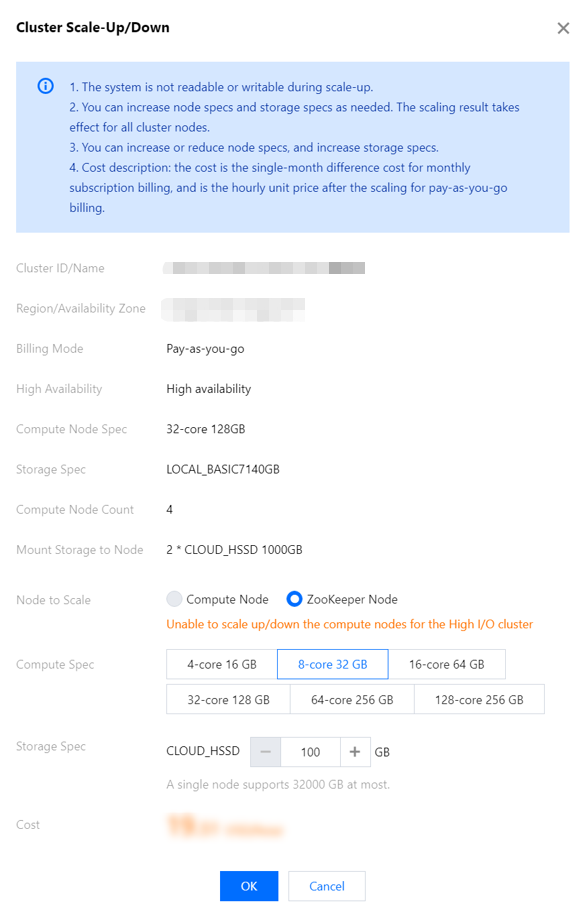
2. On the page displayed, adjust the compute and storage specification as needed.
Note:
You can upgrade either the compute or storage specification or both of them at the same time, but when you downgrade the compute specification, you cannot adjust the storage specification.
3. Click OK and make the payment on the confirmation page. Then, the cluster will be in the "changing" status for 5–15 minutes.