tencent cloud

TencentCloud Managed Service for Prometheus

Product Introduction
Overview
Strengths
Use Cases
Concepts
Use Limits
Features
Service Regions
Purchase Guide
Billing Overview
Pay-as-You-Go (Postpaid)
Free Trial Introduction
Managed Collector Billing Introduction
Archive Storage Billing Introduction
Purchase Methods
Payment Overdue
Getting Started
Integration Guide
Scrape Configuration Description
Custom Monitoring
EMR Integration
Java Application Integration
Go Application Integration
Exporter Integration
Nacos Integration
Common Exporter
Health Check
Instructions for Installing Components in the TKE Cluster
Cloud Monitoring
Non-Tencent Cloud Host Monitoring
Read Cloud-Hosted Prometheus Instance Data via Remote Read
Agent Self-Service Access
Pushgateway Integration
Security Group Open Description
Operation Guide
Instance
TKE
Integration Center
Data Multi-Write
Recording Rule
Instance Diagnosis
Archive Storage
Alerting Rule
Tag
Access Control
Grafana
API Guide
TKE Metrics
Resource Usage and Billing Overview
Practical Tutorial
Migration from Self-Built Prometheus
Custom Integration with CVM
TKE Monitoring
Enabling Public Network Access for TKE Serverless Cluster
Connecting TMP to Local Grafana
Enabling Public Network Access for Prometheus Instances
Configuring a Public Network Address for a Prometheus Instance
Terraform
Terraform Overview
Managing Prometheus Instances Using Terraform
Managing the Integration Center of Prometheus Instances Using Terraform
Collecting Container Monitoring Data Using Terraform
Configuring Alarm Policies Using Terraform
FAQs
Basic Questions
Integration with TKE Cluster
Product Consulting
Use and Technology
Cloud Monitor FAQs
Service Level Agreement
TMP Policy
Privacy Policy
Data Processing And Security Agreement

Searching for Instance

PDF
Focus Mode
Font Size
Last updated: 2024-01-29 16:01:55
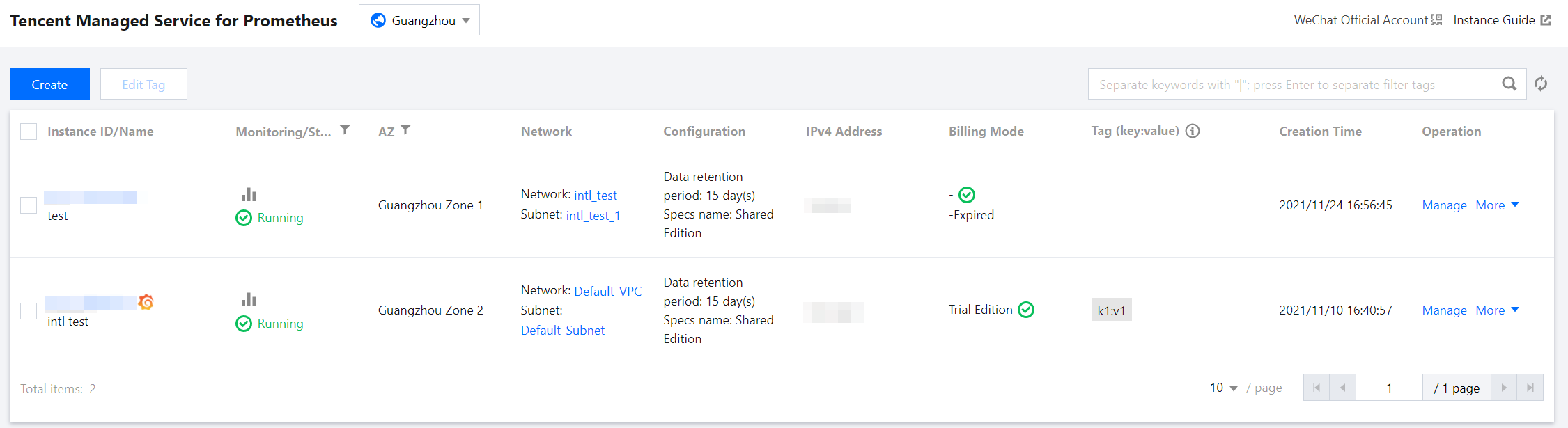
By default, TMP instances in the current region are displayed in the TMP console. To help you quickly find the instances in the current region, Tencent Cloud provides the search feature and allows you to filter instances by resource attributes such as instance ID, name, status, AZ, IPv4 address, and tag.

Directions

1. Log in to the TMP console.
2. Enter the conditions in the search box as needed and click

.


3. You can filter instances by different conditions. Currently, the following dimensions are supported:
Filter Condition
Description
Instance ID
You can directly enter multiple instance IDs for quick filtering. Each instance ID supports only exact match-based filtering.
Instance name
You can enter only one instance names for filtering. Fuzzy match-based filtering is supported.
Instance status
You can enter multiple status values for filtering. You can also configure the list header for quick filtering.
AZ
You can enter multiple AZs for filtering. After the region is switched, the corresponding AZs in the region will be displayed. You can also configure the list header for quick filtering.
IPv4 address
You can enter multiple IPv4 addresses for filtering. Each IPv4 address supports only exact match-based filtering.
Tag
You can enter multiple tags to filter instances. You can also directly click a tag value in the instance list for filtering.


Help and Support

Was this page helpful?

Help us improve! Rate your documentation experience in 5 mins.

Feedback