Configuring TLS Encryption for Client Access Points
다운로드
포커스 모드
폰트 크기
TDMQ for Apache Pulsar supports the TLS encryption feature, allowing you to bind SSL Certificates to clusters and supporting both one-way and two-way authentication modes. After you enable endpoint encryption, the system uses SSL Certificates to encrypt data transmission between clients and servers. This prevents data from being intercepted or eavesdropped on during transmission, ensuring data transmission security and meeting the requirements of sensitive services.
One-Way Authentication
One-way authentication refers to the client authenticating the server. This authentication process is completed by verifying the server certificate. The server uses the certificate you configured to establish a connection with the client. You need to purchase or issue a server certificate yourself, host it on the SSL Certificates platform, and then complete the relevant configuration in the Pulsar console.
Mutual Authentication
Two-way authentication refers to mutual authentication between the client and the server. Pulsar uses server certificates and client CA certificates to authenticate both the server and the client, ensuring the security and reliability of the communication link between the client and server.
The client's authentication of the server is completed through the server certificate.
The server authenticates the client through a CA certificate. When the client initiates a connection request, it sends its device certificate to the server. The server then verifies the validity of this device certificate based on the CA certificate that the client registered in advance. If the verification passes, the server allows the client to connect.
Constraints and Limitations
Only pro clusters support the TLS encryption feature.
After a VPC encrypted network access point is created, you cannot directly delete the TLS certificate. You must first delete the VPC encrypted network and then delete the certificate.
During certificate addition, the cluster status is displayed as "Reconfiguring". No other reconfiguration operations can be performed at this time. After the addition is complete, the cluster status will return to normal.
Due to underlying Pulsar limitations, each cluster can only have one server certificate (for one-way authentication) or a pair of server and CA certificates (for two-way authentication).
Configuring TLS Encryption
Prerequisites
You have completed the management of a self-signed certificate or purchased a certificate in the SSL certificate console. For specific steps, see Getting Started with SSL Certificates.
Step 1: Adding SSL Certificates
1. Log in to the TDMQ for Apache Pulsar console.
2. In the left sidebar, choose Cluster. After you select a region, click the ID of the target cluster to go to the cluster details page.
3. On the cluster details page, select the TLS Certificate management tab and click Add Certificate in the upper-right corner.
4. Configure the authentication method and certificate information in the pop-up window.
Parameter | Description |
Authentication Method | Supports One-way Authentication and Two-way Authentication. One-way Authentication: The client authenticates the server. Two-way Authentication: The client and the server authenticate each other. |
Source | Supports SSL Certificates uploaded by users or hosted by Tencent Cloud. Note: If you are using the Pulsar TLS encryption feature for the first time, you need to click Authorize the Pulsar service to download and apply the SSL certificate.. |
Server Certificate | Select an issued server certificate from the dropdown list when the authentication method is one-way/two-way, to complete client authentication of the server. |
CA Certificate | Select a CA certificate from the dropdown menu when the authentication method is two-way, to complete server authentication of the client. |
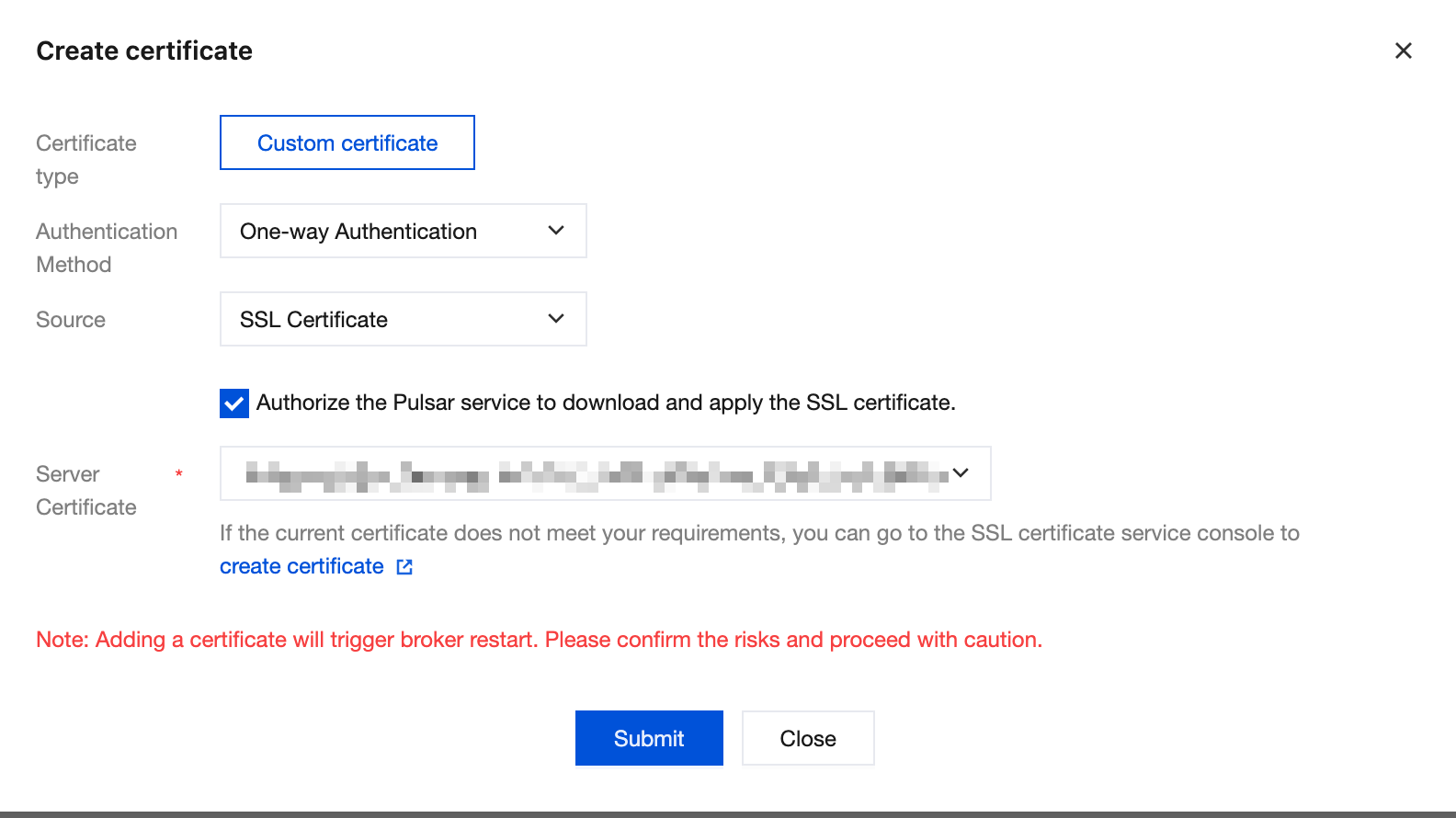
5. Click Submit. The SSL certificate will be added (bound) to the cluster after 1 to 3 minutes.

Step 2: Creating a VPC Encrypted Network Access Point
1. Log in to the TDMQ for Apache Pulsar console.
2. In the left sidebar, choose Cluster. After you select a region, click the ID of the target cluster to go to the cluster details page.
3. On the cluster details page, select the Access Point tab and click Create in the upper-left corner.
4. Select VPC encryption network as the routing type, specify the one-way/two-way server certificate that has been added, and optionally configure a custom domain name to facilitate CAM.
5. Click Confirm. The VPC encryption network access point will be created after 1 minute.
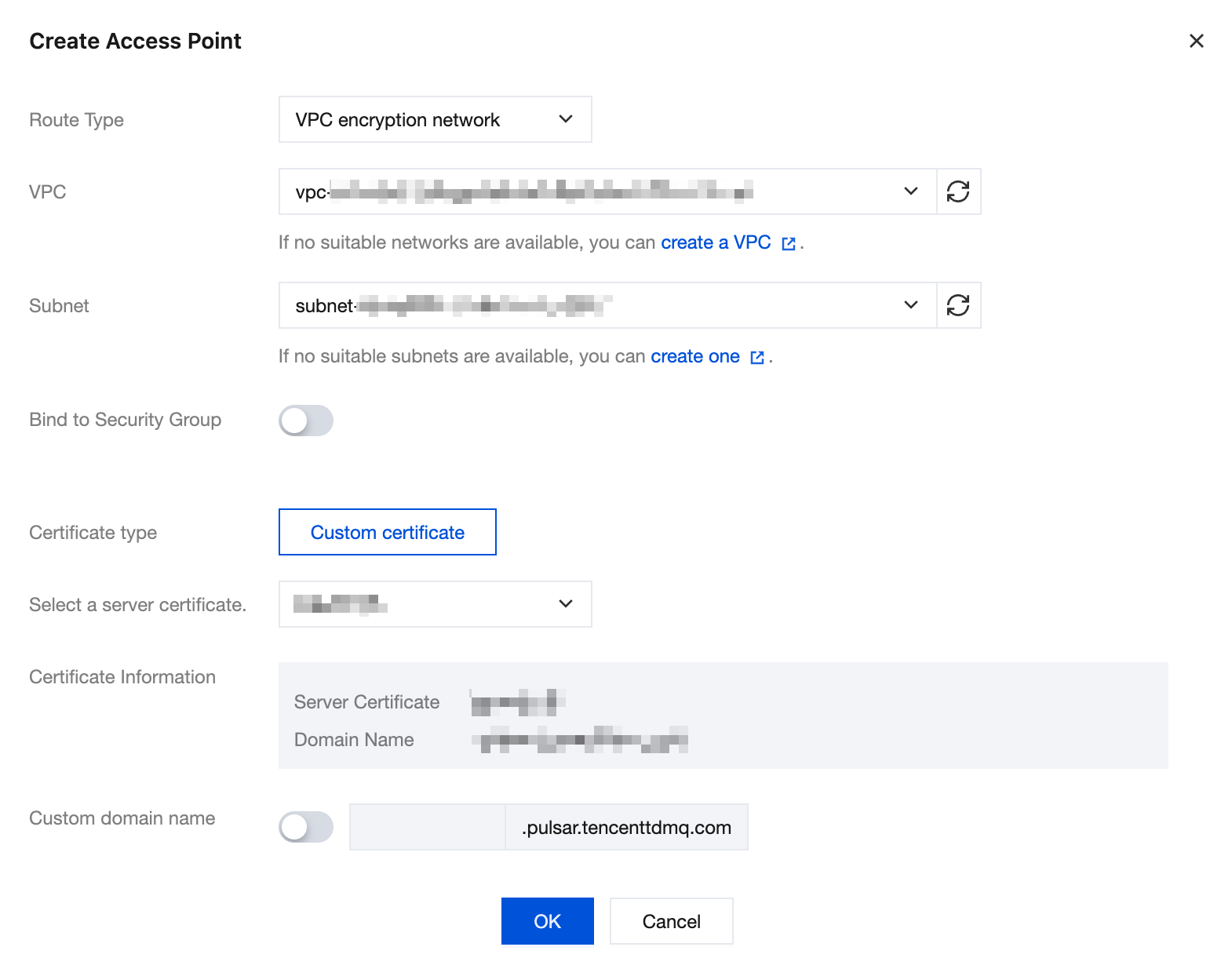
Step 3: Using the Encrypted Access Point to Send and Receive Messages
After the TLS encryption configuration is completed, you can use the VPC encryption access point (port 8080) in the client to connect to the cluster and send/receive messages.
Deleting a VPC Encrypted Network Access Point
When you no longer need to use TLS encryption, you can delete the VPC encrypted network access point in the console.
1. Log in to the TDMQ for Apache Pulsar console.
2. In the left sidebar, choose Cluster. After you select a region, click the ID of the target cluster to go to the cluster basic information page.
3. On the basic information page, select the Access Point tab and click Delete in the operation column of the target access point.
4. Click Confirmin the pop-up window to complete the deletion.
Deleting Certificates
If any VPC encrypted network access point has been created, the certificate cannot be deleted. You must first delete the VPC encrypted network access point.
1. Log in to the TDMQ for Apache Pulsar console.
2. In the left sidebar, choose Cluster. After you select a region, click the ID of the target cluster to go to the cluster basic information page.
3. On the basic information page, select the TLS certificate management tab and click Delete in the operation column of the target certificate.
4. In the pop-up window, click Confirm. The cluster status will change to "Scaling". After 1 to 3 minutes, the SSL certificate will be deleted from the cluster.
피드백