A tag is a key-value pair provided by Tencent Cloud for identifying cloud resources. Tags help you easily classify and manage the TDMQ for Apache Pulsar resources in various dimensions, such as business, purpose, and owner.
Note
Tencent Cloud will not use the tags you set. Tags are only used for you to manage the TDMQ for Apache Pulsar resources.
Use Limits
Quantity Limits
A resource can be bound with a maximum of 50 tags.
Naming Restrictions
Tag Key
Tag Value
Tag keys that start with qcs:, project:, or project are system-reserved tag keys, which cannot be created.
-
In UTF-8, a tag key must contain at least 1 and at most 127 Unicode characters.
In UTF-8, a tag value must contain at least 1 and at most 255 Unicode characters.
A tag key can contain characters, spaces, digits, and special characters in UTF-8 format, but cannot start or end with a space.
Supported characters in Chinese mode: + - = / @ ( ) 【 】 :
It is case-sensitive.
Operation Steps and Cases
Case Description
Case: A company has 6 TDMQ for Apache Pulsar clusters on Tencent Cloud. The following table describes the departments, business scopes, and owners of these clusters.
Queue ID
Department
Business Scope
Owner
pulsar-rgxj35jgo3d1
E-commerce
Marketing campaign
Tom
pulsar-rgxj35jgo3d2
E-commerce
Marketing campaign
Harry
pulsar-rgxj35jgo3d3
Gaming
Game A
Jerry
pulsar-rgxj35jgo3d4
Gaming
Game B
Harry
pulsar-rgxj35jgo3d5
Entertainment
Post-production
Harry
pulsar-rgxj35jgo3d6
Entertainment
Post-production
Tom
Take pulsar-rgxj35jgo3d1 as an example. The following table shows the three groups of tags added to this instance.
Tag Key
Tag Value
dept
ecommerce
business
mkt
owner
tom
Similarly, you can also set appropriate tags for other queue resources based on their department, business scope, and owner.
Setting Tags in the TDMQ for Apache Pulsar Console
Take the above case as an example. After you design tag keys and tag values, you can log in to the TDMQ for Apache Pulsar console to set tags.
2. On the Cluster list page, select a region, select the cluster for which you want to edit tags, and then click Edit Resource Tag at the top of the page.
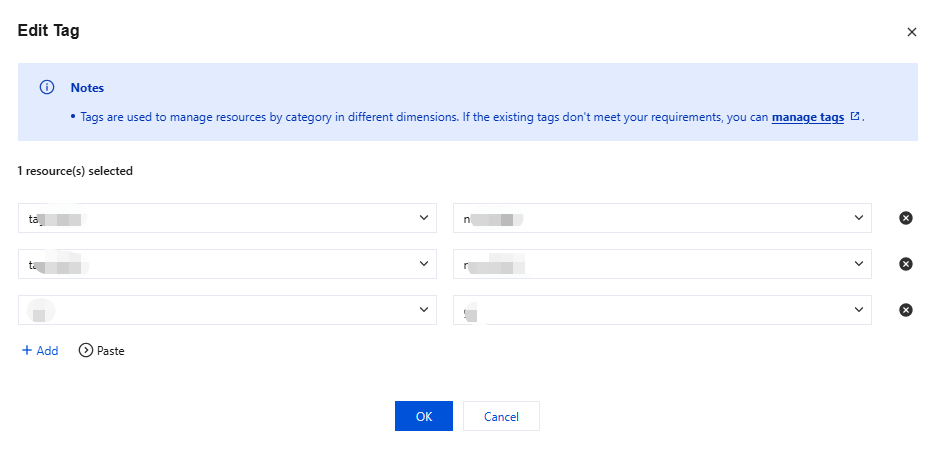
3. In the Edit Tag pop-up window, set tags.
4. For example, add three groups of tags to the pulsar-rgxj35jgo3d1 cluster.
Note
If the existing tags do not meet your requirements, go to Tag to create tags.
5. Click OK. The system displays a message, indicating that the modification is successful. You can view the tags bound to the cluster in the Resource Tag column of the cluster.
Filtering Resources by Tag Key
To obtain the clusters bound to a specific tag, perform the following steps to filter clusters:
1. Select Tag in the search box in the upper-right corner of the page.
2. In the window that pops up after Tag:, select the tag you want to search for and click OK to search.
For example, if you select Tag: owner:tom, you can obtain the clusters bound to the tag key owner:tom.
Editing Tags
1. On the Cluster list page, select a region, select the clusters for which you want to edit tags, and then click Edit Resource Tag at the top of the page.
Note
You can edit tags for a maximum of 20 resources in batches.
2. In the Edit Tag pop-up window, add, modify, or delete tags as needed.
Managing Resource Tags in a Unified Manner
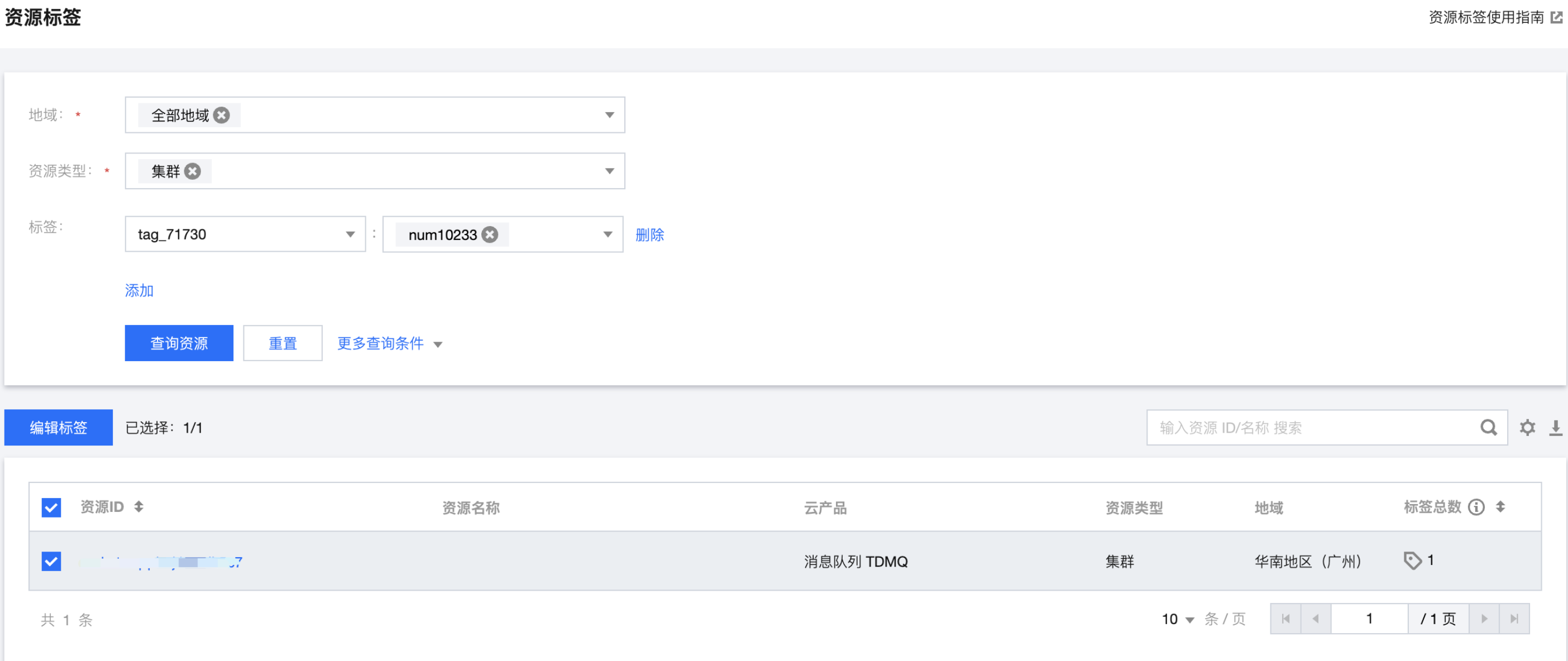
You can also manage resource tags in a unified manner in the Tag console. The detailed operations are as follows: