tencent cloud

IoT Hub

Release Notes and Announcements
Release Notes
Product Introduction
Overview
Features
Strengths
Use Cases
Use Limits
Basic Concepts
Getting Started
Quick Start
Scenario 1: Device Interconnection
Scenario 2: Device Status Reporting and Setting
MQTT.fx Connection Guide
Console Guide
Product Management
Rule Engine
Sub-account Access to IoT Hub
Firmware Upgrade
Resource Management
Certificate Management
Developer Manual
Feature Components
Signature Algorithm
Device Authentication
Device Connection Protocol
Gateway Subdevice
Message Communication
Device Shadow
Device Firmware Upgrade
Remote Device Configuration
Resource Management
Device Log Reporting
NTP Service
Device Connection Manual
Device Connection Overview
Connection Based on SDK for C
Connection Based on SDK for Android
Connection Based on SDK for Java
Connection Based on SDK for Python
API Documentation
History
Introduction
API Category
Making API Requests
Device Shadow APIs
Device APIs
CA Certificate APIs
Product APIs
Data Types
Error Codes
FAQs
General
Device Connection and Reporting
Rule Engine
Console
IoT Hub Policy
Privacy Policy
Data Privacy And Security Agreement
Glossary

Broadcast Communication

PDF
Focus Mode
Font Size
Last updated: 2024-12-27 15:54:13

Feature Overview

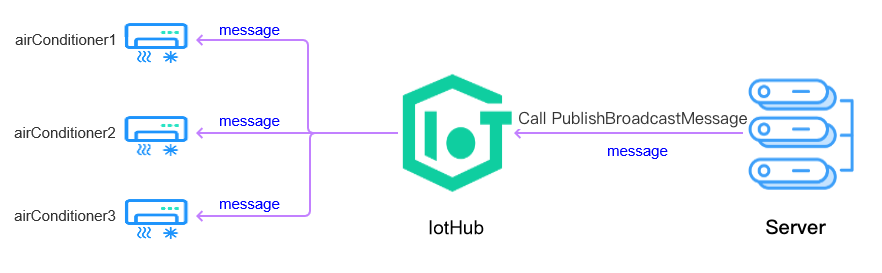
The IoT Hub platform provides a broadcast communication topic. The server can publish a broadcast message by calling the broadcast communication API, which can be received by online devices that have subscribed to the broadcast topic under the same product.


Broadcast Topic

The broadcast communication topic is `$broadcast/rxd/${ProductId}/${DeviceName}`, where ${ProductId} and ${DeviceName}` represent the specific product ID and device name.

Broadcast Communication Sample

The sample completes device connection through the device-side C-SDK on Linux and calls APIs together with Tencent Cloud API Explorer. The specific steps are as follows:

Creating device in console

Scenario description

If you have multiple air conditioner devices connected to the IoT Hub platform, then the server can send the same instruction to all of them for turning off.
The server calls the PublishBroadcastMessage API and specifies the ProductId and the Payload of the broadcast message. Then, all online devices that have subscribed to the broadcast topic under the product will receive the broadcast message with the Payload.

Creating product and device

Create an air conditioner product and airConditioner1, airConditioner2, and other devices as instructed in Device Interconnection.

Compiling and running demo (with key-authenticated device as example)

1. Compile the SDK

Modify CMakeLists.txt to ensure that the following options exist:
set(BUILD_TYPE "release")
set(COMPILE_TOOLS "gcc")
set(PLATFORM "linux")
set(FEATURE_MQTT_COMM_ENABLED ON)
set(FEATURE_BROADCAST_ENABLED ON)
set(FEATURE_AUTH_MODE "KEY")
set(FEATURE_AUTH_WITH_NOTLS OFF)
set(FEATURE_DEBUG_DEV_INFO_USED OFF)
Run the following script for compilation:
./cmake_build.sh
The demo output broadcast_sample is in the output/release/bin folder.

2. Enter the device information

Enter the information of the airConditioner1 device created above in a JSON file aircond_device_info1.json:
{
"auth_mode":"KEY",
"productId":"KL4J2****8",
"deviceName":"airConditioner1",
"key_deviceinfo":{
"deviceSecret":"zOZXUaycuwlePt****8dBA=="
}
}
Enter the information of the airConditioner2 device in another JSON file aircond_device_info2.json:
{
"auth_mode":"KEY",
"productId":"KL4J2****8",
"deviceName":"airConditioner2",
"key_deviceinfo":{
"deviceSecret":"+IiVNsyKRh0AW****IE07A=="
}
}
Enter the information of other devices in corresponding JSON files in turn.

3. Run the broadcast_sample demo

As this scenario involves multiple demos running simultaneously, you can open multiple terminals to run the broadcast_sample demo, and you will see that all the demos subscribe to the $broadcast/rxd/${productID}/${deviceName} topic and are in the waiting status. The output of the airConditioner1 device is as follows:
./broadcast_sample -c ./aircond_device_info1.json -l 100
INF|2020-08-03 22:50:28|qcloud_iot_device.c|iot_device_info_set(50): SDK_Ver: 3.2.0, Product_ID: KL4J2****8, Device_Name: airConditioner1
DBG|2020-08-03 22:50:28|HAL_TLS_mbedtls.c|HAL_TLS_Connect(200): Setting up the SSL/TLS structure...
DBG|2020-08-03 22:50:28|HAL_TLS_mbedtls.c|HAL_TLS_Connect(242): Performing the SSL/TLS handshake...
DBG|2020-08-03 22:50:28|HAL_TLS_mbedtls.c|HAL_TLS_Connect(243): Connecting to /KL4J2****8.iotcloud.tencentdevices.com/8883...
INF|2020-08-03 22:50:28|HAL_TLS_mbedtls.c|HAL_TLS_Connect(265): connected with /KL4J2****8.iotcloud.tencentdevices.com/8883...
INF|2020-08-03 22:50:28|mqtt_client.c|IOT_MQTT_Construct(113): mqtt connect with id: 9**** success
INF|2020-08-03 22:50:28|broadcast_sample.c|main(197): Cloud Device Construct Success
DBG|2020-08-03 22:50:28|mqtt_client_subscribe.c|qcloud_iot_mqtt_subscribe(142): topicName=$broadcast/rxd/KL4J2****8/airConditioner1|packet_id=*****
INF|2020-08-03 22:50:28|broadcast_sample.c|_mqtt_event_handler(49): subscribe success, packet-id=*****
DBG|2020-08-03 22:50:28|broadcast.c|_broadcast_event_callback(37): broadcast topic subscribe success
The output of the airConditioner2 device is as follows:
./broadcast_sample -c ./aircond_device_info2.json -l 100
INF|2020-08-03 22:51:24|qcloud_iot_device.c|iot_device_info_set(50): SDK_Ver: 3.2.0, Product_ID: KL4J2****8, Device_Name: airConditioner2
DBG|2020-08-03 22:51:24|HAL_TLS_mbedtls.c|HAL_TLS_Connect(200): Setting up the SSL/TLS structure...
DBG|2020-08-03 22:51:24|HAL_TLS_mbedtls.c|HAL_TLS_Connect(242): Performing the SSL/TLS handshake...
DBG|2020-08-03 22:51:24|HAL_TLS_mbedtls.c|HAL_TLS_Connect(243): Connecting to /KL4J2****8.iotcloud.tencentdevices.com/8883...
INF|2020-08-03 22:51:24|HAL_TLS_mbedtls.c|HAL_TLS_Connect(265): connected with /KL4J2****8.iotcloud.tencentdevices.com/8883...
INF|2020-08-03 22:51:25|mqtt_client.c|IOT_MQTT_Construct(113): mqtt connect with id: f**** success
INF|2020-08-03 22:51:25|broadcast_sample.c|main(197): Cloud Device Construct Success
DBG|2020-08-03 22:51:25|mqtt_client_subscribe.c|qcloud_iot_mqtt_subscribe(142): topicName=$broadcast/rxd/KL4J2****8/airConditioner2|packet_id=*****
INF|2020-08-03 22:51:25|broadcast_sample.c|_mqtt_event_handler(49): subscribe success, packet-id=******
DBG|2020-08-03 22:51:25|broadcast.c|_broadcast_event_callback(37): broadcast topic subscribe success

4. Call TencentCloud API PublishBroadcastMessage to send a broadcast message

Go to API Explorer, enter the personal key and device parameter information, select Online Call, and send the request.

5. Observe the message reception of the air conditioners

Observe the printout of the airConditioner1 device, and you can see that the message sent by the server has been received.
DBG|2020-08-03 22:55:32|broadcast.c|_broadcast_message_cb(25): topic=$broadcast/rxd/KL4J2****8/airConditioner1
INF|2020-08-03 22:55:32|broadcast.c|_broadcast_message_cb(26): len=6, topic_msg=closed
INF|2020-08-03 22:55:32|broadcast_sample.c|_broadcast_message_handler(134): broadcast message=closed
Observe the printout of the airConditioner2 device, and you can see that the message sent by the server has also been received.
DBG|2020-08-03 22:55:32|broadcast.c|_broadcast_message_cb(25): topic=$broadcast/rxd/KL4J2****8/airConditioner2
INF|2020-08-03 22:55:32|broadcast.c|_broadcast_message_cb(26): len=6, topic_msg=closed
INF|2020-08-03 22:55:32|broadcast_sample.c|_broadcast_message_handler(134): broadcast message=closed

6. Turn off air conditioner devices

The devices that have received the instruction will parse the instruction for processing.

Help and Support

Was this page helpful?

Help us improve! Rate your documentation experience in 5 mins.

Feedback