Device firmware update is an important part of the IoT Hub service. When a device has new features available or vulnerabilities that need to be fixed, firmware update can be quickly performed for it through the device firmware update feature.
How It Works
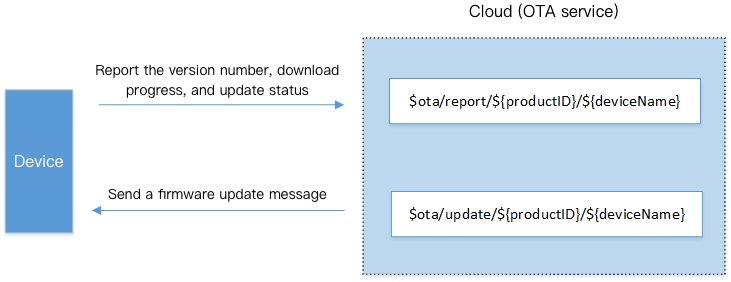
During the firmware update process, the device needs to subscribe to the following two topics to communicate with the cloud:
Below is a sample:
$ota/report/${productID}/${deviceName}
This topic is used to publish(upstream) messages, through which the device reports the version number and the download/update progress to the cloud.
$ota/update/${productID}/${deviceName}
This topic is used to subscribe to(downstream) messages, through which the device receives the update message from the cloud.
Process
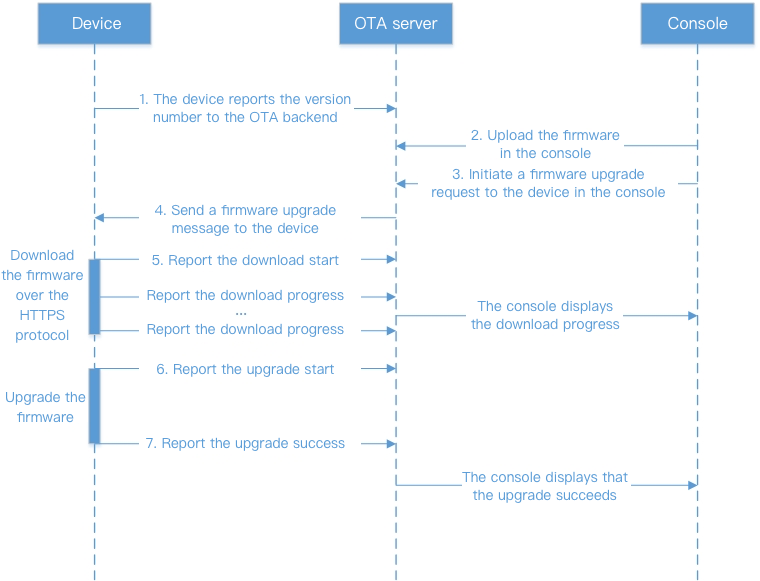
Taking MQTT as an example, the update process of the device is as follows:
1. The device reports its current version number. It publishes a message in JSON format with the following content to the $ota/report/${productID/${deviceName} topic over the MQTT protocol to report its version number:
{
"type":"report_version",
"report":{
"version":"0.1"
}
}
// type: message type
// version: the reported version number
2. Log in to the IoT Hub console, upload the firmware, and update the specified device to the specified version.
3. After the firmware update operation is triggered, the device will receive a firmware update message with the following content through the subscribed $ota/update/${productID}/${deviceName} topic:
4. After receiving the firmware update message, the device will download the firmware from the URL. During the download process, the device SDK keeps reporting the download progress with the following content through the $ota/report/${productID}/${deviceName} topic:
{
"type":"report_progress",
"report":{
"progress":{
"state":"downloading",
"percent":"10",
"result_code":"0",
"result_msg":""
},
"version":"0.2"
}
}
// type: message type
// state: the status is "downloading"
// percent: the current download progress in percentages
5. After downloading the firmware, the device needs to report an update start message with the following content through the $ota/report/${productID}/${deviceName} topic:
{
"type":"report_progress",
"report":{
"progress":{
"state":"burning",
"result_code":"0",
"result_msg":""
},
"version":"0.2"
}
}
// type: message type
// state: the status is "burning"
6. After the device firmware update is completed, the device will report an update success message with the following content to the $ota/report/${productID}/${deviceName} topic:
{
"type":"report_progress",
"report":{
"progress":{
"state":"done",
"result_code":"0",
"result_msg":""
},
"version":"0.2"
}
}
// type: message type
// state: the status is "completed"
In the process of downloading or updating the firmware, if a failure occurs, an update failure message with the following content will be reported through the $ota/report/${productID}/${deviceName} topic:
{
"type":"report_progress",
"report":{
"progress":{
"state":"fail",
"result_code":"-1",
"result_msg":"time_out"
},
"version":"0.2"
}
}
// state: the status is "failed"
// result_code: error code. -1: download timed out; -2: the file does not exist; -3: the signature expired; -4: MD5 mismatch; -5: firmware update failed
// result_msg: error message
Checkpoint Restart of OTA
IoT devices sometimes may be in weak network environments. In this case, the connection may be unstable, firmware download may be interrupted, and if the firmware is downloaded from offset 0 every time, it may never complete. Therefore, the checkpoint restart feature of firmware download is particularly necessary as detailed below:
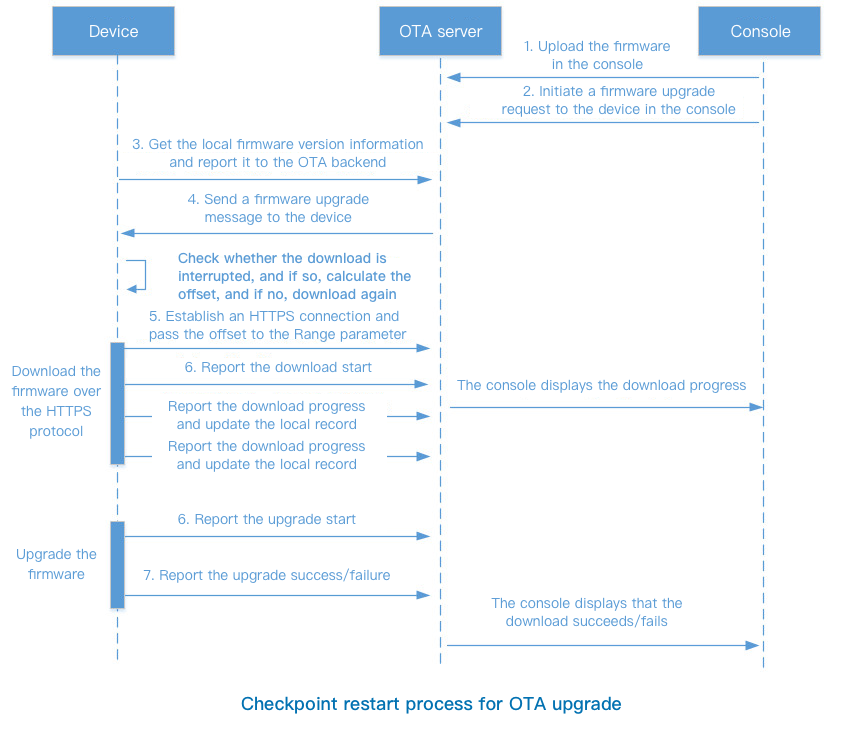
Checkpoint restart refers to resuming file download or upload from where interrupted. To implement this feature, the device needs to record the checkpoint where firmware download is interrupted as well as the MD5, file size, and version information of the firmware.
In case of OTA interruption, the device will report its version number to the IoT Hub platform, and if the reported version number is different from the target version number to be updated to, the platform will distribute a firmware update message again, and the device will get the target firmware information and compare it with the locally recorded interrupted firmware information. After determining that they are the same firmware, the device will restart download from the checkpoint.
The checkpoint restart process for OTA update is as follows:
Note:
Steps 3–6 may be performed multiple times in a weak network environment, and step 7 will be performed only after they succeed.
After step 3 is performed, the device will receive the message that step 4 needs to be performed.