This document describes how to quickly use the firmware update service in IoT Hub.
Directions
Adding firmware
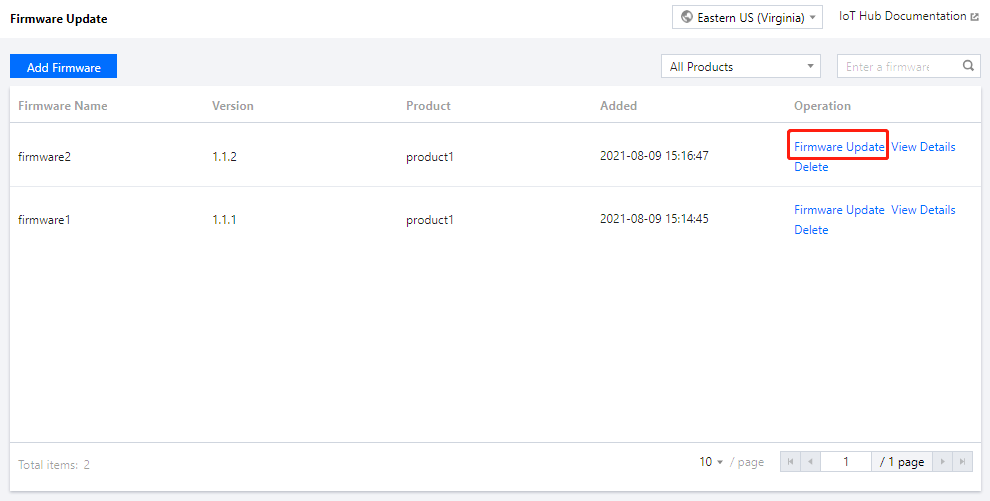
1. Log in to the IoT Hub console, click Firmware Update on the left sidebar to enter the firmware list page, and you can view all firmware files in the project.
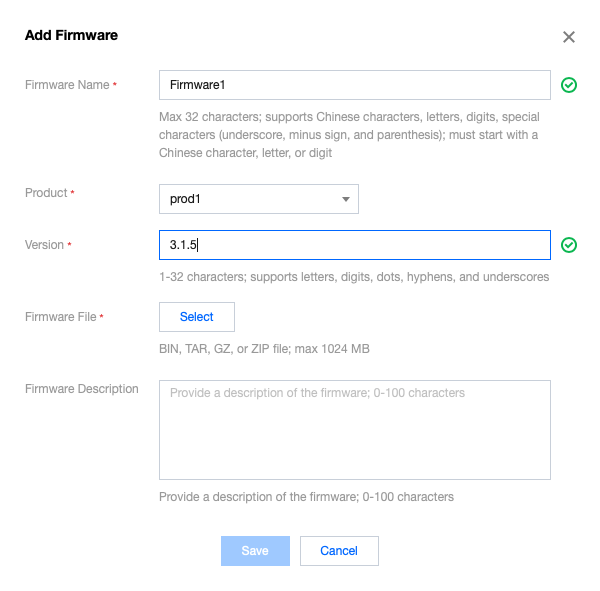
2. Click Add Firmware to add a firmware file.
Firmware Name: it can contain up to 32 letters, digits, underscores, minus signs, and parentheses and must begin with a letter or digit.
Product: select the product of the firmware to be uploaded.
Version: it can contain 1–32 letters, digits, dots, hyphens, and underscores.
Firmware File: the firmware file to be uploaded must be a .bin file or a .tar, .gz, or .zip package and cannot exceed 1,024 MB in size.
Firmware Description: it is the description and record of the firmware to be uploaded and can contain 0–100 characters.
Up to 100 firmware files can be uploaded under each account. If you want to upload more, you need to delete some old firmware versions first.
3. After successful upload, the firmware will be displayed in the list. You can perform operations such as updating, adding, deleting, querying, and modifying the firmware file and viewing its details.
Updating firmware
Select the target firmware version for update and click Firmware Update on the right of the firmware list to initiate an update task. You can batch update devices by firmware version number or device name.
Updating by firmware version number
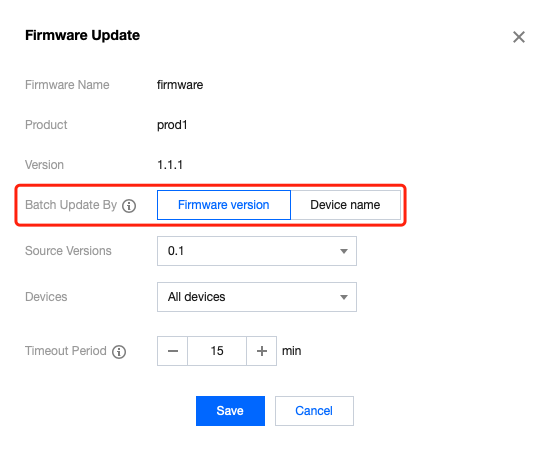
1. Go to the firmware update page, which displays the information of the target firmware, such as firmware name, product, and version number.
2. Select Firmware version for Batch Update By.
Source Versions: select one or multiple firmware version numbers in the drop-down list for update.
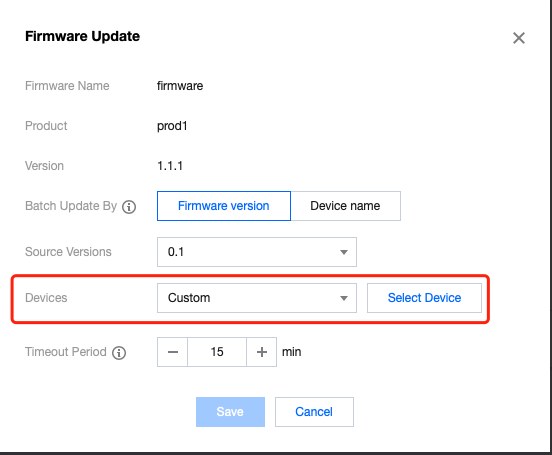
Devices: you can select all or specified devices on the firmware version numbers for update as the target devices. The specified device update feature is usually used for beta test verification of firmware content. If you select Custom for Devices, click Select Device next to the drop-down list, and then you can batch select target devices for update among all devices of the product.
3. Click Save, and the system will perform the update task by delivering the selected target firmware to the target devices.
Note:
Update by firmware version requires the target devices to report their currently running firmware versions. If the versions are not reported, you can select updating by device name as described below.
Updating by device name
1. Go to the firmware update page, which displays the information of the target firmware, such as firmware name, product, and version number.
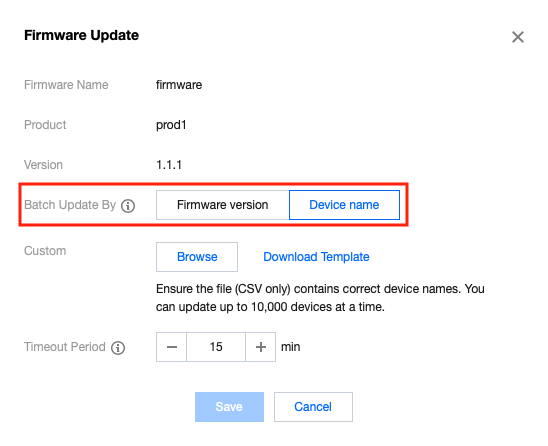
2. Select Device name for Batch Update By.
3. Upload the list of devices whose firmware needs to be updated. Click Download Template to get the template file, enter the correct DeviceName values in the template, and click Upload File to upload it. Up to 10,000 devices can be updated at a time, and only CSV files are supported.
4. Click Save, and the system will perform the update task by delivering the firmware to the target devices.
Viewing firmware details
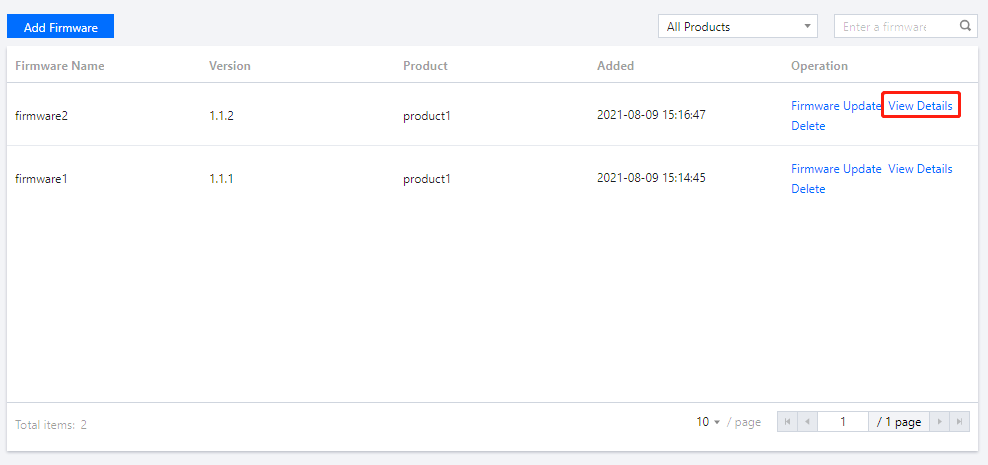
1. Click View Details on the right of the firmware list to view firmware details.
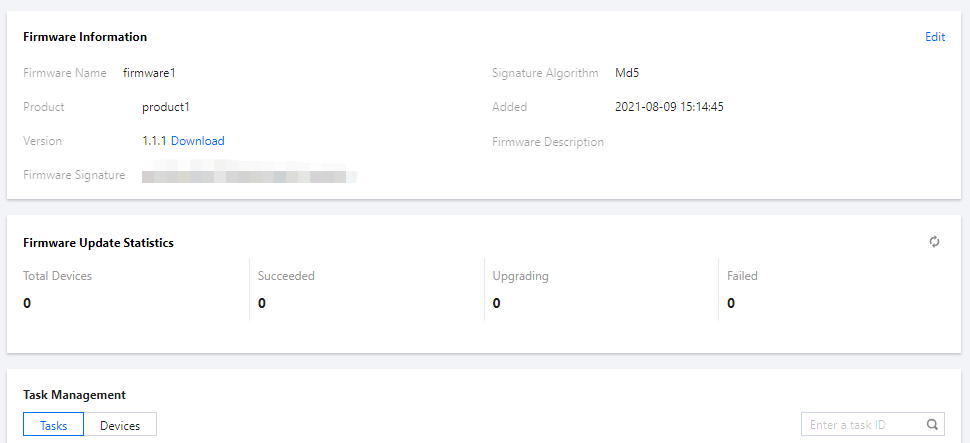
2. On the firmware details page, you can view the firmware details, statistics of devices updated to the firmware version, and update task management list.
Firmware Information: it includes the firmware name, product, version number, signature, signature algorithm, adding time, and description. You can click Edit in the top-right corner to modify the firmware name and description.
Firmware Update Statistics: it includes the total number of devices in all batch update tasks of the firmware and the numbers of corresponding devices in firmware update tasks in different update status.
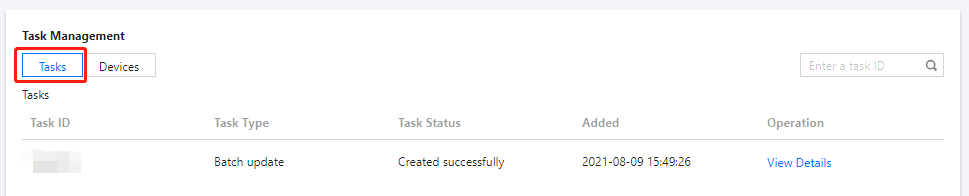
Task management list:
Click Tasks to view all update tasks of this firmware. There are four update task status: not started, creating, created, and creation failed.
Click Devices to view the detailed records of devices in all update tasks of this firmware. There are five device update status: to be pushed, pushed, updating, updated, and update failed.
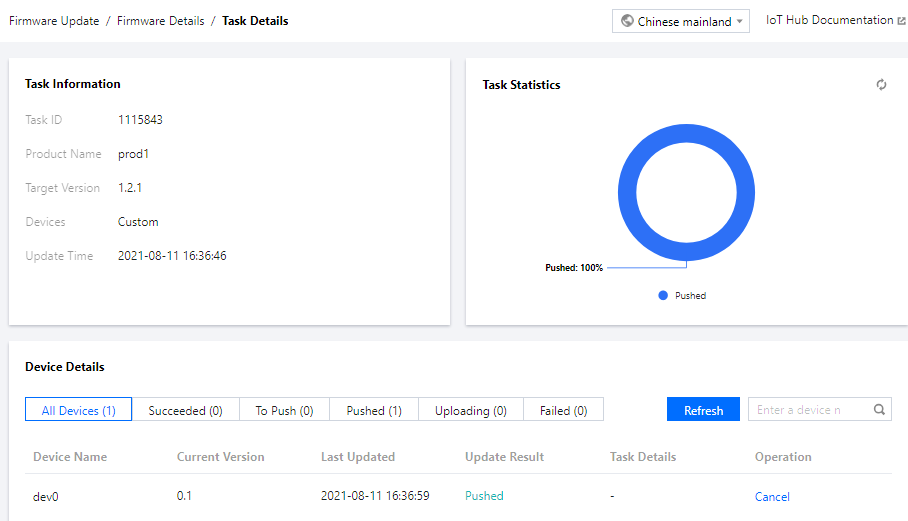
3. In Tasks or Devices in task management, click View Details on the right of a task to enter the task details page, where you can view the list of target devices, update status, and numbers of devices in different update status in this task.
In the device details list, you can view the current update status and status details of all target devices in the batch update task. If the update status is To push or Pushed, no status details will be displayed. If the update status is Updating, the status details will display the combination of Downloading and Burning and the update progress values in percentage of each device. If the update status is Failed, the status details will display error messages.
In addition, you can cancel or retry device update on the right of the device details list based on the update progress. Devices whose update is canceled will be marked as Failed. For such devices, you can click Retry to update them again.