Alarm
Baixar
Modo Foco
Tamanho da Fonte
The database risk monitoring and alarm module enables precise identification and closed-loop handling of violations through a real-time security event monitoring and response system for database assets.
Alarm List
1. Log in to the TDSQL-C for MySQL console, and click Data Security Audit in the left sidebar.
2. On the DSAudit page, click Alarm.

3. On the Alarm Tag page, you can view alarm information related to the current database assets. The alarm list displays the Alarm Name/Type, Threat Level, Instance ID/Name, Database Account, Detection Time, and Processing Status.
Note:
During alarm export, the detection time in the alarm list is automatically converted to UTC+08:00 (East Eight Time Zone/Beijing Time). The two sets of times correspond to the same event occurrence moment, with only the display time zone differing. The original data remains consistent.
Viewing Alarm Details
On the Alarm Tag page, click the target Alarm Name to view details such as the alarm trigger reason, violation operation details (SQL statement, source IP address), and associated assets.
Alarm Handling Operations
Marking as Ignored
Mark the status of false positive alarms or alarms that do not require handling to eliminate interference in risk statistics.
Note:
If the alarm handling status is marked as ignored, the risk will not be included in risk statistics.
1. On the Alarm Tag page, you can handle target alarms individually or in batches:
Individual handling: Click Mark as Ignored in the operation column of the target alarm.

Batch handling: Select multiple target alarms, and click Mark as Ignored above the list.

2. In the confirmation dialog, click OK to mark the alarm as ignored.
Adding Allowlists
For behaviors that require long-term permission, you can add the policy triggered by the alarm to the rule allowlist.
1. On the Alarm Tag page, click Add to Allowlist in the operation column of the target alarm.

2. In the Add to Allowlist window, review the allowlist policy content. After confirming that it is correct, click Confirm to add the policy information triggered by the alarm to the allowlist.
Note:
After the alarm allowlist policy rule takes effect, the behavior no longer triggers alarms.
Marking as Handled
Update the status of alarms for which emergency response has been completed to close the handling loop.
1. On the Alarm Tag page, select one or more target alarms and click Tag Disposal.

2. In the confirmation window, review the alarm information. After confirming that it is correct, click OK to mark the alarm as handled.
Note:
After the alarm handling status is marked as handled, the alarm will not be included in risk statistics.
Alarm Policy Configuration
1. Log in to the TDSQL-C for MySQL console, and click Data Security Audit in the left sidebar.
2. On the CDS page, click Policy Management in the upper-right corner.

3. In the Policy Management window, click Alarm Policy.
4. On the Alarm Policy tab, all built-in preset alarm policies are displayed. You can enable/disable alarm policies, adjust threat levels, and modify policy content on this tab.
Adding Alarm Policies
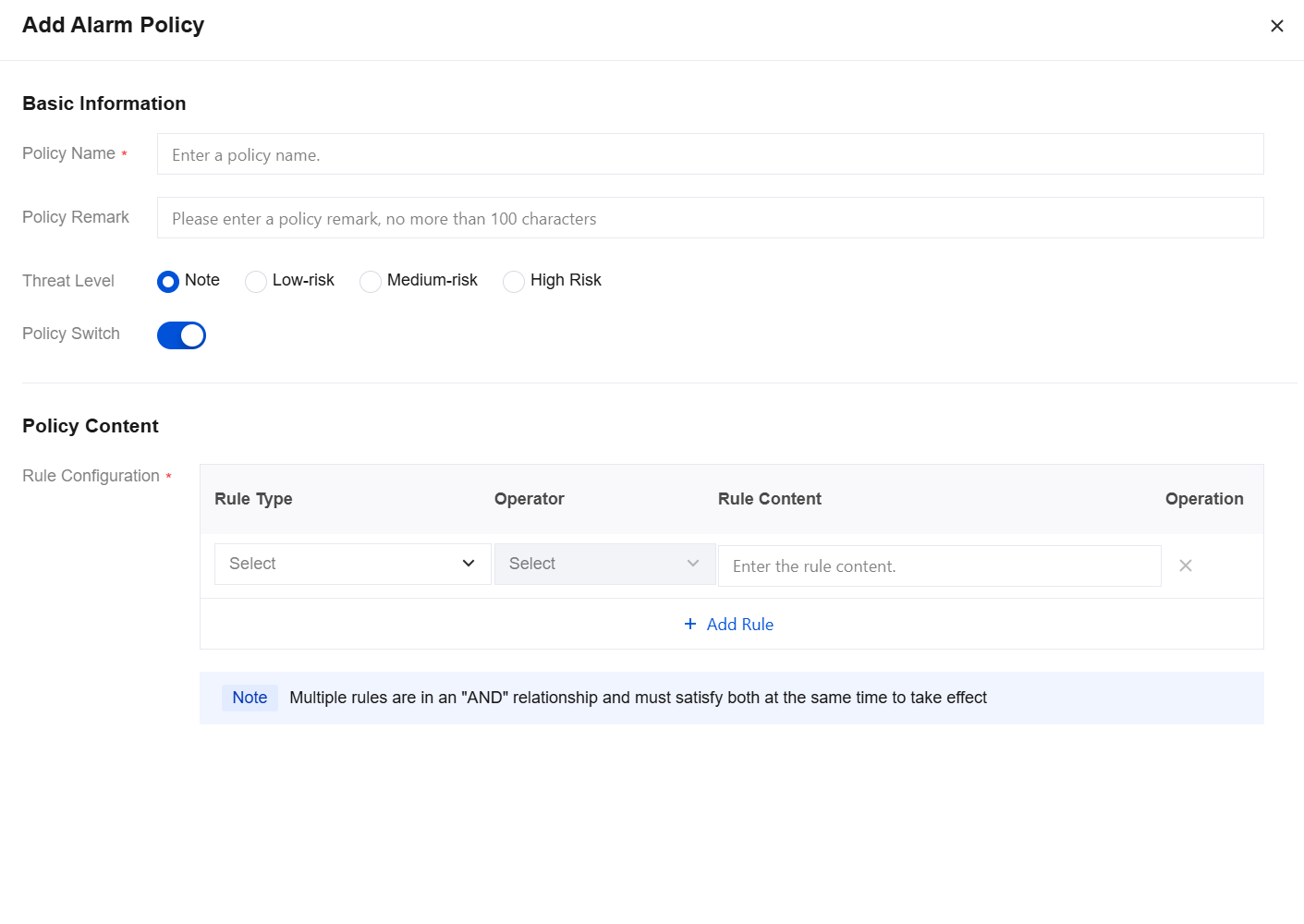
1. On the Alarm Policy tab, click Add Policy.
2. In the pop-up window, set the policy name, policy remarks, threat level, policy switch, and policy content, and then click Confirm.
Enabling/Disabling Alarm Policies
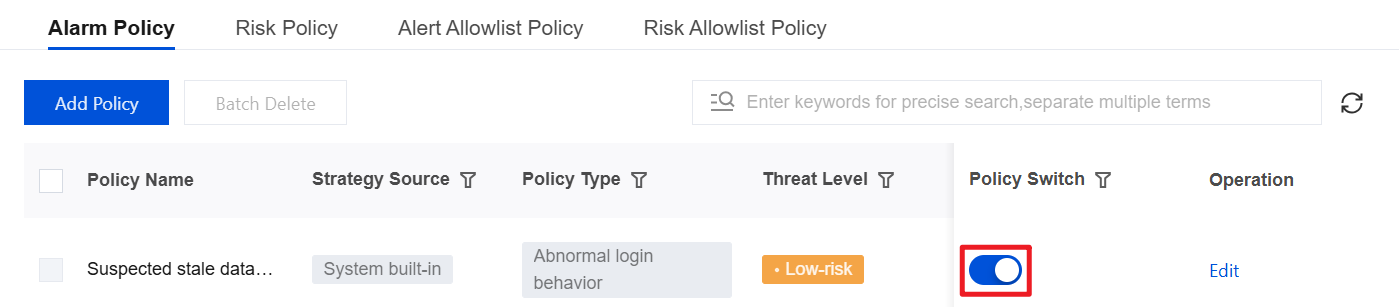
On the Alarm Policy tab, select the target alarm policy and click the toggle in the policy switch column to enable or disable the alarm policy.
Editing Alarm Policies
1. On the Alarm Policy tab, select the target alarm policy and click Edit in the operation column.
2. In the Edit Policy window, you can modify the threat level and policy content, excluding service accounts.
Alarm Allowlist Management
1. In the Policy Management window, click Alert Allowlist Policy.

2. On the Alarm Allowlist Policy tab, all added alarm allowlist policies are displayed.
3. On the Alarm Allowlist Policy tab, you can periodically view the allowlist. Click Edit to modify rules, or click Delete to expire/invalidate rules.
Ajuda e Suporte
Esta página foi útil?
Você também pode entrar em contato com a Equipe de vendas ou Enviar um tíquete em caso de ajuda.
comentários