This document introduces how to set automatic or manual start/stop for a Serverless Cluster via the console.
Prerequisites
Setting Automatic Start/Stop
The Serverless service supports an automatic start/stop feature. When there are no connections, the instance automatically pauses. When a task connection is received, the instance resumes instantly without interruption. You can enable or disable this feature through the console.
Note:
If auto-pause is enabled, you should set an auto-pause duration, which is 1 hour by default. When there are no active connections or CPU usage within this period, the database will automatically pause. After pausing, computing fees will not be charged, while storage fees will continue to be charged based on actual usage.
If auto-pause is disabled, the database remains running continuously. If there are no active connections or CPU usage, billing is based on the minimum CCU compute unit configured by the user. This is suitable for use cases that require persistent heartbeat connections.
Method 1: Enabling Automatic Start/Stop When a Cluster Is Created
You can enable automatic start/stop while creating a Serverless cluster by following these steps.
2. Select Serverless as the instance mode.
3. In Instance Selection > Auto-Pause, check The database automatically pauses if it is inactive for the time period specified here, and automatically resumes when database activity recurs. After the database is paused, the compute resources are not billed. If auto-pause is disabled, the database keeps running.
4. Set the auto-pause time (range: 0–7 days; 0–23 hours; 0, 10, 20, 30, 40, or 50 minutes).
5. Complete the remaining configuration and purchase the cluster.
Method 2: Enabling Automatic Start/Stop via the Console
If you did not check The database automatically pauses if it is inactive for the time period specified here, and automatically resumes when database activity recurs. After the database is paused, the compute resources are not billed. If auto-pause is disabled, the database keeps running when creating a cluster, it means auto start/stop is not enabled. You can refer to the following method to operate.
2. In the Cluster list on the left, click the target cluster to enter the cluster management page.
3. In the topology diagram, click the + icon in the read-only instance area, or click Serverless Configuration in the upper right corner.
4. In the pop-up, check "The database automatically pauses if it is inactive for the time period specified here, and automatically resumes when database activity recurs. After the database is paused, the compute resources are not billed. If auto-pause is disabled, the database keeps running".
5. Set the auto-pause time (range: 0–7 days; 0–23 hours; 0, 10, 20, 30, 40, or 50 minutes).
6. Click OK.
Setting Manual Start/Stop
If automatic start/stop is disabled, you can manually pause or start the Serverless cluster.
If automatic start/stop is enabled and the Serverless cluster is currently paused due to no active connections, you can manually start the cluster.
Manually Pausing a Cluster via the Console
Note:
If you pause a cluster while it has active connections, it will disrupt connecting businesses. Operate with caution. It is recommended to set automatic start/stop instead.
2. In the Cluster list on the left, click the target cluster to enter the cluster management page.
3. Click Pause in the upper right corner.
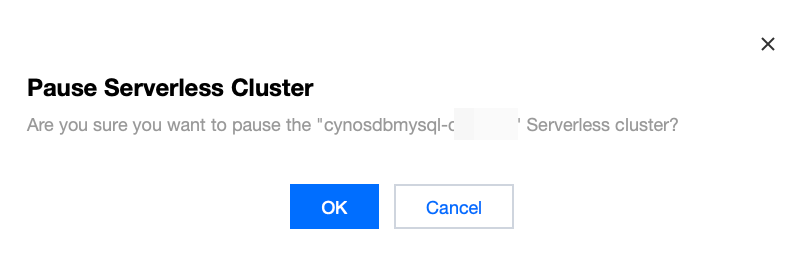
4. In the pop-up window, click OK.
Manually Starting a Cluster via the Console
2. In the Cluster list on the left, click the target cluster to enter the cluster management page.
3. Click Start in the upper right corner.
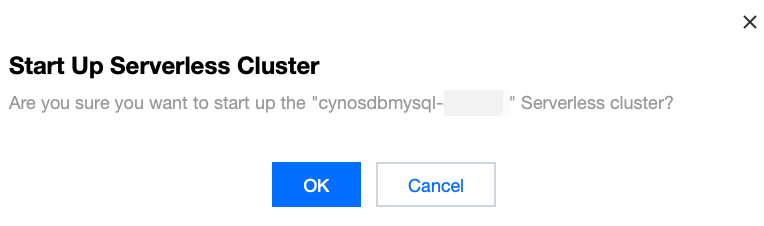
4. In the pop-up window, click OK.
Manually Pausing or Starting a Read-Only Instance in the Cluster via the Console
2. In the Cluster list on the left, click the target cluster to enter the cluster management page.
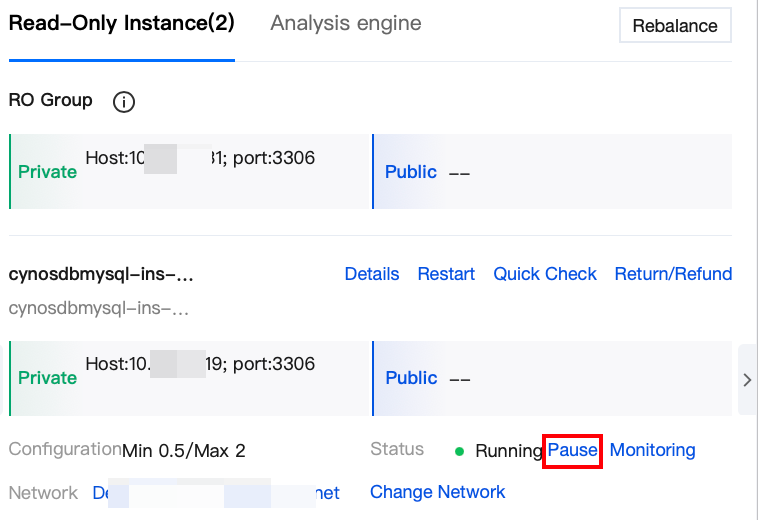
3. Under Instance Information on the right, find the target read-only instance, and click Pause or Start after the status.
4. In the pop-up window, click OK.
Related APIs
|
| This API (ModifyServerlessStrategy) is used to modify the Serverless policy. |
| This API (PauseServerless) is used to pause Serverless clusters. |