You can apply a parameter template to configure and manage the parameters of a database engine. A template is like a container of the values of database engine parameters, which can be applied to one or more database instances. This document describes parameter templates and relevant operations.
Scenarios
You can create parameter templates via the console. When you create a parameter template, you can select a provisioned resource cluster or a Serverless cluster for the parameter template. After creation, you can modify the parameter template as needed. You can also import or export the template, save parameters as another template, and view the parameter modification history.
Note:
Database instances that have applied a parameter template will not be synchronously updated when the parameter template is updated. Manual updating of database instance parameters is required.
Creating a Parameter Template
You can create a database parameter template, modify the parameters, and apply this database parameter template to your database.
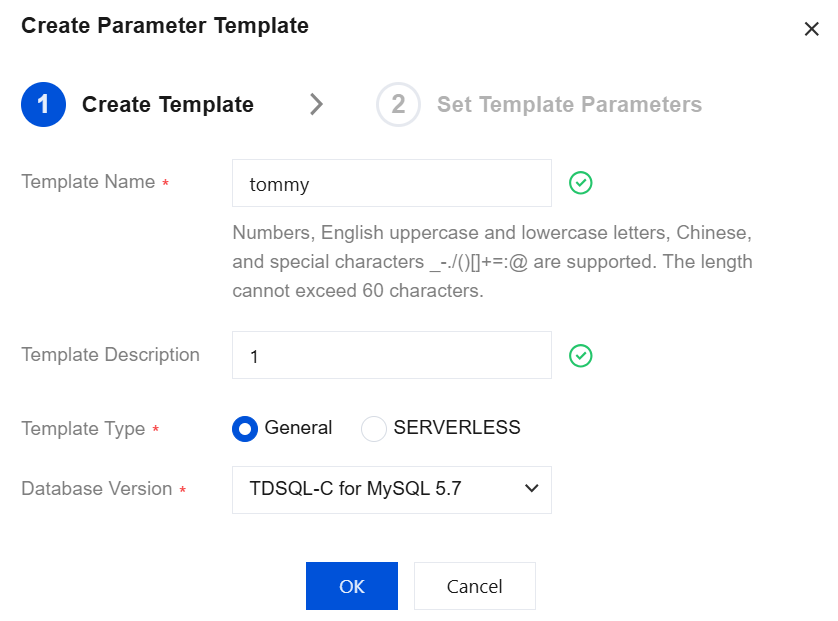
2. In the pop-up dialog box, complete the following configurations, and click OK.
|
Template Name | Enter a name for the parameter template. The parameter template name should be unique. It cannot exceed 60 characters and supports digits, uppercase and lowercase letters, Chinese characters, and special characters: _-./()()[]+=::@ |
Template Description | Enter a brief description of the parameter template. |
Template Type | Select a cluster type. For a provisioned resource cluster, select Common. For a Serverless cluster, select Serverless. |
Database Version | Select a database version. Options include TDSQL-C for MySQL 5.7 and TDSQL-C for MySQL 8.0. |
Copying a Parameter Template
If you have created a database parameter template A and want to include its parameters and values in template B, you can copy the parameter template by following the steps below.
Option 1. Copying an existing parameter template
1. Log in to the TDSQL-C for MySQL console, click Parameter Template in the left sidebar, find the target parameter template, and click Edit in the Operation column to enter the template details page. 2. Click Save as Template at the top of the template details page.
3. In the pop-up dialog box, complete the following configurations:
Template Name: Enter a new parameter template name. The parameter template name should be unique. It cannot exceed 60 characters and supports digits, uppercase and lowercase letters, Chinese characters, and special characters: _-./()()[]+=::@
Template Description: Enter a brief description of the parameter template.
4. After confirming that everything is correct, click OK.
Option 2. Saving parameters of an instance as a parameter template
1. Log in to the TDSQL-C for MySQL console, find the target cluster in the cluster list, and click Cluster ID to enter the cluster management page. 2. On the cluster management page, select the Parameter Settings tab and click Save as Template.
3. In the pop-up dialog box, complete the following configurations:
Template Name: Enter a new parameter template name. The parameter template name should be unique. It cannot exceed 60 characters and supports digits, uppercase and lowercase letters, Chinese characters, and special characters: _-./()()[]+=::@
Template Description: Enter a brief description of the parameter template.
4. After confirming that everything is correct, click OK.
Modifying Parameter Values in a Parameter Template
1. Log in to the TDSQL-C for MySQL console, click Parameter Template in the left sidebar, find the target parameter template, and click Edit in the Operation column to enter the template details page. 2. On the template details page, click Modify Parameters, or click in the Parameter Running Value column to modify parameter values. Importing a Parameter Template
1. Log in to the TDSQL-C for MySQL console, click Parameter Template in the left sidebar, find the target parameter template, and click Edit in the Operation column to enter the template details page. 2. On the template details page, click Import Parameters.
3. In the pop-up window, select a file and click Import and Overwrite Original Parameters.
Note:
When you select a parameter file to be imported from a local path, note that the file format should be consistent with the configuration file format of the TDSQL-C for MySQL database server. You can also use a previously exported parameter template file. Otherwise, the system will report an import failure.
Select a .cnf file with the size no greater than 1 MB.
Exporting a Parameter Template
Note:
When you export a parameter template, formula-based parameter values are automatically converted into integer values for export.
Method 1
2. In the parameter template list, click Export in the Operation column of the target template.
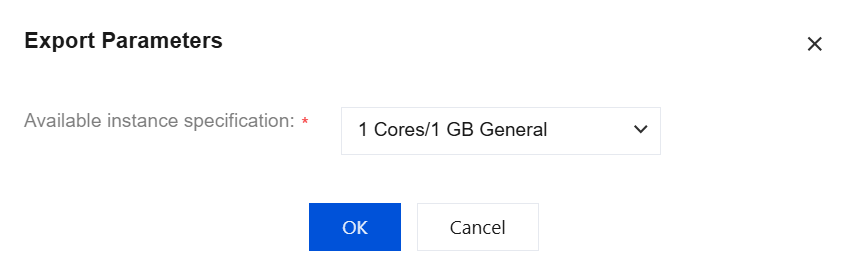
3. Select an instance specification, and click OK.
Method 2
2. In the parameter template list, click Edit in the Operation column of the target template to enter the template details page.
3. At the top of the template details page, click Export Parameters.
4. Select an instance specification, and click OK.
Deleting a Parameter Template
If a parameter template is created redundantly or no longer needed, it can be easily deleted.
2. In the parameter template list, find the target template and click Delete in the Operation column.
3. In the pop-up window, click OK.
Related APIs
|
| This API (CreateParamTemplate) is used for creating parameter templates. |
| This API (DescribeParamTemplateDetail) is used to query the details of user parameter templates. |
| This API (DescribeParamTemplates) is used to query all parameter template information under a user-specified product. |
| This API (ModifyParamTemplate) is used to modify user parameter templates. |
| This API (DeleteParamTemplate) is used to delete user-created parameter templates. |