tencent cloud

Tencent Cloud Elastic Microservice

Release Notes and Announcements
Announcements
Release Notes
Product Introduction
Overview
Strengths
Scenarios
Purchase Guide
Billing Overview
Product Pricing
Overdue Policies
Getting Started
Step 1. Get the Access Permission
Step 2. Create an Environment
Step 3. Create an Application
Step 4. Deploy the Application
Operation Guide
Environment Management
Application Management
Permission Management
View Change Record
Practical Tutorial
Use of GitHub Actions in TEM
Hosting a Static Website
Public Network Access of TEM Applications
TEM Application Access to Public Network (Through API Gateway)
TEM Application Failure Troubleshooting Guide
Quick Access to TEM Application Through API Gateway
Java Application Fine-Tuning
Migration from Java 8 to Java 11
API Documentation
History
Introduction
API Category
Making API Requests
Environment APIs
ModifyIngress
Resource APIs
Application APIs
Service APIs
RollingUpdateApplicationByVersion
Access Policy APIs
Configuration file APIs
Log collecting APIs
Scaling Rule APIs
Application Version APIs
Other APIs
Workload APIs
Data Types
Error Codes
FAQs
TEM Configuration
Contact Us
Glossary
TEM Policy
Privacy Policy
Data Privacy and Security Agreement
DocumentationTencent Cloud Elastic MicroservicePractical TutorialTEM Application Access to Public Network (Through API Gateway)

TEM Application Access to Public Network (Through API Gateway)

PDF
Focus Mode
Font Size
Last updated: 2024-01-26 16:40:24

Overview

Applications running on TEM usually need to access the public network for business and other reasons. In many cases, these requests are all HTTP/HTTPS requests. You can use API Gateway to easily access HTTP/HTTPS requests from the public network through simple configuration.
Note:
If your access to the public network does not only include HTTP/HTTPS, refer to Public Network Access of TEM Applications to configure a NAT gateway for implementation.

Prerequisites

Create an environment and create and deploy an application.

Directions

Step 1. Associate public network HTTP/HTTPS requests in API Gateway

1. Log in to the API Gateway console and click Service on the left sidebar to enter the service list page.
2. Select the same region as the TEM application and click Create in the top-left corner to create a service.
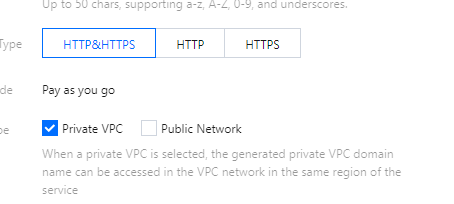
When creating the service, you can select the frontend type (HTTP, HTTPS, or HTTP/HTTPS), access mode (VPC), and instance type (shared).


3. Click the API Gateway service ID to enter the API management page and click Create API.
4. In the Frontend Configuration step, enter the API name, select HTTP&HTTPS as the frontend type, / as the path, ANY as the request method (to include all requests), and No authentication as the authentication type, and click Next.


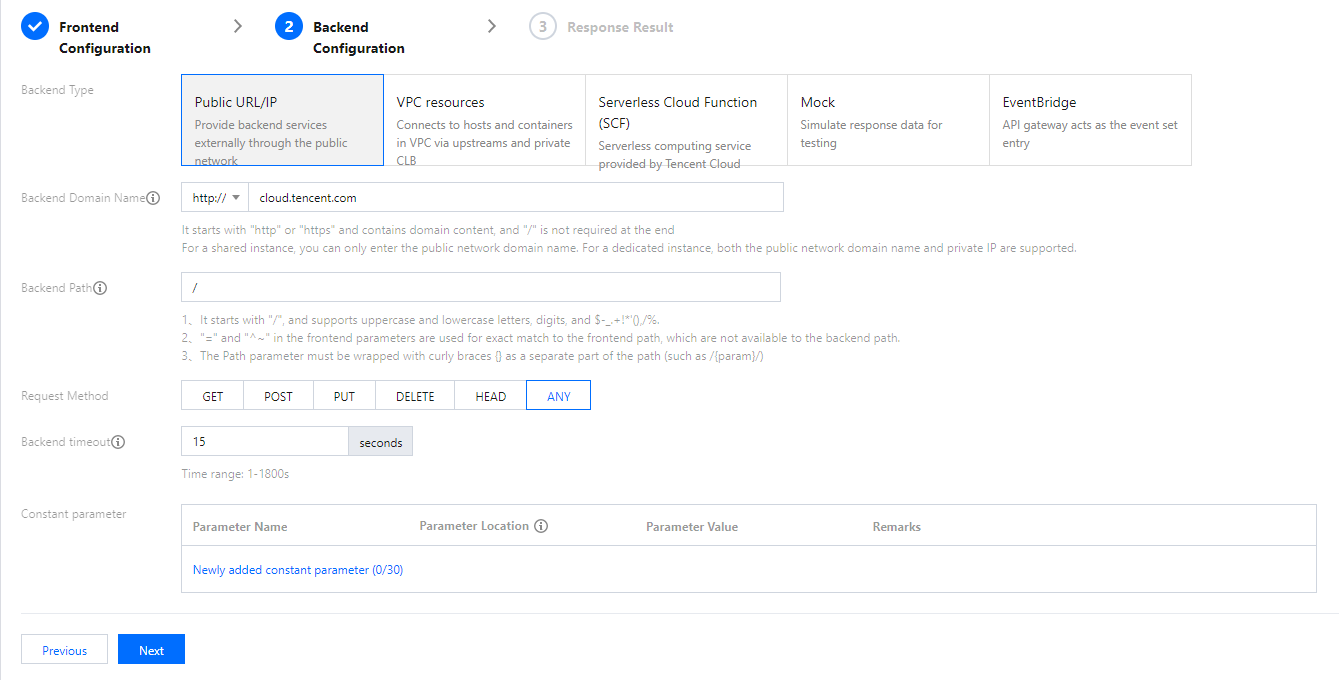
5. In the Backend Configuration step, select Public URL/IP as the backend type, configure the public domain name and path you need to access (Tencent Cloud official website is used as an example here), and click Next.


6. Set the return type of the application (which is HTML here), select JSON as the RESTful service, and click Complete to publish the service.

Step 2. Verify public network request connectivity

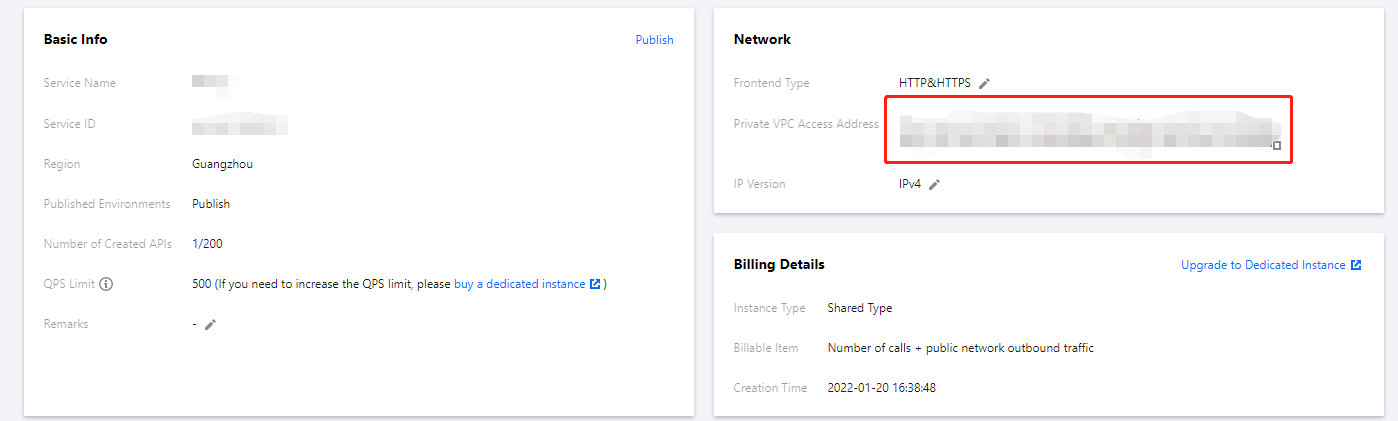
1. Go to the API Gateway service's basic configuration page and copy its VPC access address.


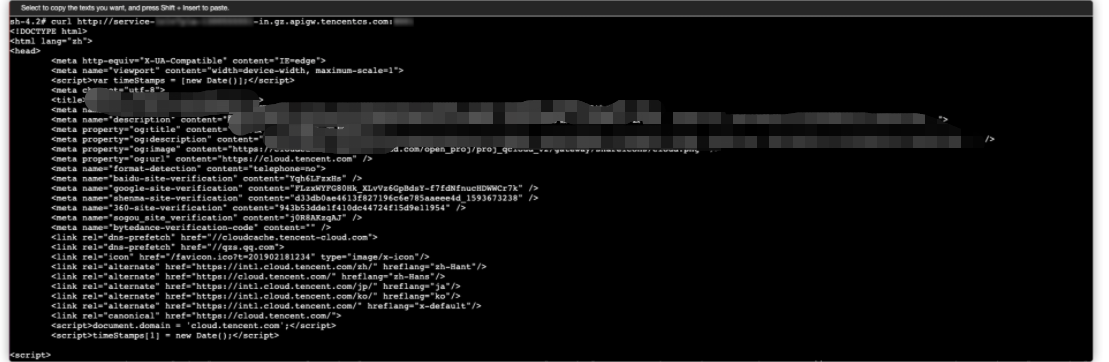
2. Open the deployed TEM application page, enter the webshell of the application instance, and visit the API Gateway VPC access address to verify the network connectivity.


Help and Support

Was this page helpful?

Help us improve! Rate your documentation experience in 5 mins.

Feedback