tencent cloud

Tencent Cloud Elastic Microservice

Release Notes and Announcements
Announcements
Release Notes
Product Introduction
Overview
Strengths
Scenarios
Purchase Guide
Billing Overview
Product Pricing
Overdue Policies
Getting Started
Step 1. Get the Access Permission
Step 2. Create an Environment
Step 3. Create an Application
Step 4. Deploy the Application
Operation Guide
Environment Management
Application Management
Permission Management
View Change Record
Practical Tutorial
Use of GitHub Actions in TEM
Hosting a Static Website
Public Network Access of TEM Applications
TEM Application Access to Public Network (Through API Gateway)
TEM Application Failure Troubleshooting Guide
Quick Access to TEM Application Through API Gateway
Java Application Fine-Tuning
Migration from Java 8 to Java 11
API Documentation
History
Introduction
API Category
Making API Requests
Environment APIs
ModifyIngress
Resource APIs
Application APIs
Service APIs
RollingUpdateApplicationByVersion
Access Policy APIs
Configuration file APIs
Log collecting APIs
Scaling Rule APIs
Application Version APIs
Other APIs
Workload APIs
Data Types
Error Codes
FAQs
TEM Configuration
Contact Us
Glossary
TEM Policy
Privacy Policy
Data Privacy and Security Agreement

Creating and Using Configurations

PDF
Focus Mode
Font Size
Last updated: 2024-01-09 12:40:53

Overview

This document describes how to create and use configurations in the TEM console.

Directions

1. Log in to the TEM console.
2. On the Environment page, select a deployment region and click View Details under the target environment block to go to the environment details page.
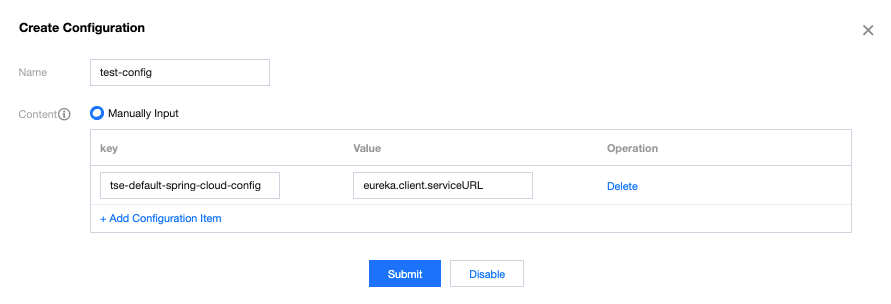
3. Select the Configuration Management tab at the top of the page, click Create, and enter configuration details.


Name: enter the name of the configuration file.
Content: enter the configured key-value pairs.
4. Click Submit to complete the creation.
Modifying a configuration item: click Edit in the Operation column of the target configuration item and modify the configuration in the pop-up window.
Deleting a configuration item: click Delete in the Operation column of the target configuration item and click OK in the pop-up window.
Note:
Before deleting a configuration that is associated with an application, you need to disassociate it from the application first.
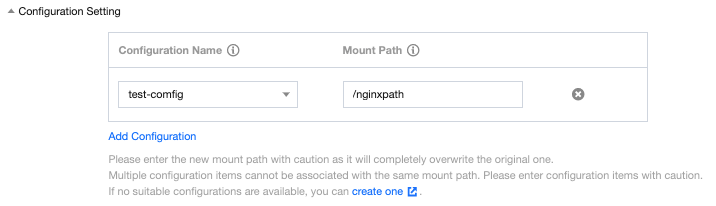
Associating a configuration with an application: go to the Deploy Application page, set the path to the container to which the configuration item is mounted in the Configuration Setting area. For operation details, please see Creating and Deploying Application.


Help and Support

Was this page helpful?

Help us improve! Rate your documentation experience in 5 mins.

Feedback