This document describes how to call Tencent Cloud eKYC APIs through API 3.0 Explorer and integrate SDKs in the corresponding programming language into your project after you purchase the eKYC service. You can access eKYC APIs quickly in the following steps.
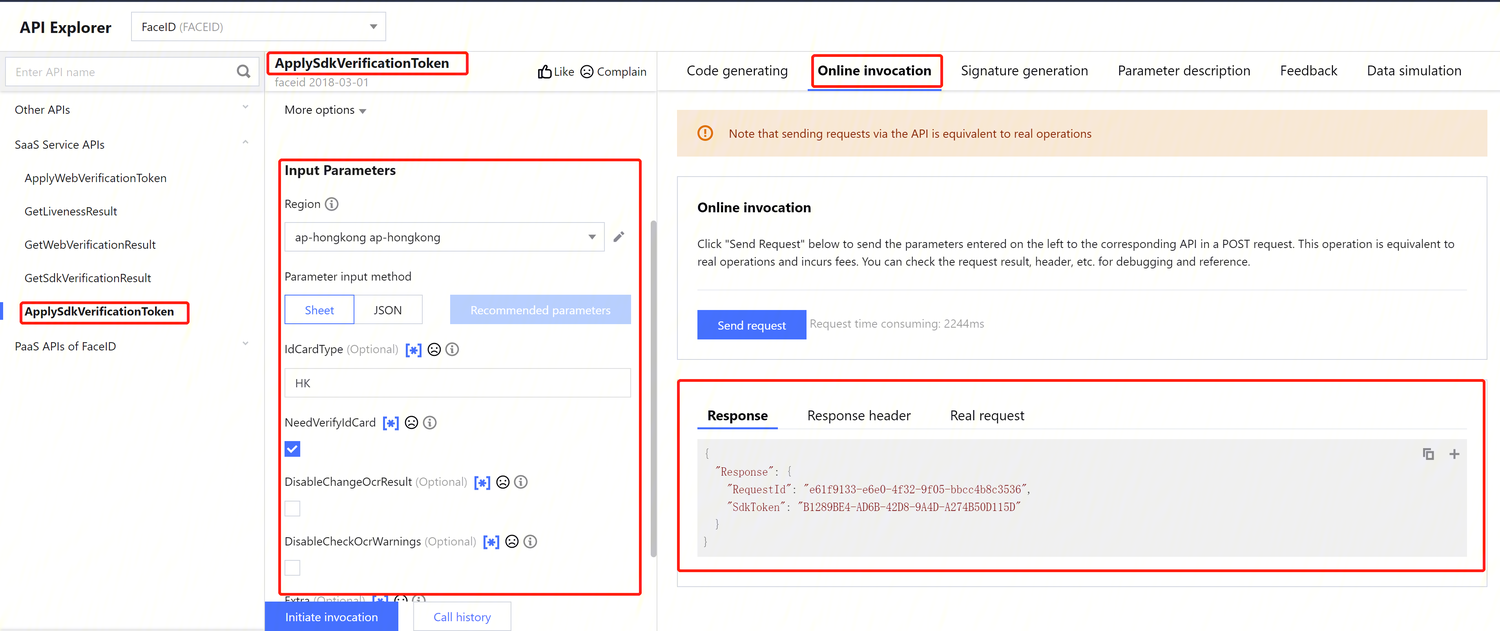
On the API 3.0 Explorer page, select ApplySdkVerificationToken from the left sidebar, enter required parameters, initiate the call, and get the response.
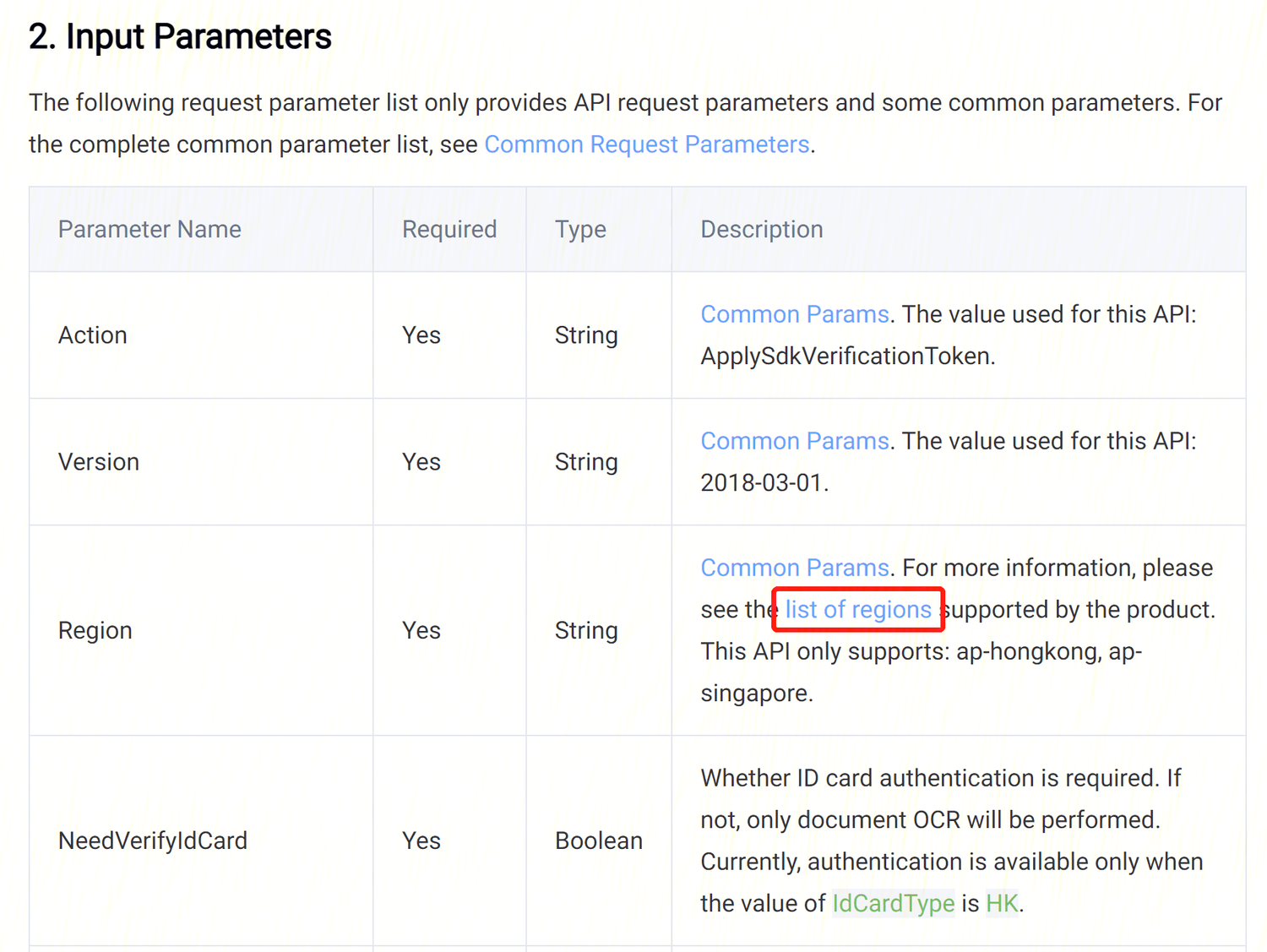
Region: This is a required parameter that specifies the region information in the domain name and determines the access point. For example, ap-hongkong means accessing the Hong Kong access point. APIs may support different regions. For details, see the "Region List" section in the API document of the API you are calling. For example, for ApplySdkVerificationToken, see the "Region List" section in Common Params.
NeedVerifyIdCard: This is a required parameter that specifies whether to perform identity card authentication. If this parameter is not selected, only document OCR will be performed. You can select this parameter only when the value of IdCardType is HK.
Step 2.
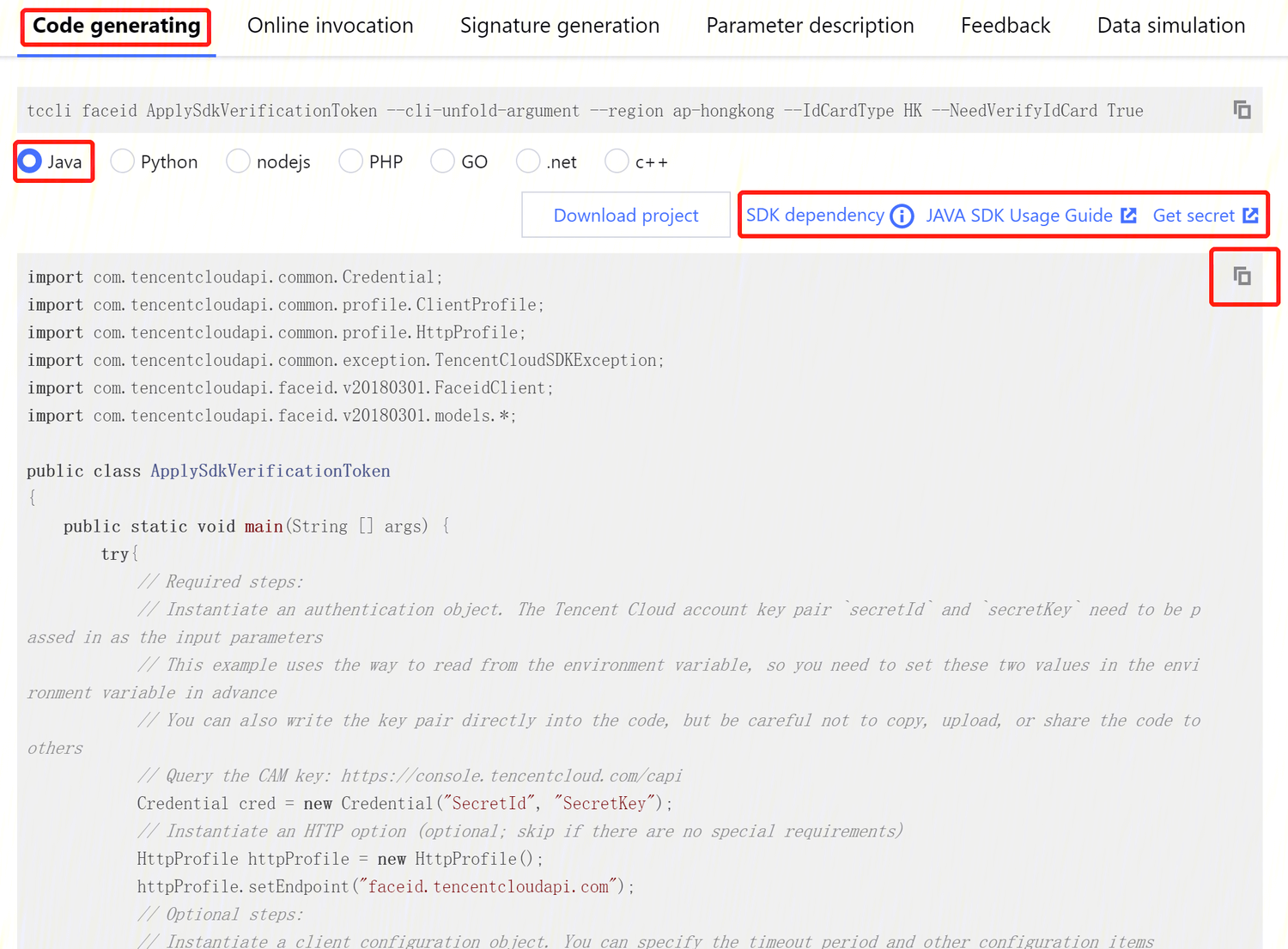
Select the corresponding backend language, generate the code, and integrate it into your project. Take Java as an example.
1. To integrate the code into your project, you need to import the SDK dependencies (see Java in the top right corner of the figure below), get key information, and enter the SecretId and SecretKey in the code for successful calling.
2. Part of the field information in the generated code is subject to the entered content. To adjust an input parameter, modify its value on the left and generate the code again.
Notes
To generate a SecretId and a SecretKey, visit https://console.tencentcloud.com/cam/capi.
To upload Base64-encoded images or videos for input parameters, remove the data:image/jpg;base64, prefix and the \\n line break.
If the following information is returned, manually configure the signature type: