StreamLive supports users in the pass-through of CC captions, meaning it can pass through captions from the input source directly to the output.
Points of Attention
Currently, the caption pass-through feature only supports SCTE-128 type caption sources.
Prerequisites for Use
You have activated the StreamLive service.
Configuring Caption Pass-Through
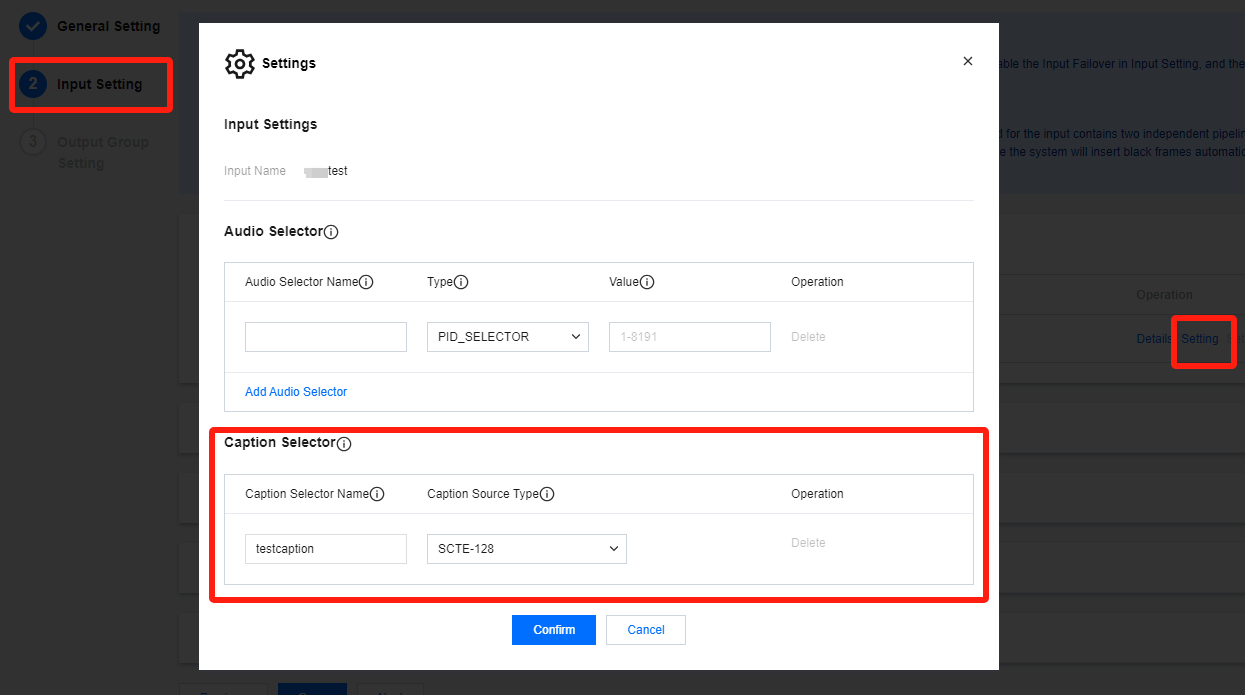
1. Log in to StreamLive Console and navigate toConfigure Inputs under channel configuration. For the input you want to configure, click Setting in the Operation column.
2. In Input Settings, you can find the Caption Selector section. Enter the necessary information to extract caption data from the input source.
Configuration Item
Description
Caption Selector Name
You can enter 1-32 characters including letters, numbers, and underscores.
After setting the caption selector here, you can then select the output caption in the output settings.
Caption Source Type
Currently, only SCTE-128 is supported. This allows the SCTE-128 information from the input source to be used as caption.
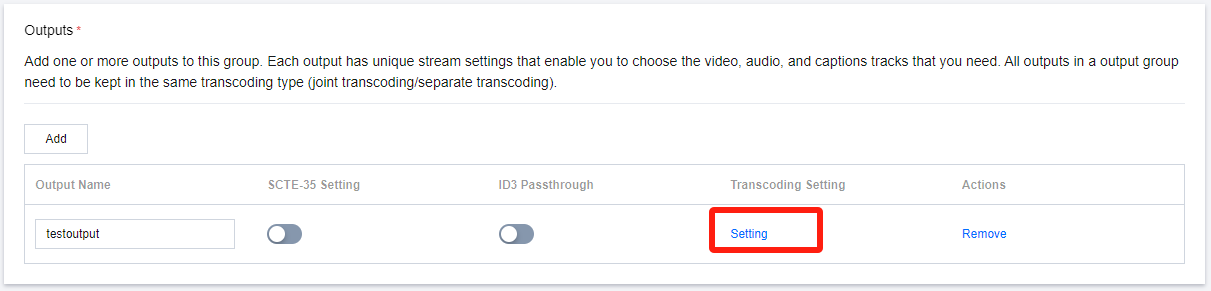
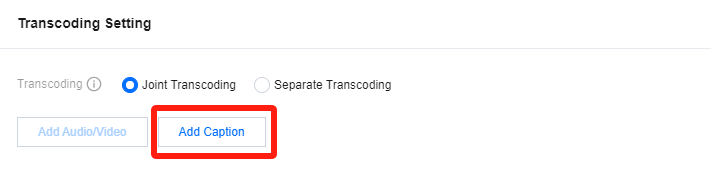
3. For the output you want to configure, click Setting, then Add Caption.
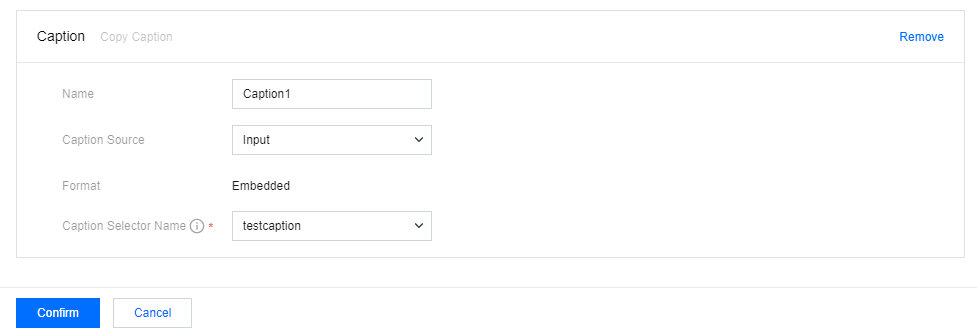
4. Configure the caption according to your needs.
Configuration Item
Description
Name
You can enter 1-20 characters including letters and numbers.
The detailed parameters of the caption configuration will be saved under this name. To reuse existing parameters, click Copy above.
Caption Source
To pass-through the caption from the input, please select Input as the caption source.
Format
If Input is selected as the caption source, the format currently only supports Embedded.
Caption Selector Name
Select the caption to be output from the pre-set caption selector.
5. Click Confirm to save your transcoding and caption configurations.