Watermark Management
Unduh
Mode fokus
Ukuran font
You can add a static image or text to the video outputs of StreamLive. A watermark image must be in PNG or JPG format.
Viewing watermarks
Select Asset > Watermark on the left sidebar. On this page, you can preview the watermarks maintained as well as view information such as image size and dimensions.

Adding a watermark
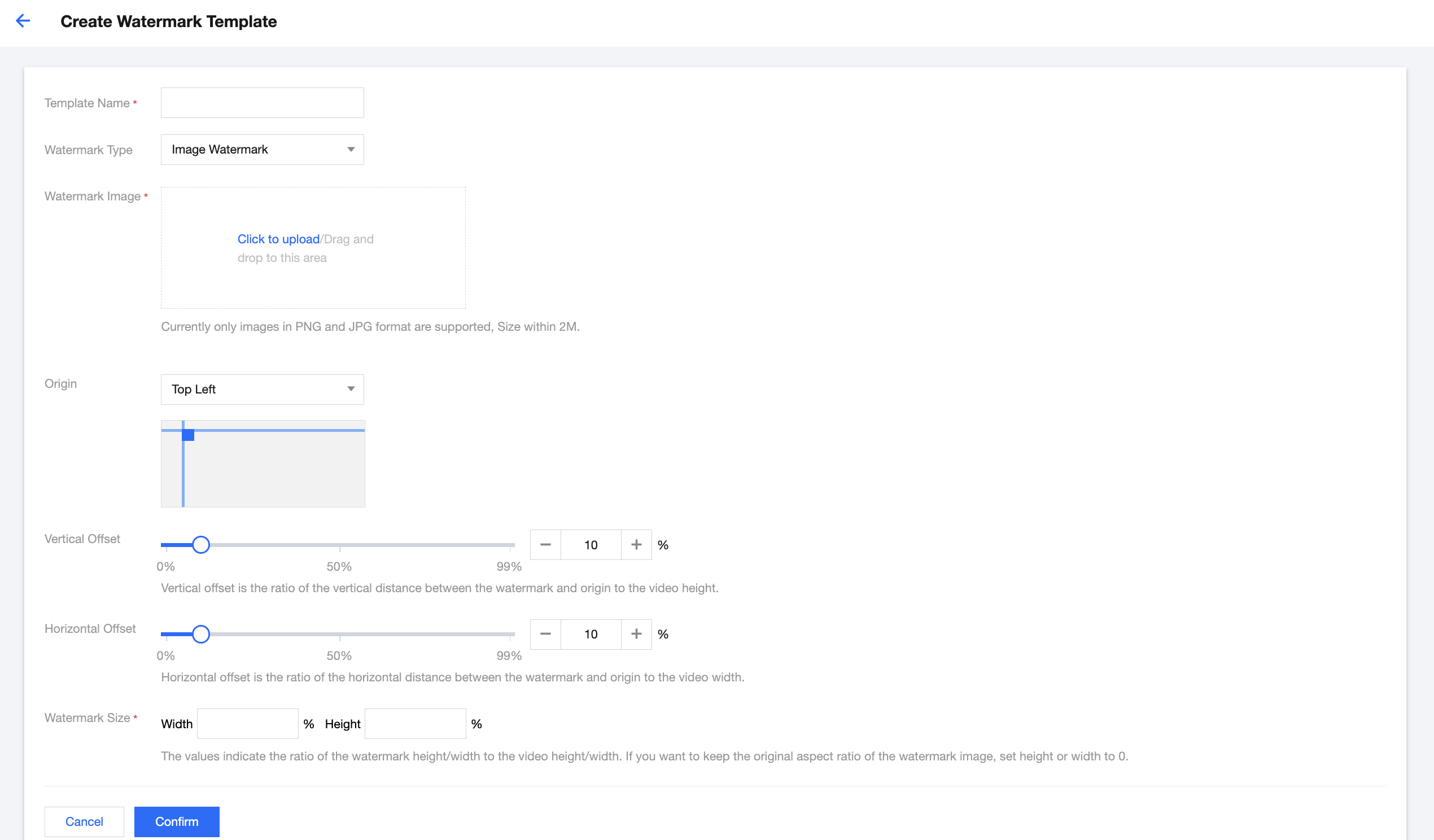
To add a watermark, on the Watermark Management page, click Create Template and complete the following settings:
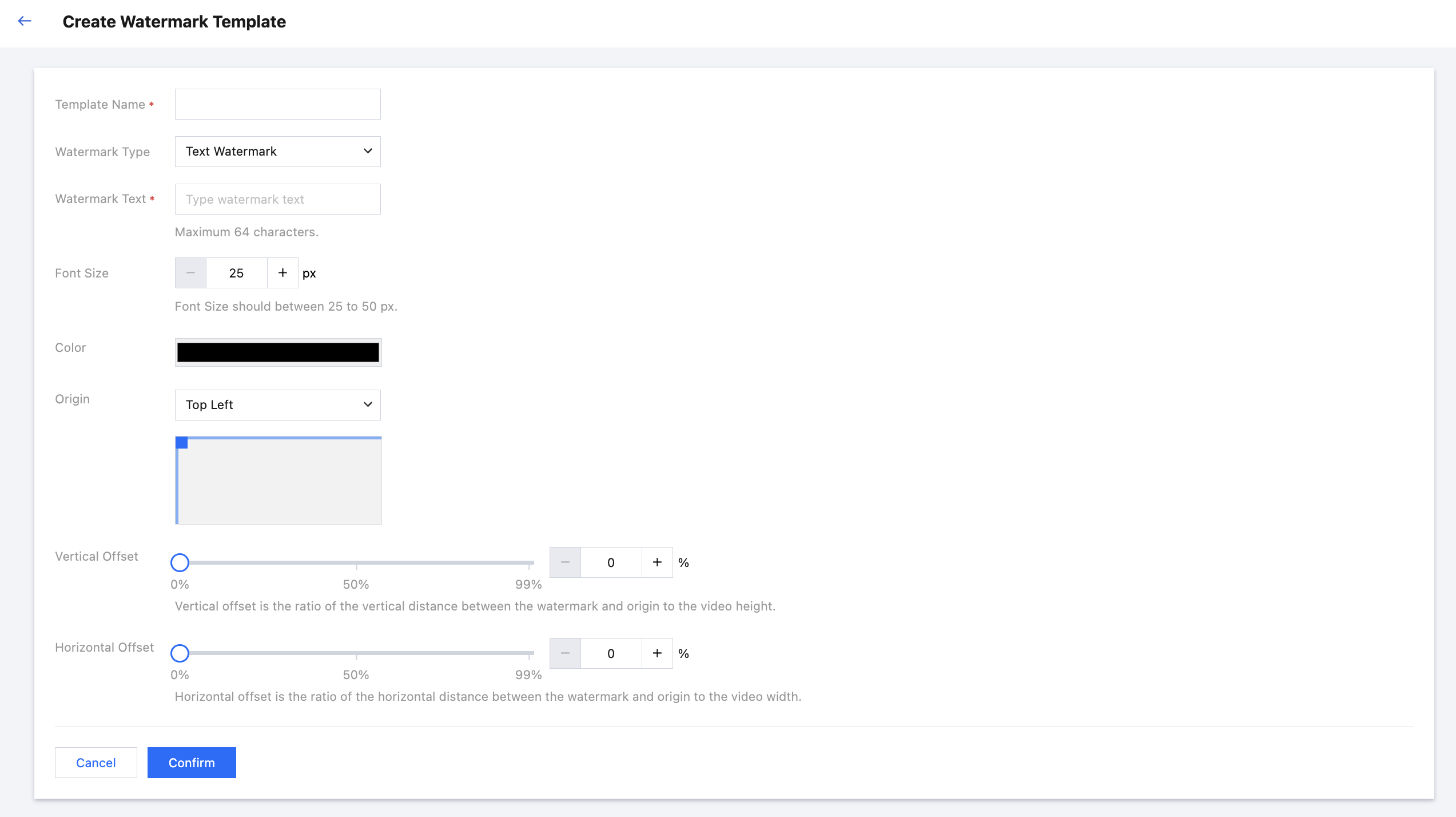
General settings:
Template Name:The template name can be up to 16 characters long and can contain numbers, letters, and underscores (_).
Watermark Type: Select Text Watermark or Image Watermark from the drop-down list.
Origin: Select from the drop-down list whether to use the Top Left, Bottom Left, Top Right, or Bottom Right corner as the origin.
Vertical Offset: The vertical offset of the watermark relative to the origin.
Horizontal Offset: The horizontal offset of the watermark relative to the origin.
Adding a text watermark
Watermark Text: The text to add to a video. This is required if you are adding a text watermark.
Font Size: The font size.
Color: The text color.

Click Confirm.
Adding an image watermark
Watermark Image: This is required if you are adding an image watermark. Click Click to upload or drag and drop the image file to upload.
Watermark Size: The width and height of the watermark as a percentage of the image’s original dimensions. If you leave them empty or set them to 0, the original image dimensions will be used.
Click Confirm.
Adding an A/B watermark
Querying a watermark
In the top right corner of the Watermark Management page, enter a watermark template name or watermark ID in the search box to search for a watermark.

Editing a watermark
On the Watermark Management page, find the target watermark and click Edit in the Operation column to edit the watermark.

Deleting a watermark
On the Watermark Management page, find the target watermark and click Delete in the Operation column to delete the watermark.

You cannot delete a watermark that has been bound to a channel. The Template Binding column shows the number of channels a watermark is bound to.

Binding a watermark to a channel
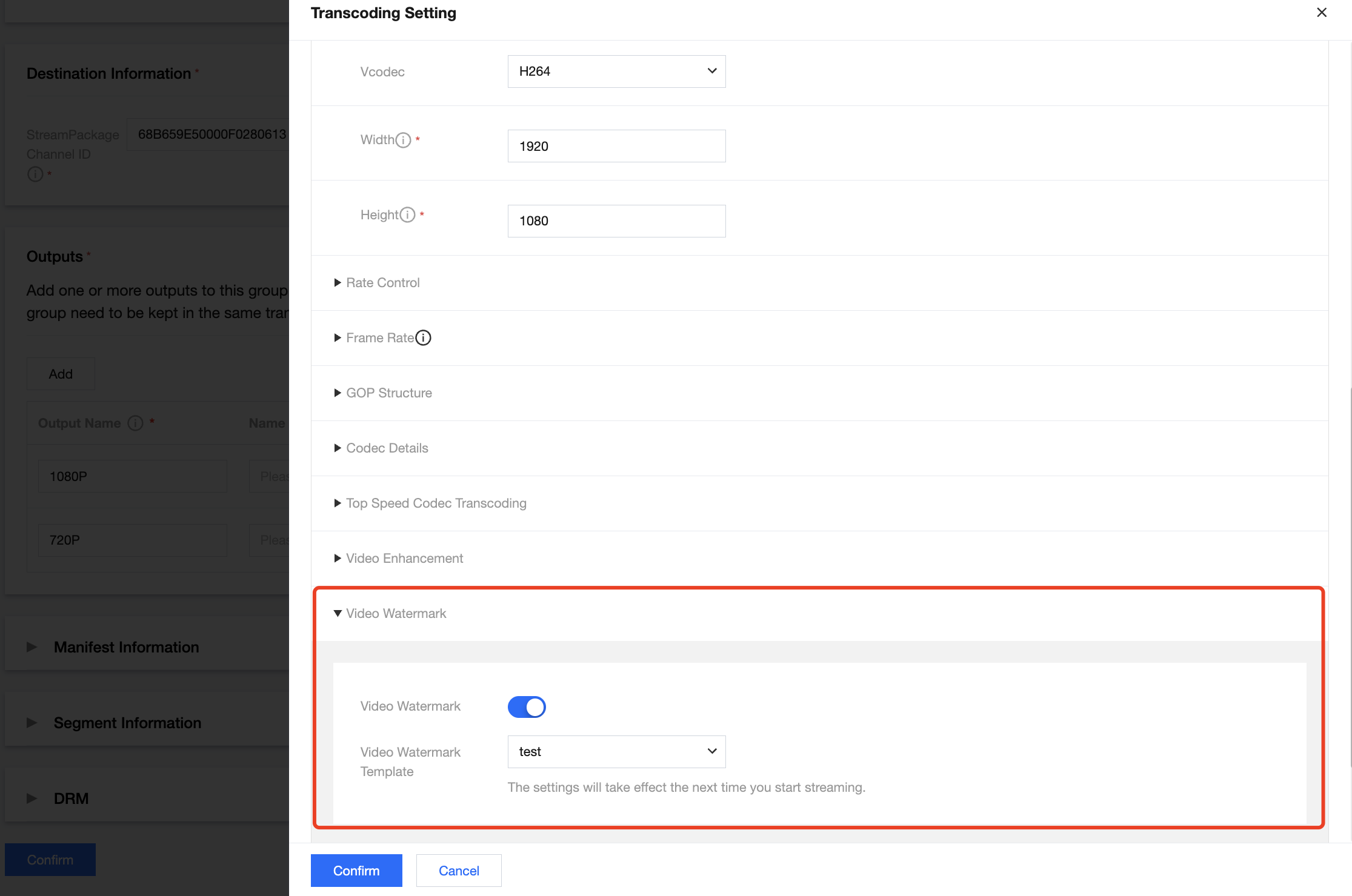
After creating a watermark template, you can bind it to a channel.
Find the target channel on the Channel Management page and click Edit. In Output Group Setting, toggle on Video Watermark and select the watermark template created from the drop-down list of Video Watermark Template.
Note:
Configuration changes do not take effect until the next live streaming.
Bantuan dan Dukungan
Apakah halaman ini membantu?
Anda juga dapat Menghubungi Penjualan atau Mengirimkan Tiket untuk meminta bantuan.
masukan