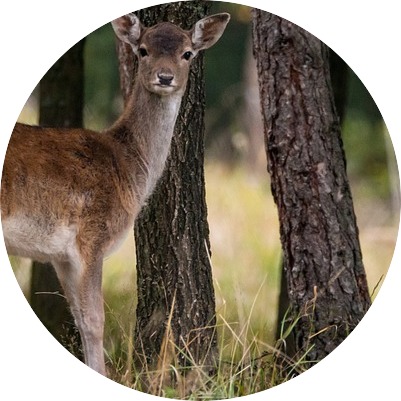
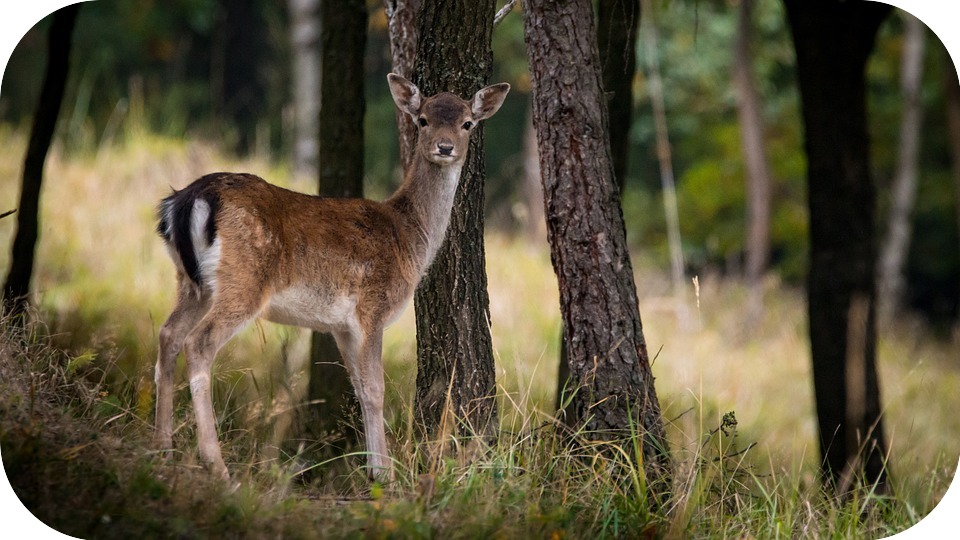
CI uses the imageMogr2 API to crop images, including regular cropping, scaling and cropping, cropping to circle, rounded corner cropping, and smart face cropping.
An image can be processed:
During download
During upload
In the cloud
Restrictions
Format: Currently, JPG, BMP, GIF, PNG, and WebP images can be processed, and HEIF images can be decoded and processed.
Size: The input image cannot be larger than 32 MB, with its width and height not exceeding 50,000 pixels respectively, and the total number of pixels not exceeding 250 million. The width and height of the output image cannot exceed 50,000 pixels respectively. For an animated input image, the total number of pixels (width * height * number of frames) cannot exceed 250 million.
Frames (for animated images): For GIF images, the number of frames cannot exceed 300.
API Sample
1. Processing during download
GET /<ObjectKey>?imageMogr2/cut/<width>x<height>x<dx>x<dy>
Authorization: Auth String (for more information, see Request Signature).
When this feature is used by a sub-account, relevant permissions must be granted. For more information, see Authorization Granularity Details.
Parameters
Parameter
Description
ObjectKey
Object name, such as folder/sample.jpg.
/ignore-error/1
If this parameter is carried and the image fails to be processed because the image is too large or a parameter value exceeds the limit, the input image will be returned with no error reported.
Parameters for regular cropping
Operation name: cut.
Parameter
Description
<width>
Width of the output image
<height>
Height of the output image
<dx>
Horizontal offset relative to the top-left vertex
<dy>
Vertical offset relative to the top-left vertex
Note:
The values should be greater than 0 and smaller than the width/height of the input image.
Parameters for scaling and cropping
Operation name: crop.
Parameter
Description
/crop/<Width>x
Width of the output image with the height unchanged. The value must be greater than 0 and smaller than the width of the input image.
/crop/x<Height>
Height of the output image with the width unchanged. The value must be greater than 0 and smaller than the height of the input image.
/crop/<Width>x<Height>
Width and height of the output image. The values of width and height should be greater than 0 and smaller than those of the input image, respectively.
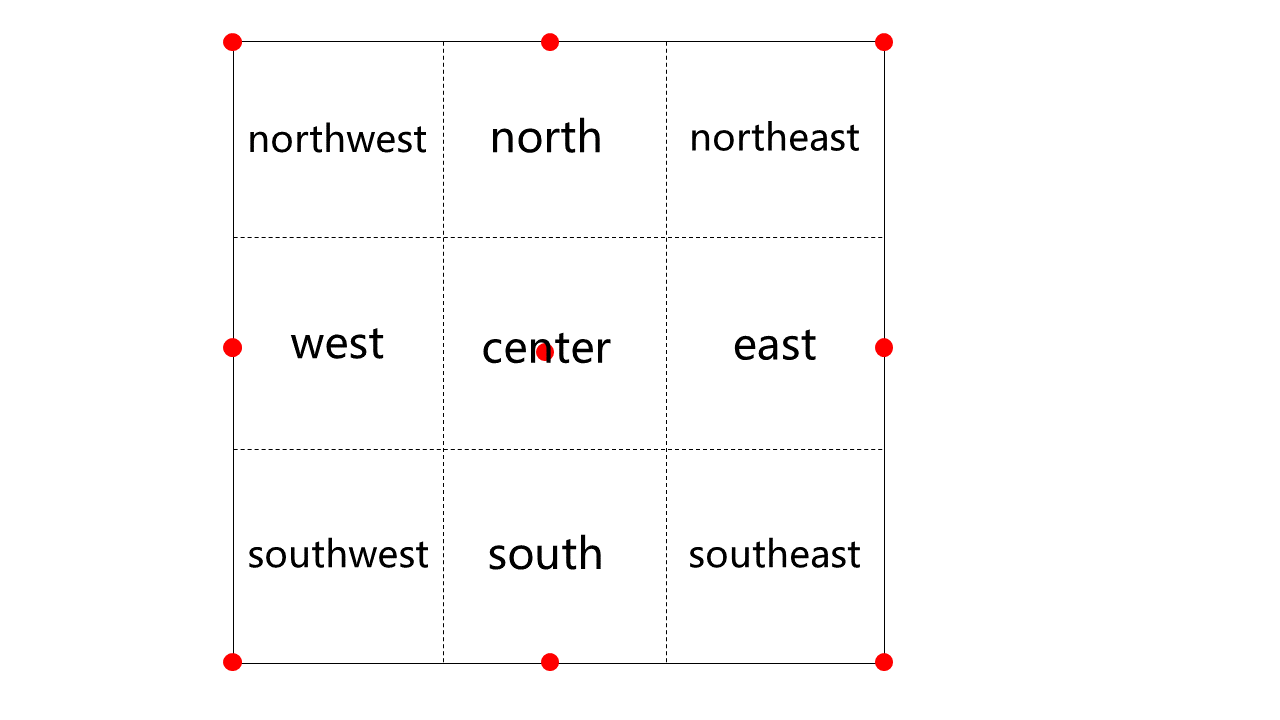
When performing scaling and cropping, you can also use the gravity parameter to specify the start position of the operation. For more information, see 3x3 Grid Position Diagram.
Parameters for cropping to circle
Operation name: iradius.
Parameter
Description
/iradius/<radius>
Crops to a circle. radius specifies the radius of the inscribed circle, which should be an integer greater than zero and less than half of the shorter side of the input image. The center of the inscribed circle is the center of the image. This operation is not supported for GIF images.
Parameters for rounded corner cropping
Operation name: rradius.
Parameter
Description
/rradius/<radius>
Crops with round corners. radius specifies the radius of the rounded corner of the image, which should be an integer greater than zero and less than half of the shorter side of the input image. The two sides of the image are the tangent lines of the rounded corner. This operation is not supported for GIF images.
Parameters for smart face cropping
Operation name: scrop.
Parameter
Description
/scrop/<Width>x<Height>
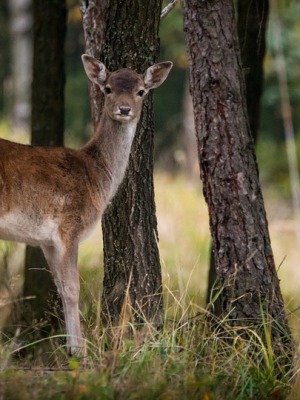
Scales and crops an image based on the face position in the image. The width and height of the target image are specified by Width and Height respectively.
3x3 Grid Position Diagram
The 3x3 grid position diagram is as follows. Once you specify the gravity parameter for an operation, the corresponding red dot becomes the reference point, and offsets will be relative to this point.
Note:
If gravity is set to center, dx and dy are invalid.
If gravity is set to north or south, dx is invalid.
If gravity is set to west or east, dy is invalid.
Samples
Note:
Processing during download is used as an example here, which does not store the output image in a bucket. If you need to store the output image, see Persistent Image Processing and use the processing during upload or processing in-cloud data feature.
Sample 1: Regular cropping
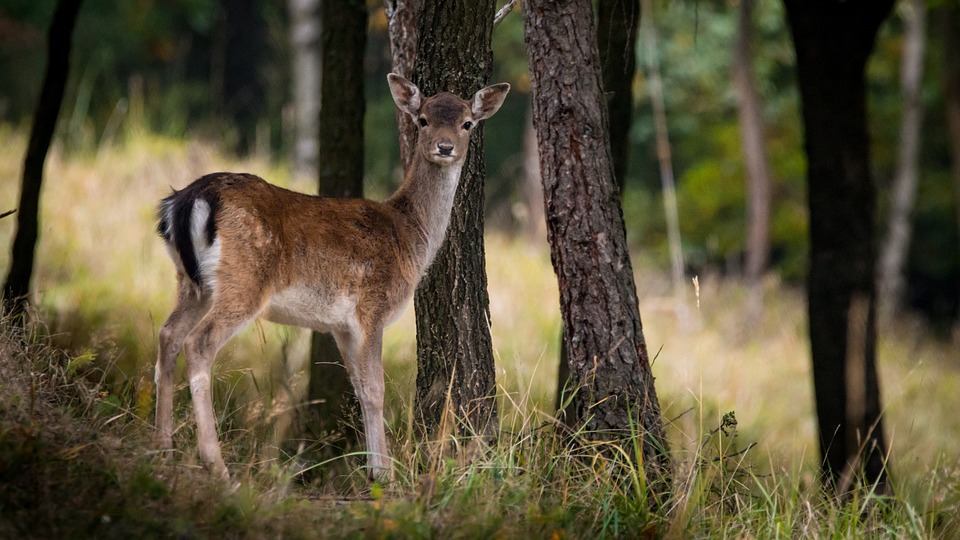
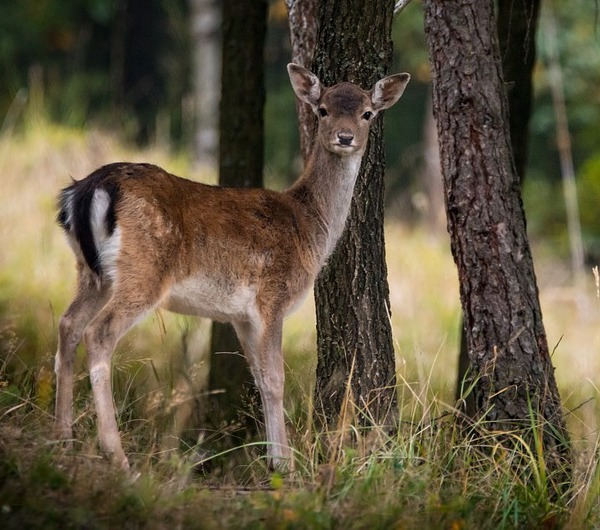
This example shows how to translate by 100 px horizontally to the right and 10 px vertically to the bottom relative to the top-left vertex of the input image and then crop it according to the specified target image resolution of 600x600 px.
If no face is recognized, the input image will be returned.
Sample 6: Smart face cropping with a signature carried
This example processes the image in the same way as in the example above, except that a signature is carried. The signature is concatenated with other processing parameters by an ampersand (&).
You can get the value of <signature> as instructed in Request Signature.
Notes
To prevent unauthorized users from accessing or downloading the input image by using a URL that does not contain any processing parameter, you can add the processing parameters to the request signature, making the processing parameters the key of the parameter with the value left empty. The following is a simple sample for your reference (it might have expired or become inaccessible). For more information, see Upload via Pre-Signed URL.